

You finish a polished property tour, product demonstration, or talking-head lesson, upload it to YouTube, and discover that the video looks perfect in your editor but strangely boxed in on desktop. Then you crop the same footage for a phone, only to find that the speaker's face is cut off and the headline disappears. The problem usually isn't your camera or your editing software. It's the YouTube video aspect ratio.
Aspect ratio controls the shape of the frame, where the subject sits, and whether text survives when you publish to different surfaces. This guide explains the ratios YouTube creators use, the technical baseline behind each one, and a practical workflow for turning one well-shot recording into long-form video, Shorts, square cutdowns, and usable thumbnails.
Aspect ratio controls the shape of the frame, where the subject sits, and whether text survives when you publish to different surfaces. This guide explains the ratios YouTube creators use, the technical baseline behind each one, and a practical workflow for turning one well-shot recording into long-form video, Shorts, square cutdowns, and usable thumbnails.
Summary
Create an AI Video Tours from PhotosTry it For Free
Why YouTube Aspect Ratios Shape Every View
A room walkthrough can look polished in your editor, then lose its impact after a vertical crop removes the kitchen island or presenter. A product demonstration can suffer the same problem when a logo near the edge disappears in a 9:16 version. Viewers do not see your export settings. They see the final frame, including its bars, cropped text, and subject placement.
Aspect ratio affects more than the outer frame:
Mixed-format creators can shoot one master recording and still deliver long-form video in 16:9, Shorts in 9:16, and square cutdowns. The recording must leave room for those decisions. Keep faces, products, logos, and key text away from the edges, and check a proposed crop before filming whenever possible.
The master and the delivered edits are separate choices. One automatic crop rarely serves every surface well. Some footage can adapt with a controlled reframing, while a two-person wide shot may need a format-specific edit. Reviewing each version protects the subject, preserves readable text, and prevents a technically valid upload from looking accidental.
The shape is part of the first impression
YouTube's desktop player uses 16:9 as its standard shape, while the platform adapts its player for vertical and square uploads, as described in YouTube's official video formatting guidance. A video may play correctly and still feel poorly prepared for the screen displaying it.Aspect ratio affects more than the outer frame:
- On-screen text: A headline placed safely in a wide composition may fall outside a vertical crop.
- Branding: Logos and watermarks need clear space in each planned version.
- Subject framing: Two people can fit comfortably in a wide shot, while a phone-first edit may need separate close-ups.
- Visual context: A property exterior benefits from horizontal space, while one presenter often fits a vertical frame more naturally.
Mixed-format creators can shoot one master recording and still deliver long-form video in 16:9, Shorts in 9:16, and square cutdowns. The recording must leave room for those decisions. Keep faces, products, logos, and key text away from the edges, and check a proposed crop before filming whenever possible.
The master and the delivered edits are separate choices. One automatic crop rarely serves every surface well. Some footage can adapt with a controlled reframing, while a two-person wide shot may need a format-specific edit. Reviewing each version protects the subject, preserves readable text, and prevents a technically valid upload from looking accidental.
Understanding What an Aspect Ratio Really Is
Aspect ratio describes the relationship between a frame's width and height. Think of a picture frame hanging on a wall. The aspect ratio tells you whether that frame is wide, tall, or square. Resolution tells you how much visual detail you place inside it.
A 16:9 frame and a higher-resolution 16:9 frame have the same shape. The larger version contains more pixels and can preserve more detail, but it doesn't become a different format. This distinction prevents a common mistake: treating “higher resolution” as a solution for a badly chosen crop.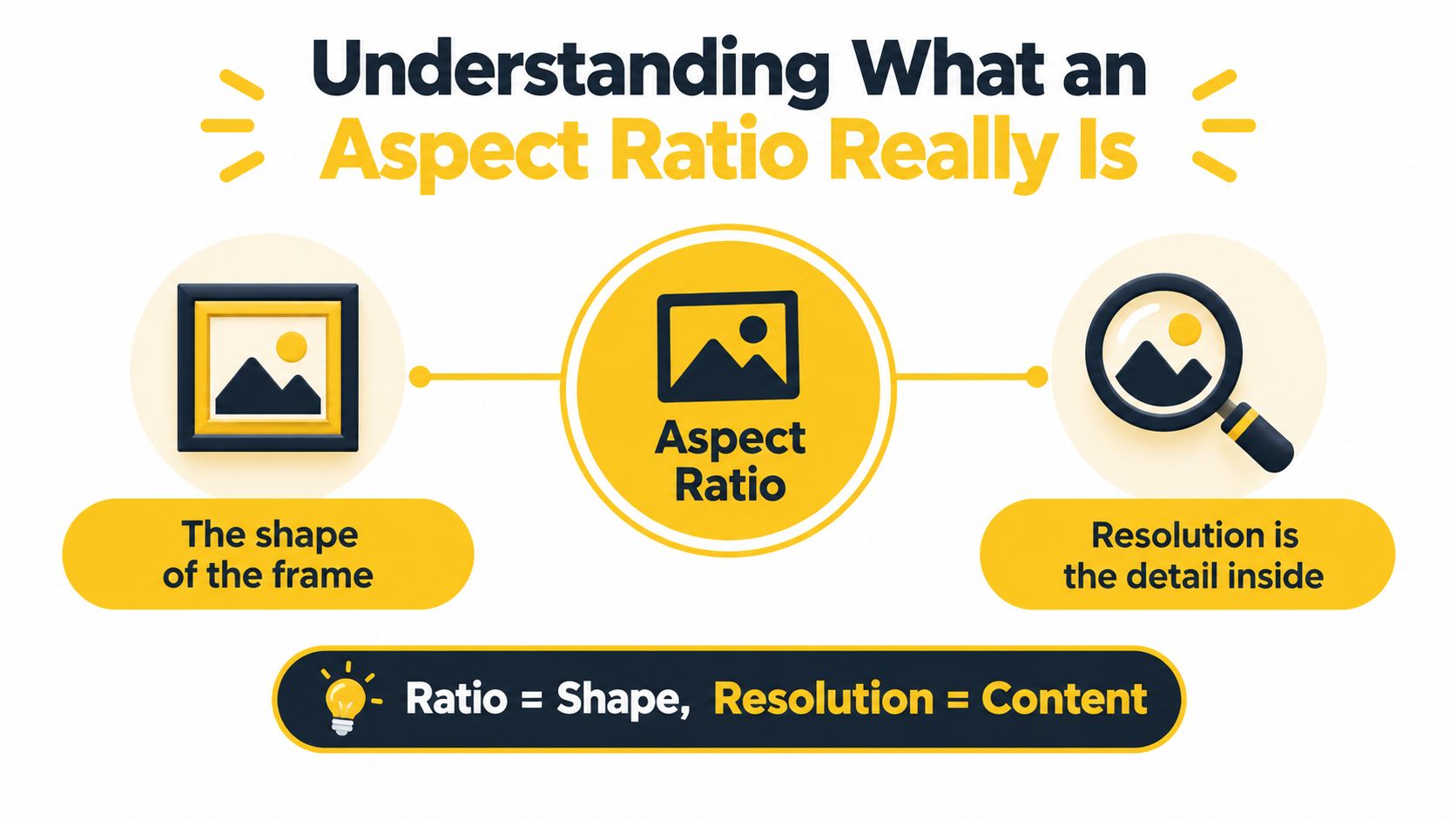
Creators usually encounter these shapes:
For example, a horizontal shot can become vertical by selecting a narrow section from the center. If the important action happens near the left or right edge, the editor must either move the crop, animate it, or redesign the shot. Increasing the export resolution won't bring back a subject that was removed during cropping.
A 16:9 frame and a higher-resolution 16:9 frame have the same shape. The larger version contains more pixels and can preserve more detail, but it doesn't become a different format. This distinction prevents a common mistake: treating “higher resolution” as a solution for a badly chosen crop.
Read the ratio from the dimensions
The first number represents width and the second represents height. A frame that measures 1920 × 1080 has the same proportional shape as 16:9 because both dimensions reduce to that relationship. You can find a broader explanation of the formats in this guide to common video aspect ratios.Creators usually encounter these shapes:
- 16:9: The horizontal standard for long-form YouTube videos, tutorials, interviews, property tours, and product demonstrations.
- 9:16: The vertical shape used for Shorts and mobile-first clips. It gives the viewer a tall frame that prioritizes a person, object, or narrow scene.
- 1:1: A square format that can travel comfortably across social feeds, though it leaves unused horizontal space in a widescreen player.
- 4:3: An older, boxier television and webcam shape. It remains useful for archival footage or a deliberate retro appearance.
- 21:9: An ultrawide cinematic shape. It creates a broad composition but won't fill a standard player without additional handling.
Ratio is not a crop preset
A crop changes which part of the original picture remains visible. Aspect ratio describes the destination frame, while cropping is the editing decision used to fill that frame.For example, a horizontal shot can become vertical by selecting a narrow section from the center. If the important action happens near the left or right edge, the editor must either move the crop, animate it, or redesign the shot. Increasing the export resolution won't bring back a subject that was removed during cropping.
Remember: Ratio equals shape. Resolution equals the detail inside that shape.
The 16 - 9 Standard for Long-Form YouTube Uploads
A talking-head tutorial may begin as one wide camera master, then become a long-form upload, a vertical Short, and a square social cutdown. 16:9 is the dependable master format for standard YouTube videos because it gives the editor the broadest starting frame. YouTube's guidance describes 16:9 as the default ratio for the computer player and recommends at least 1280 × 720 for 16:9 uploads. The official YouTube specification also lists at least 640 × 480 for 4:3 video and identifies 1.77:1 as the technical equivalent of 16:9.
Build the primary edit in 16:9 for tutorials, interviews, property tours, and product demonstrations. Leave breathing room around faces, hands, products, and captions. That space works like extra material at the edge of a piece of fabric. An editor can trim it for a narrower frame, but cannot restore a subject or word that was already cut away.
For content intended for sale or rental, YouTube's guidance specifies a minimum of 1920 × 1080 in 16:9. That requirement makes widescreen more than a casual preference for premium delivery.
Cropping a 16:9 master into 9:16 removes the sides. A centered speaker may survive the change, while a two-person interview, edge-positioned product, or caption near the margin may not. A square crop removes less width than a vertical crop, but it still needs a safe area for text and movement.
Export the frame you want viewers to see, and review each version at its target shape. Keep captions away from the extreme edges, then check the 16:9 master, 9:16 Short, and square cutdown separately. A higher export resolution cannot recover details removed during reframing.
Build the primary edit in 16:9 for tutorials, interviews, property tours, and product demonstrations. Leave breathing room around faces, hands, products, and captions. That space works like extra material at the edge of a piece of fabric. An editor can trim it for a narrower frame, but cannot restore a subject or word that was already cut away.
The core formats at a glance
| Aspect Ratio | Typical Use | Recommended Resolution |
|---|---|---|
| 16:9 | Standard long-form YouTube video | At least 1280 × 720 |
| 4:3 | Legacy, archival, or deliberately boxy footage | At least 640 × 480 |
| 9:16 | Vertical Shorts and mobile-first edits | Choose a vertical export suited to the target surface |
| 1:1 | Square social cutdowns | Choose a square export suited to the target surface |
| 21:9 | Ultrawide cinematic presentation | Choose an ultrawide export suited to the target surface |
What happens when the shape does not match
The player adapts to vertical, square, and boxy uploads, so creators do not need to add black bars manually. Unused space may still appear around the image. A vertical clip inside a wide player commonly shows bars on the left and right, known as pillarboxing.Cropping a 16:9 master into 9:16 removes the sides. A centered speaker may survive the change, while a two-person interview, edge-positioned product, or caption near the margin may not. A square crop removes less width than a vertical crop, but it still needs a safe area for text and movement.
Export the frame you want viewers to see, and review each version at its target shape. Keep captions away from the extreme edges, then check the 16:9 master, 9:16 Short, and square cutdown separately. A higher export resolution cannot recover details removed during reframing.
How YouTube Moved From 4 - 3 to Widescreen
YouTube launched in 2005 with a 4:3 player, a shape that matched the televisions, webcams, and consumer video equipment common at the time. A creator uploading an early webcam clip could fill the player naturally because the source and the platform shared the same proportions.
The platform switched to a 16:9 widescreen player in late 2008 as HD uploads became more common, according to this history of YouTube's move to widescreen video. The change made modern widescreen footage fit the player naturally, but it also exposed a visible difference in older uploads.
Stretching the image would fill the player, but faces and objects would look unnaturally wide. Cropping the image would remove part of the original composition. Pillarboxing is therefore the least destructive option for archival material because it preserves the complete frame.
That history still affects current decisions. A legacy interview may be worth keeping in 4:3 because changing its shape would alter the record. A new property tour, however, usually benefits from a 16:9 composition that gives rooms, outdoor settings, and group scenes enough horizontal space.
The platform switched to a 16:9 widescreen player in late 2008 as HD uploads became more common, according to this history of YouTube's move to widescreen video. The change made modern widescreen footage fit the player naturally, but it also exposed a visible difference in older uploads.
Why older footage has side bars
A 4:3 image is taller and narrower than a 16:9 frame. If YouTube displays the full 4:3 picture without stretching it, empty areas appear on the left and right. Those vertical bars are pillarboxing.Stretching the image would fill the player, but faces and objects would look unnaturally wide. Cropping the image would remove part of the original composition. Pillarboxing is therefore the least destructive option for archival material because it preserves the complete frame.
The history explains today's workflow
The move to 16:9 also followed the wider shift toward high-definition production. The format emerged in the 1990s as a compromise between the boxier 4:3 television shape and much wider cinema formats. It aligned with 1920 × 1080 Full HD and later 3840 × 2160 4K workflows, which helped establish widescreen as the normal shape for standard digital video.That history still affects current decisions. A legacy interview may be worth keeping in 4:3 because changing its shape would alter the record. A new property tour, however, usually benefits from a 16:9 composition that gives rooms, outdoor settings, and group scenes enough horizontal space.
Shorts, Square, and Vertical Formats Explained
A vertical video isn't a failed horizontal video. It solves a different framing problem. The tall canvas gives a presenter more height, makes a single product easier to feature, and lets a viewer see a phone-first composition without rotating the device.
YouTube's help center frames desktop video around 16:9, while Shorts use 9:16 and can run for up to 3 minutes. YouTube also automatically adapts its player for vertical and square uploads, as documented in the previously cited official guidance.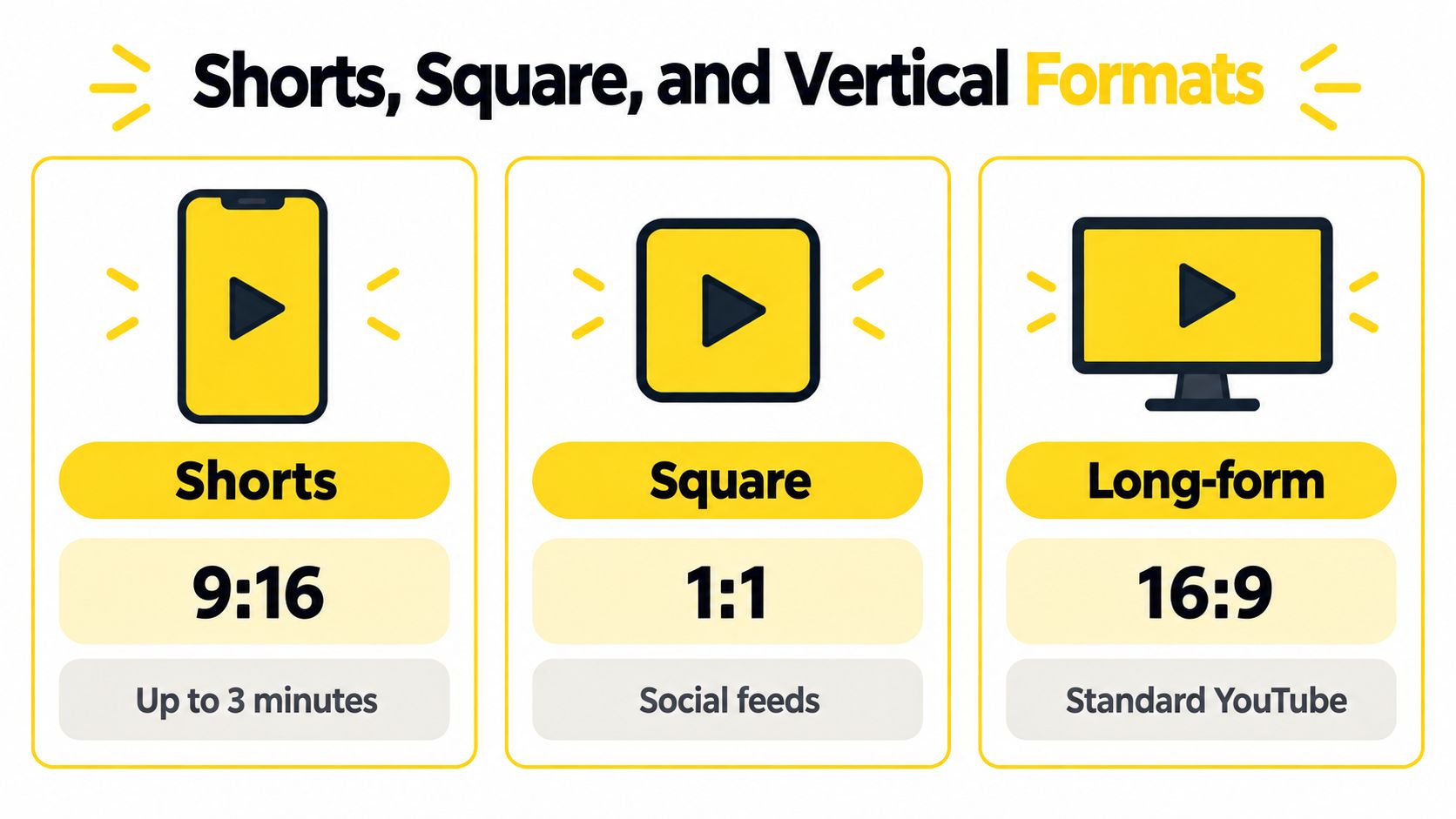
A room walkthrough usually gives you more to consider. A vertical cut can spotlight a doorway, fireplace, or presenter, but it can't show as much width as the original horizontal shot. If the room's selling point is its overall layout, 16:9 may communicate it more clearly, while a vertical cut can promote one feature.
Square 1:1 sits between the two. It can be useful for cross-posted social content, product cards, and compact previews where neither a very wide nor very tall composition is ideal. On a desktop YouTube player, however, square footage may appear with space on the sides because the player is built around widescreen playback.
If you need to save a Short for editing, review, or internal reuse, a clearly labeled YouTube Short to MP4 tool can be useful in a production workflow. For creators planning a broader social campaign, the same vertical edit can also support creating a Reel for Instagram, provided you review captions and platform-safe areas before publishing.
YouTube's help center frames desktop video around 16:9, while Shorts use 9:16 and can run for up to 3 minutes. YouTube also automatically adapts its player for vertical and square uploads, as documented in the previously cited official guidance.
Choose the frame for the subject
A talking-head clip often works well in 9:16 when the face and shoulders are the main story. Leave room above the head and below the captions, because interface elements and subtitles can compete for space.A room walkthrough usually gives you more to consider. A vertical cut can spotlight a doorway, fireplace, or presenter, but it can't show as much width as the original horizontal shot. If the room's selling point is its overall layout, 16:9 may communicate it more clearly, while a vertical cut can promote one feature.
Square 1:1 sits between the two. It can be useful for cross-posted social content, product cards, and compact previews where neither a very wide nor very tall composition is ideal. On a desktop YouTube player, however, square footage may appear with space on the sides because the player is built around widescreen playback.
Compare the trade-offs
| Format | Strength | Common compromise |
|---|---|---|
| 9:16 vertical | Strong focus on one person, object, or narrow scene | A wide scene needs aggressive cropping |
| 1:1 square | Flexible for cross-posting and compact feed placements | It doesn't use a widescreen player as efficiently |
| 4:3 | Preserves archival footage and creates a deliberately classic look | It can appear pillarboxed in a modern player |
| 16:9 landscape | Shows broad environments, conversations, and demonstrations naturally | It needs reframing for a full-screen vertical Short |
Reformatting One Video for Every Surface
The safest mixed-format workflow starts before you press record. You need a master that contains enough visual information to support the destination crops, and you need to keep important elements away from the edges that may disappear.
A wide camera angle can still support a vertical version if the subject stays reasonably central. That doesn't mean every shot should be rigidly centered. It means the person, product, sign, or key room feature shouldn't depend on extreme side space unless you plan to create a separate edit.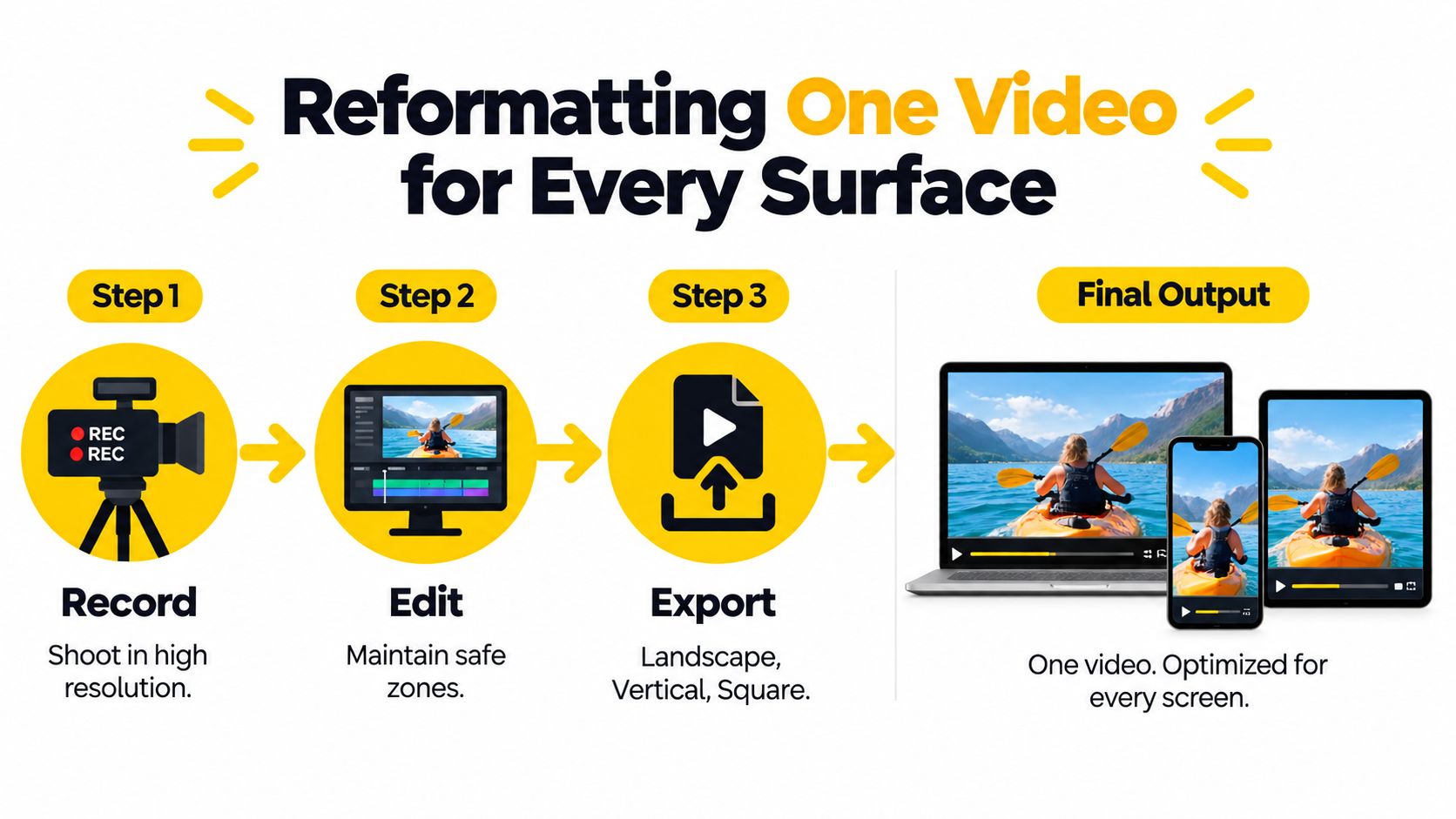
For a property tour, record a clean horizontal establishing shot, then capture detail shots that can stand alone in a vertical edit. For a product demonstration, keep the product near the middle and avoid placing instructions where a narrow crop could remove them.
Square cutdowns deserve their own review too. A square frame may preserve more horizontal context than vertical video, but it can still remove edge text, secondary speakers, or a room's wider layout. Captions should be resized and repositioned for each canvas rather than carried over as-is from the horizontal edit.
If you need to convert an existing asset between formats, a video aspect ratio converter can help with the mechanical part of the process. It won't decide whether a crop has removed the subject's hand, a property label, or a product instruction, so always inspect the result manually.
A single master is efficient when the subject stays within safe areas and the edit uses flexible graphics. Separate masters are safer when the action moves across a wide scene, when text carries the message, or when each format needs different pacing and captions. The right choice isn't “one file for everything.” It's one planned recording followed by deliberate exports.
A wide camera angle can still support a vertical version if the subject stays reasonably central. That doesn't mean every shot should be rigidly centered. It means the person, product, sign, or key room feature shouldn't depend on extreme side space unless you plan to create a separate edit.
Record with the crop in mind
Start with the highest-quality practical master available to your production setup. During composition, keep faces, products, logos, and important text inside a flexible central area rather than placing every essential detail at the far left or right.For a property tour, record a clean horizontal establishing shot, then capture detail shots that can stand alone in a vertical edit. For a product demonstration, keep the product near the middle and avoid placing instructions where a narrow crop could remove them.
Safe-zone advice: If an element must be read or recognized in every version, compose as though the frame will become narrower.
Edit separate versions, not one blind auto-crop
Create the 16:9 long-form master first when the main destination is standard YouTube. Then duplicate the sequence for a 9:16 Short and reposition the crop shot by shot. A talking head may need a centered crop, while a product reveal may need the crop to travel from the presenter to the object.Square cutdowns deserve their own review too. A square frame may preserve more horizontal context than vertical video, but it can still remove edge text, secondary speakers, or a room's wider layout. Captions should be resized and repositioned for each canvas rather than carried over as-is from the horizontal edit.
If you need to convert an existing asset between formats, a video aspect ratio converter can help with the mechanical part of the process. It won't decide whether a crop has removed the subject's hand, a property label, or a product instruction, so always inspect the result manually.
Know what automatic adaptation can't solve
YouTube may pillarbox 4:3, 1:1, and 9:16 inputs, while an ultrawide 21:9 video may be letterboxed, according to this overview of YouTube video sizing and playback behavior. Those treatments preserve the picture, but they don't replace a format-specific composition.A single master is efficient when the subject stays within safe areas and the edit uses flexible graphics. Separate masters are safer when the action moves across a wide scene, when text carries the message, or when each format needs different pacing and captions. The right choice isn't “one file for everything.” It's one planned recording followed by deliberate exports.
Pre-Upload Checklist and Key Takeaways
Run this check before you publish or send a file to a client. It catches most aspect-ratio problems while they are still cheap to fix.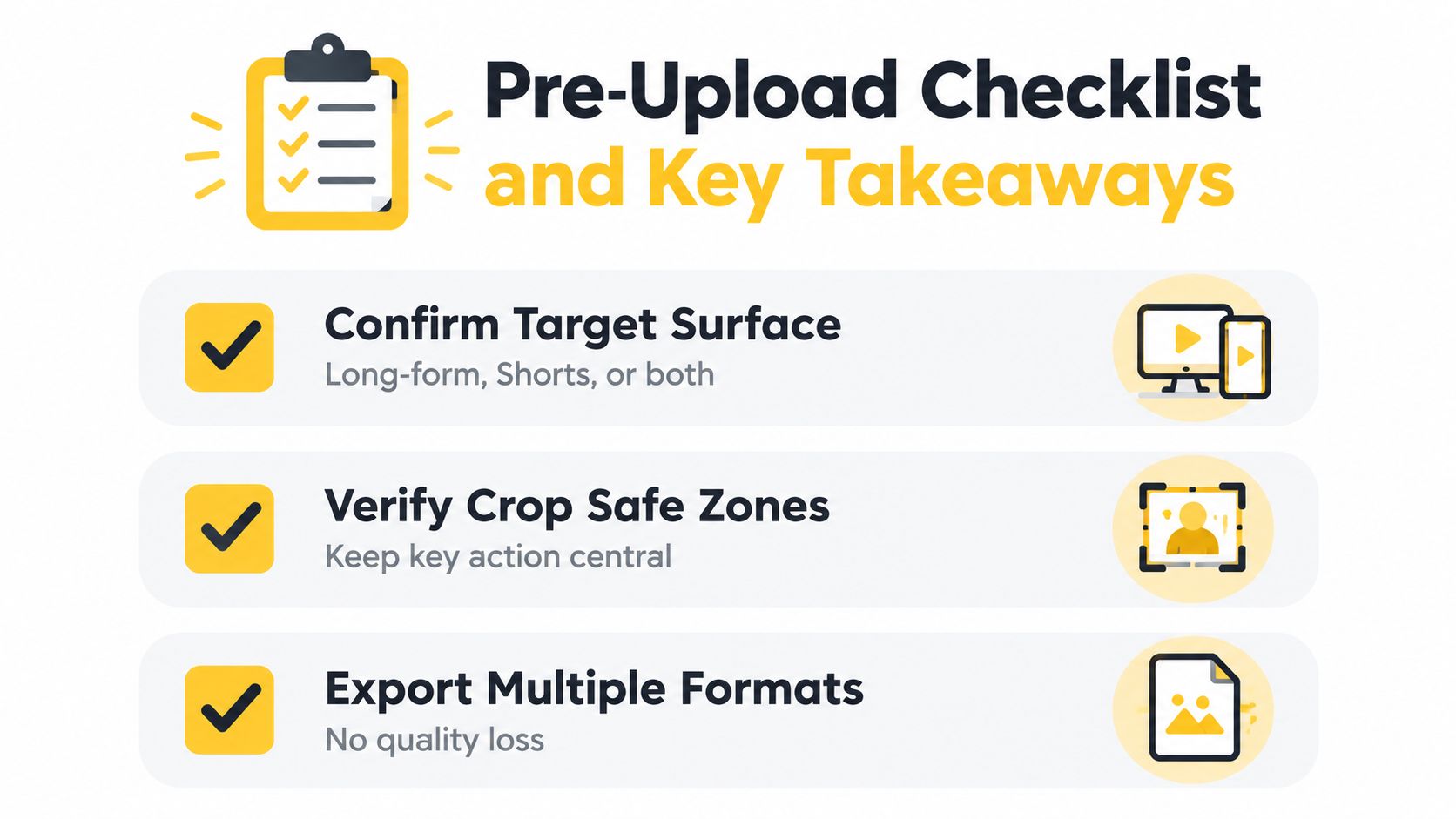
VideoTour.ai turns photo sets into branded video tours with motion, captions, music, and selectable horizontal 16:9, vertical 9:16, or square 1:1 layouts. If you need consistent property content across YouTube, Shorts, and social feeds, visit VideoTour.ai to create and re-render the formats from one project.
- Confirm the target surface. Decide whether the file is for long-form YouTube, Shorts, a square feed placement, or several destinations. That decision determines the frame you should preview first.
- Verify the crop safe zones. Watch the vertical and square versions from beginning to end. Check faces, logos, captions, product details, and property features, not just the opening shot.
- Export the planned formats separately. Use the 16:9 master for standard long-form work, a deliberate 9:16 reframe for Shorts, and a reviewed 1:1 version when square delivery makes sense.
- Preview the player experience. A vertical or square upload may display with surrounding space in a widescreen environment. Confirm that the result still looks intentional rather than accidentally boxed in.
- Check text at normal viewing size. Captions that look comfortable in an editing interface can become cramped after a crop. Shorten, resize, or reposition them when needed.
VideoTour.ai turns photo sets into branded video tours with motion, captions, music, and selectable horizontal 16:9, vertical 9:16, or square 1:1 layouts. If you need consistent property content across YouTube, Shorts, and social feeds, visit VideoTour.ai to create and re-render the formats from one project.