
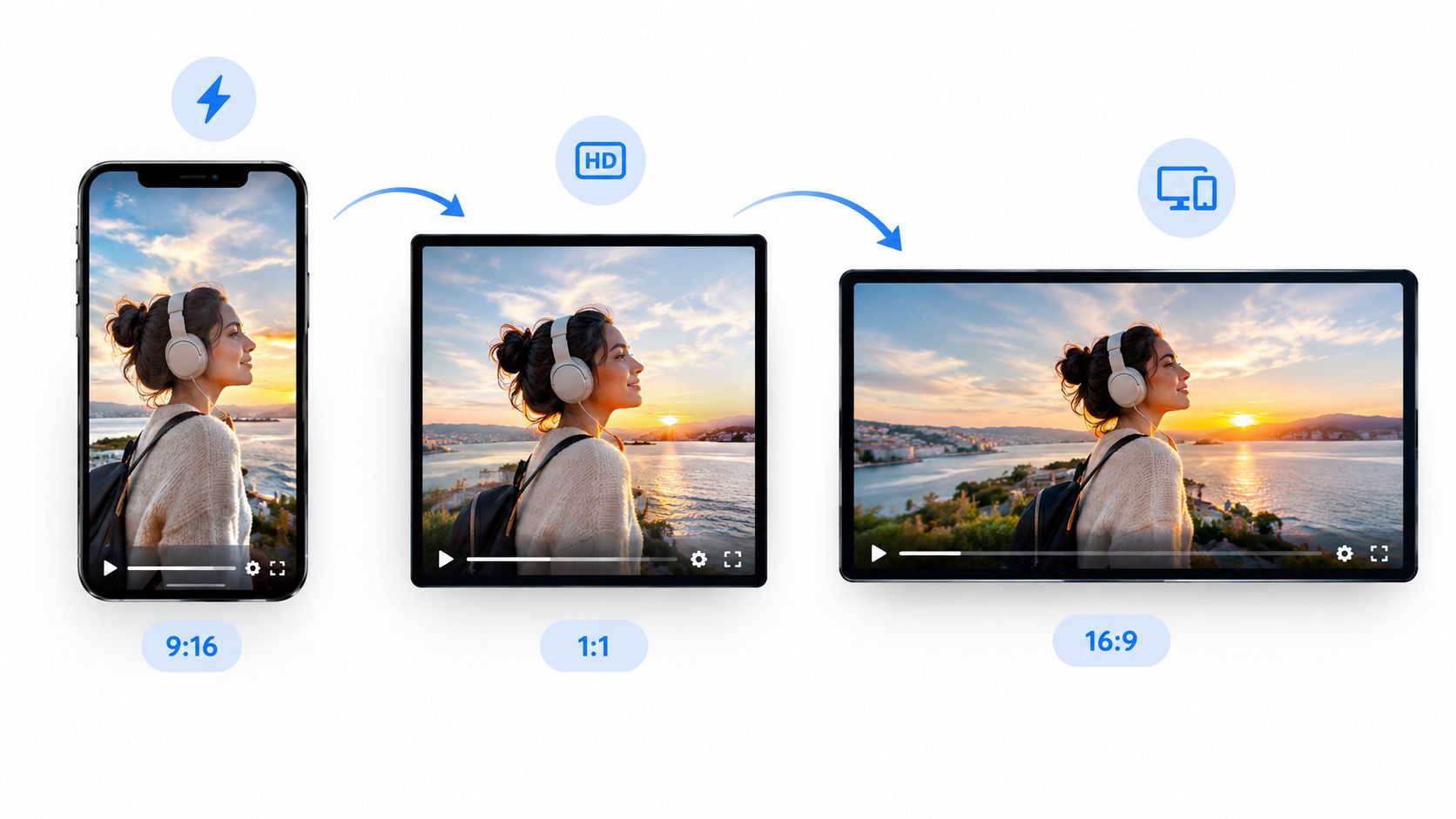
One property video rarely stays in one shape. A listing team may start with a horizontal walkthrough, then need a vertical Reel, a square social post, a feed-friendly portrait version, and a horizontal embed for a website or MLS-style delivery. A photo set creates the same challenge, because the source may need to become several polished outputs rather than one resized file.
A video aspect ratio converter does far more than change width and height. It must decide whether to crop, add padding, blur the background, or risk stretching the image. It also affects perceived quality, export format, processing speed, audio, branding, and whether the result suits the destination platform. The history of video formats explains why this problem exists: early cinema and television used 4:3, widescreen cinema settled around 1.85:1, and HDTV later standardized on 16:9 as a compromise between older television and wider cinema formats, as documented by Widescreen Museum's aspect-ratio history.
This comparison groups the tools by real production need. You'll find AI photo-to-video creation, fast browser resizing, offline desktop transcoding, and scripted batch processing. For broader guidance on how to adjust video shape for social media, focus on the trade-off that matters most to your workflow: speed, framing control, automation, offline privacy, or consistent brand delivery.
A video aspect ratio converter does far more than change width and height. It must decide whether to crop, add padding, blur the background, or risk stretching the image. It also affects perceived quality, export format, processing speed, audio, branding, and whether the result suits the destination platform. The history of video formats explains why this problem exists: early cinema and television used 4:3, widescreen cinema settled around 1.85:1, and HDTV later standardized on 16:9 as a compromise between older television and wider cinema formats, as documented by Widescreen Museum's aspect-ratio history.
This comparison groups the tools by real production need. You'll find AI photo-to-video creation, fast browser resizing, offline desktop transcoding, and scripted batch processing. For broader guidance on how to adjust video shape for social media, focus on the trade-off that matters most to your workflow: speed, framing control, automation, offline privacy, or consistent brand delivery.
Summary
Create an AI Video Tours from PhotosTry it For Free
1. VideoTour.ai
VideoTour.ai is the strongest fit when the source isn't an edited video at all, but a set of property photographs. Instead of asking an agent or marketer to build a timeline first, the platform turns listing images into a branded video tour with motion, captions, music, voiceover, and selectable output shapes. That makes it more than a conventional video aspect ratio converter. It creates the source experience and repackages it for the destinations that matter.
Users can choose horizontal, vertical, or square layouts, then revise the project in the browser and render alternate versions without rebuilding the tour. The workflow suits real estate agents, brokerages, hotels, short-term rental hosts, and venue marketers who need MLS-safe presentation alongside social content. The editor can apply pan, zoom, tilt, AI motion effects, captions, fonts, colors, watermarks, logos, and voice treatments, so the conversion decision happens alongside creative production rather than at the end.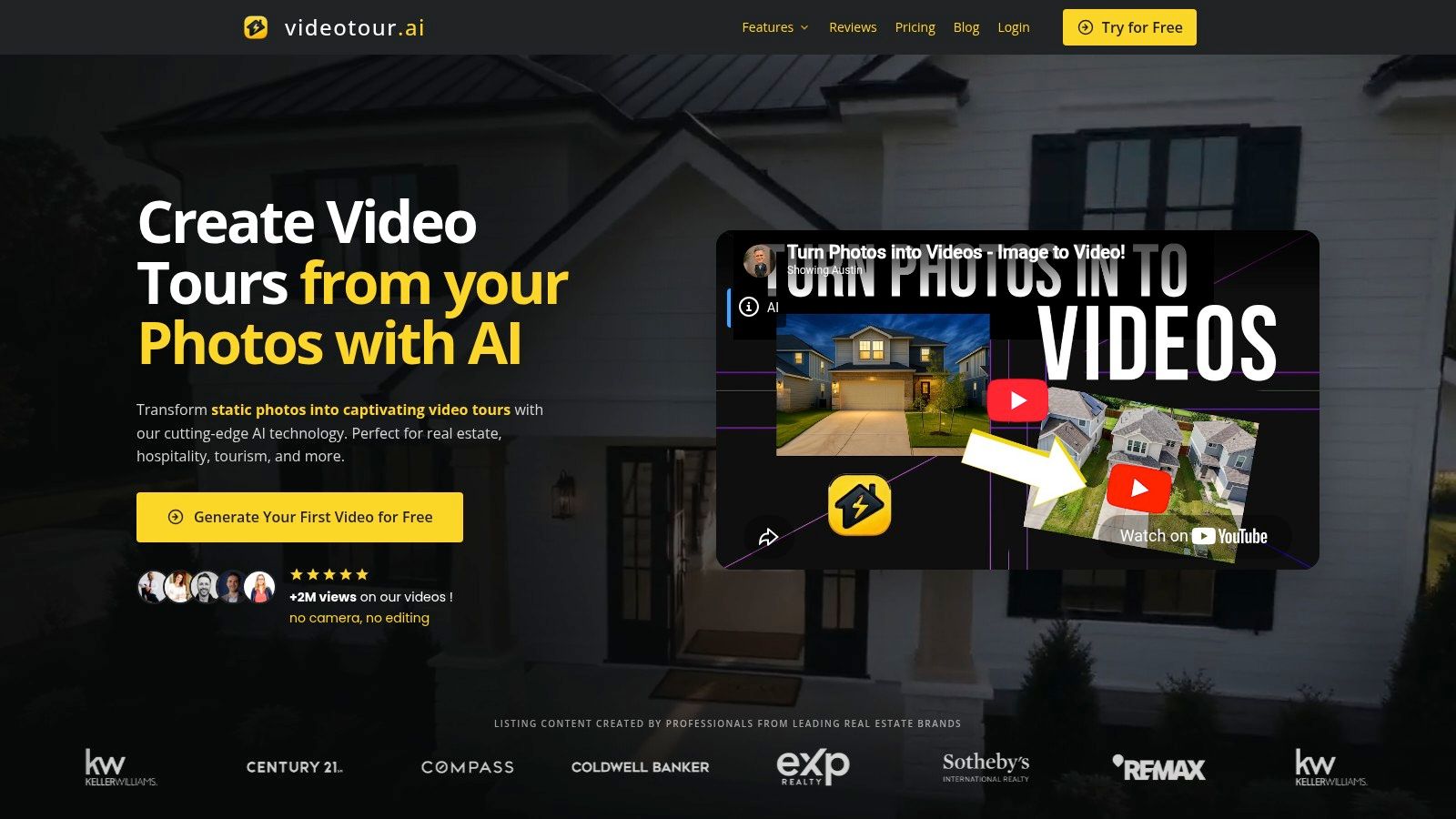
The limitation is input quality. AI motion can't restore detail missing from weak or poorly composed photographs, and premium animations or logo intros may use optional AI credits. Exports are HD rather than 4K, with paid plans offering 720p and 1080p output. For property marketing, though, the bigger question is usually whether the framing, branding, and delivery are repeatable, not whether the tool exposes every low-level encoding control.
Users can choose horizontal, vertical, or square layouts, then revise the project in the browser and render alternate versions without rebuilding the tour. The workflow suits real estate agents, brokerages, hotels, short-term rental hosts, and venue marketers who need MLS-safe presentation alongside social content. The editor can apply pan, zoom, tilt, AI motion effects, captions, fonts, colors, watermarks, logos, and voice treatments, so the conversion decision happens alongside creative production rather than at the end.
Best for listing-led production
The practical advantage is consistency. A brokerage can reuse a visual style across property tours while producing versions for vertical social feeds, square placements, and horizontal viewing. The platform reports adoption by 10,000+ business owners, more than 2M video views, and an average rating of 4.8/5 on its website, so those figures should be treated as platform-reported social proof rather than an independent performance study. Its plans include a free first-video trial, while the listed paid tiers are Independent at $29/month, Agency at $59/month, and Enterprise at $99/month, with the current offer best checked directly on VideoTour.ai.The limitation is input quality. AI motion can't restore detail missing from weak or poorly composed photographs, and premium animations or logo intros may use optional AI credits. Exports are HD rather than 4K, with paid plans offering 720p and 1080p output. For property marketing, though, the bigger question is usually whether the framing, branding, and delivery are repeatable, not whether the tool exposes every low-level encoding control.
Practical rule: Choose this route when the creative asset is a listing photo set and the final deliverable must be branded, multi-ratio, and ready quickly.
2. Kapwing
Kapwing is a strong browser choice for teams that already have video footage and need quick canvas changes. Its dedicated resizer includes presets for 1:1, 9:16, 16:9, and 4:5, as well as custom dimensions, so a marketer can move from a wide player to a portrait social canvas without installing software. The cloud editor also supports collaboration, link sharing, and smart tools such as scene detection.
The key distinction is that Kapwing combines resizing with a broader editing environment. That helps when the crop isn't correct on the first attempt, because the user can adjust the composition, edit the scene, and prepare the final clip in the same browser project. It's more capable than a single-purpose converter, but that broader interface can be unnecessary for a one-off file.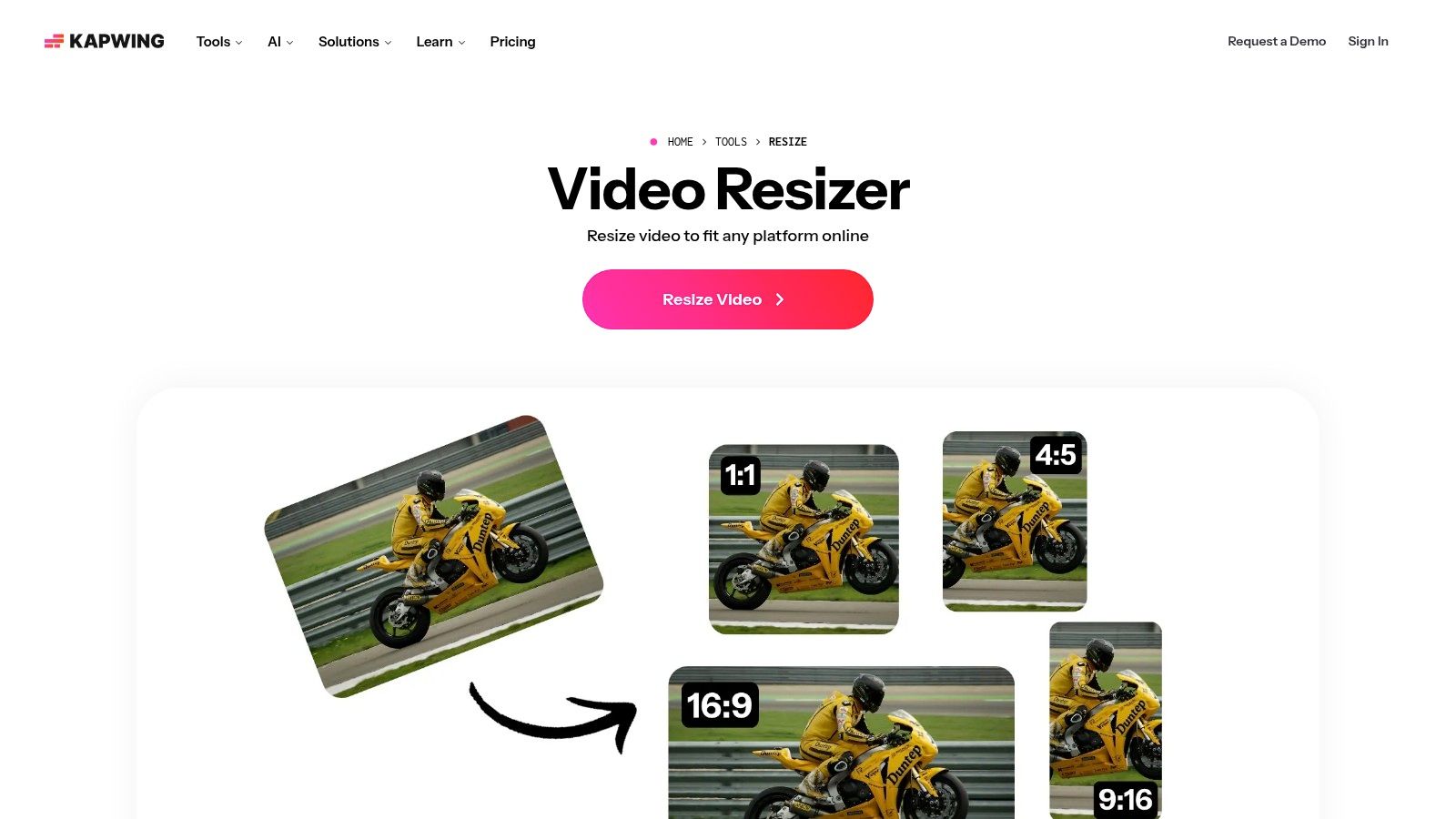
The limitation is control depth. Users who need a carefully scripted crop policy, exact batch naming, or repeatable processing across a folder will outgrow a browser editor. For a single listing clip or campaign variation, however, it offers a useful balance between speed and manual framing. Teams can also use VideoTour.ai's explanation of video aspect ratios when deciding which canvas to create before opening the editor.
The key distinction is that Kapwing combines resizing with a broader editing environment. That helps when the crop isn't correct on the first attempt, because the user can adjust the composition, edit the scene, and prepare the final clip in the same browser project. It's more capable than a single-purpose converter, but that broader interface can be unnecessary for a one-off file.
Where it saves time
Kapwing makes sense for social teams handling varied footage. A preset gets the canvas close to the destination, while custom sizing accommodates less common embeds or internal requirements. Its browser-based workflow removes installation and makes review easier when several people need access to the same project. The free plan supports occasional exports at 720p, but watermarks and usage limits remain considerations. Higher-resolution output and larger limits require a paid plan, as described on the Kapwing Video Resizer.The limitation is control depth. Users who need a carefully scripted crop policy, exact batch naming, or repeatable processing across a folder will outgrow a browser editor. For a single listing clip or campaign variation, however, it offers a useful balance between speed and manual framing. Teams can also use VideoTour.ai's explanation of video aspect ratios when deciding which canvas to create before opening the editor.
3. VEED
VEED is aimed at fast browser-based repurposing, particularly when resizing is only one step in a social publishing workflow. Its resizer includes common vertical, square, widescreen, and feed-oriented portrait presets. The notable feature is AI Background Expand, which can fill newly exposed edges when horizontal footage moves into a taller frame. That gives the user another option besides immediately cutting into the sides of the original image.
This matters when a presenter, room, or product sits near the edge of the source frame. A conventional crop may remove the subject or an important visual detail, while a padded or expanded background can preserve more of the composition. The result still needs review, because intelligent filling isn't a substitute for deliberate art direction, especially when the frame contains architecture, signage, or fine text.
VEED's main weakness is not the lack of presets. It's the need to inspect every automated reframing decision. AI background expansion may preserve the overall subject while producing an edge that doesn't fit a premium property, brand, or product. Use it when speed matters and the footage tolerates assisted background treatment. Use a manual crop or desktop workflow when every edge of the frame carries meaning.
This matters when a presenter, room, or product sits near the edge of the source frame. A conventional crop may remove the subject or an important visual detail, while a padded or expanded background can preserve more of the composition. The result still needs review, because intelligent filling isn't a substitute for deliberate art direction, especially when the frame contains architecture, signage, or fine text.
A useful middle ground
VEED integrates resizing with subtitles, compression, and other browser editing tools. That makes it practical for a creator who needs to change the canvas, add captions, and export a social-ready version without moving between applications. It works in most browsers and doesn't require a desktop installation, which supports quick review cycles for distributed teams. The current VEED video resizer should be checked for regional pricing and plan limits before purchase, because those details can change.VEED's main weakness is not the lack of presets. It's the need to inspect every automated reframing decision. AI background expansion may preserve the overall subject while producing an edge that doesn't fit a premium property, brand, or product. Use it when speed matters and the footage tolerates assisted background treatment. Use a manual crop or desktop workflow when every edge of the frame carries meaning.
4. Clideo
Clideo is designed for the person who doesn't need a full editing suite. Its Video Resizer presents social presets, manual controls, and options to blur or pad the background when the source and target shapes don't match. That makes it especially useful for a quick conversion where the decision comes down to “Should this video fill the frame, or should it sit inside a complete canvas?”
The fit choice has a direct effect on information retention. Cropping removes image area but usually produces a full-screen result. Padding preserves the source but adds visible space around it. Stretching fills the dimensions at the cost of distortion, so it should be avoided for rooms, buildings, people, and text. Clideo's focused interface makes those basic choices easier to reach than they are in a larger nonlinear editor.
Clideo isn't the best candidate for a repeatable content pipeline. It doesn't replace a scripted process, and it won't offer the same creative depth as a full editor or photo-to-video platform. It does, however, answer a common practical need: make one clip fit a target canvas, preserve the subject with padding or blur, and download the result without learning a complicated application.
The fit choice has a direct effect on information retention. Cropping removes image area but usually produces a full-screen result. Padding preserves the source but adds visible space around it. Stretching fills the dimensions at the cost of distortion, so it should be avoided for rooms, buildings, people, and text. Clideo's focused interface makes those basic choices easier to reach than they are in a larger nonlinear editor.
Good for one-file fixes
The platform also provides companion tools for cropping, conversion, compression, and related tasks. That can be convenient when a file needs a small adjustment before delivery, rather than a complete creative rebuild. The free version lets users test the workflow, while advanced editing remains limited and paid-plan terms should be reviewed on the Clideo Video Resizer.Clideo isn't the best candidate for a repeatable content pipeline. It doesn't replace a scripted process, and it won't offer the same creative depth as a full editor or photo-to-video platform. It does, however, answer a common practical need: make one clip fit a target canvas, preserve the subject with padding or blur, and download the result without learning a complicated application.
5. Adobe Express
Adobe Express takes a guided, template-led approach to aspect-ratio conversion. It targets creators who want a quick path to social formats while staying inside Adobe's wider ecosystem. Common platform presets reduce the need to calculate dimensions manually, and the web and mobile experience supports users who move between devices during review and publishing.
Its advantage is context. A resizer is more useful when the same project also needs titles, templates, stock elements, or brand treatment. Adobe Express lets a user adapt a clip for TikTok, Instagram, or YouTube, then continue working on the presentation rather than exporting to a separate design tool. That suits marketers who value guided choices more than deep control over every codec and crop parameter.
Adobe Express is less attractive for offline work or high-volume technical conversion. It also encourages a design-first workflow, which can be an advantage for social campaigns but unnecessary for a simple transcode. Choose it when the output needs visual treatment and brand context. If the only requirement is to convert a large folder with identical crop rules, FFmpeg or HandBrake is a better operational match.
Its advantage is context. A resizer is more useful when the same project also needs titles, templates, stock elements, or brand treatment. Adobe Express lets a user adapt a clip for TikTok, Instagram, or YouTube, then continue working on the presentation rather than exporting to a separate design tool. That suits marketers who value guided choices more than deep control over every codec and crop parameter.
Best for guided brand adaptation
Cloud synchronization helps when a team reviews work across web and mobile. The free resizer covers common needs, while Premium adds templates, stock assets, and advanced features. Some resizing, bulk, and branding capabilities sit behind the subscription, so the Adobe Express video resizer is worth checking against the exact delivery volume and brand requirements.Adobe Express is less attractive for offline work or high-volume technical conversion. It also encourages a design-first workflow, which can be an advantage for social campaigns but unnecessary for a simple transcode. Choose it when the output needs visual treatment and brand context. If the only requirement is to convert a large folder with identical crop rules, FFmpeg or HandBrake is a better operational match.
6. EZGIF
EZGIF is the lightweight option for an occasional conversion. Its aspect-ratio tool can crop, pad, stretch, or squeeze video into standard or custom shapes, and it supports common file types including MP4, WebM, and MKV. There's no need to install an editor or commit to a broader production platform, which makes it useful when a single file needs attention immediately.
The tool's simplicity is also its boundary. It exposes the core fit decision without surrounding the user with a large timeline or design system. That works well for a quick square export, a portrait adaptation, or a padded version where preserving the entire source matters more than adding captions and branding.
The quality question still depends on the chosen fit mode. Cropping can remove a room or a text overlay, while padding may look less native in a fast-moving social feed. EZGIF is therefore best for a deliberate one-off fix, not for a brand that needs the same framing logic applied consistently across many properties or campaigns.
The tool's simplicity is also its boundary. It exposes the core fit decision without surrounding the user with a large timeline or design system. That works well for a quick square export, a portrait adaptation, or a padded version where preserving the entire source matters more than adding captions and branding.
Use it for low-complexity work
EZGIF also includes trimming, speed changes, reversing, and other small utilities. That creates a convenient repair bench for ad hoc jobs. File-size and processing-time limits can affect larger or longer source files, and the service doesn't provide multi-track editing or production-grade batch orchestration. Those limitations are documented through the EZGIF aspect-ratio tool.The quality question still depends on the chosen fit mode. Cropping can remove a room or a text overlay, while padding may look less native in a fast-moving social feed. EZGIF is therefore best for a deliberate one-off fix, not for a brand that needs the same framing logic applied consistently across many properties or campaigns.
7. FFmpeg
FFmpeg is the choice for exact, repeatable processing. It has no graphical interface in its standard command-line form, but its scale, crop, and pad filters let a technical user define precisely how source footage becomes each target canvas. A team can create separate outputs for horizontal, portrait, square, and feed-oriented layouts from one script instead of repeating manual browser work.
The most important advantage is repeatability. A script can preserve the same dimensions, crop position, codec settings, audio treatment, and filename logic each time it runs. That makes FFmpeg suitable for agencies, publishing systems, and operations teams that process many assets or need the same result after every update.
The limitation is operational, not technical. Someone must learn the syntax, test the filters, handle failures, and maintain the scripts. FFmpeg won't automatically understand that a doorway, face, or property label must remain visible. It executes the crop policy you define, so teams should inspect representative outputs before trusting a batch run.
The most important advantage is repeatability. A script can preserve the same dimensions, crop position, codec settings, audio treatment, and filename logic each time it runs. That makes FFmpeg suitable for agencies, publishing systems, and operations teams that process many assets or need the same result after every update.
Maximum control, steepest entry cost
FFmpeg can fit footage inside a target canvas, crop it to fill, or pad it without distortion. The user can also use the force_original_aspect_ratio approach when exact output dimensions matter. That distinction is critical because forcing width and height without a preservation rule can stretch the source. The FFmpeg project provides the command-line foundation, while this guide to choosing a video format provides practical context for matching exports to delivery needs.The limitation is operational, not technical. Someone must learn the syntax, test the filters, handle failures, and maintain the scripts. FFmpeg won't automatically understand that a doorway, face, or property label must remain visible. It executes the crop policy you define, so teams should inspect representative outputs before trusting a batch run.
Production insight: FFmpeg is the best converter when consistency matters more than convenience, but it only automates a good framing decision. It can't invent one.
8. HandBrake
HandBrake gives nontechnical users a desktop alternative to command-line processing. It runs offline and provides Dimensions controls for storage size, display size, cropping, and anamorphic settings. Presets and hardware acceleration support make it practical for people who need a reliable local workflow without building scripts.
Its interface doesn't present aspect ratio as one obvious field. Instead, users reach the result through dimensions and crop settings. That can confuse beginners, but it also reflects an underlying technical problem: a target shape depends on how the source is scaled, whether the image is cropped, and whether the output canvas preserves the original geometry.
Its trade-off is manual setup. A user still needs to preview the crop, check the output dimensions, and decide whether black bars or other padding are acceptable. HandBrake is more reproducible than a one-off web utility once a preset is configured, but it isn't as efficient as FFmpeg for a large scripted batch. It sits between the two, offering a visual interface with serious offline capability.
Its interface doesn't present aspect ratio as one obvious field. Instead, users reach the result through dimensions and crop settings. That can confuse beginners, but it also reflects an underlying technical problem: a target shape depends on how the source is scaled, whether the image is cropped, and whether the output canvas preserves the original geometry.
Offline control without a terminal
HandBrake is a good fit when source files shouldn't pass through a browser service, or when a user wants to create a local preset for recurring conversions. It also supports broader transcoding tasks, so aspect-ratio changes can happen alongside format and compression decisions. The HandBrake desktop transcoder is free and cross-platform.Its trade-off is manual setup. A user still needs to preview the crop, check the output dimensions, and decide whether black bars or other padding are acceptable. HandBrake is more reproducible than a one-off web utility once a preset is configured, but it isn't as efficient as FFmpeg for a large scripted batch. It sits between the two, offering a visual interface with serious offline capability.
9. Movavi Video Converter
Movavi Video Converter targets users who want desktop processing without the technical feel of HandBrake. Its crop and resize controls are designed to fit a target display and remove black bars, while format and device presets reduce the amount of manual configuration. That makes it suitable for marketers, assistants, and small teams who need local conversion but don't want to manage command-line filters.
The application also supports basic edits and includes newer capabilities such as AI upscaling in recent builds. Upscaling can change the apparent size of an output, but it shouldn't be confused with recovering detail that wasn't present in the source. A weak original image or low-resolution clip still limits the final result, regardless of the converter selected.
Compared with HandBrake, Movavi emphasizes ease of use over technical transparency. Compared with browser tools, it avoids upload and cloud-processing dependencies. It won't provide the same scripted repeatability as FFmpeg, but it can be a sensible compromise when a person processes files individually and wants clearer guidance for removing letterboxing or pillarboxing.
The application also supports basic edits and includes newer capabilities such as AI upscaling in recent builds. Upscaling can change the apparent size of an output, but it shouldn't be confused with recovering detail that wasn't present in the source. A weak original image or low-resolution clip still limits the final result, regardless of the converter selected.
A practical desktop choice
Movavi is useful when the operator wants visible controls for crop-to-fit behavior, a broad collection of format presets, and offline processing in one application. Its paid license and trial structure should be checked on the Movavi Video Converter website, because licensing options can vary by region.Compared with HandBrake, Movavi emphasizes ease of use over technical transparency. Compared with browser tools, it avoids upload and cloud-processing dependencies. It won't provide the same scripted repeatability as FFmpeg, but it can be a sensible compromise when a person processes files individually and wants clearer guidance for removing letterboxing or pillarboxing.
10. Canva
Canva is best understood as a design-system solution that happens to resize video. Its Video Resizer and Magic Resize or Magic Switch features can duplicate a creative into vertical, square, widescreen, and other canvases. That approach is valuable when a video contains text, logos, graphics, and branded layout elements that need repositioning, not merely a camera image that needs cropping.
The platform's template library and Brand Kit support help teams preserve visual consistency across channels. A user can adapt a campaign creative for multiple placements, then adjust the text and layout where the new canvas creates conflicts. That is a different problem from transcoding, and Canva handles it by treating the video as part of a broader design.
The limitation is that one-click duplication doesn't guarantee perfect composition. A title that fits horizontally may collide with a subject in portrait view, and a logo placed safely in one layout may become too prominent in another. Canva is therefore a strong choice for template-led brand work, especially when a person will review each variation. For automated media conversion, it remains less suitable than a desktop preset or command-line pipeline. For Instagram-specific creative planning, VideoTour.ai's guide to creating an Instagram Reel offers a relevant companion workflow.
The platform's template library and Brand Kit support help teams preserve visual consistency across channels. A user can adapt a campaign creative for multiple placements, then adjust the text and layout where the new canvas creates conflicts. That is a different problem from transcoding, and Canva handles it by treating the video as part of a broader design.
Strongest for designed content
Canva supports vertical output such as 1080×1920, square layouts, and widescreen designs, while Magic Resize is part of Canva Pro or Teams. Free users may need to copy or rebuild designs on new canvases. The current feature scope and subscription requirements are listed on the Canva Video Resizer.The limitation is that one-click duplication doesn't guarantee perfect composition. A title that fits horizontally may collide with a subject in portrait view, and a logo placed safely in one layout may become too prominent in another. Canva is therefore a strong choice for template-led brand work, especially when a person will review each variation. For automated media conversion, it remains less suitable than a desktop preset or command-line pipeline. For Instagram-specific creative planning, VideoTour.ai's guide to creating an Instagram Reel offers a relevant companion workflow.
Top 10 Video Aspect Ratio Converters, Quick Comparison
| Product | Core features | UX / Quality (★) | Value / Price (💰) | Target audience (👥) | Unique selling points (✨) |
|---|---|---|---|---|---|
| 🏆 VideoTour.ai | Photo→video tours, MLS‑safe presets, motion, captions, music, voice, branding, multi‑aspect exports | ★4.8/5, fast previews & unlimited re‑renders | 💰 Free trial; Indep $29/mo (10), Agency $59/mo (40), Ent $99/mo (200) | 👥 Real estate agents, brokerages, property marketers, hosts | ✨ MLS‑compliant presets, up to 60 photos, unlimited revisions, rollover AI credits |
| Kapwing – Online Video Resizer | One‑click canvas presets, scene detection, cloud editor, custom sizes | ★4/5, intuitive, collaborative | 💰 Free (720p); Pro unlocks HD & higher limits | 👥 Social creators, marketers, small teams | ✨ Quick presets, scene detection, real‑time collaboration |
| VEED – Online Video Resizer | Presets, AI Background Expand, subtitles, compressor | ★4/5, simple web editor | 💰 Free tier; paid plans for advanced exports | 👥 Creators converting horizontal→vertical formats | ✨ AI Background Expand to avoid harsh cropping |
| Clideo – Video Resizer | Aspect presets, blur/pad backgrounds, companion tools (crop/convert/compress) | ★3.5/5, straightforward, task‑focused | 💰 Free trial; Pro removes limits/watermarks | 👥 Casual users needing quick resizes | ✨ Background blur/padding for smooth fills |
| Adobe Express – Free Video Resizer | Template‑driven presets, web & mobile, cloud sync, Adobe integration | ★4/5, guided, template‑led | 💰 Free; Premium for templates, stock & pro features | 👥 Designers, social marketers, Adobe users | ✨ Template flow + Adobe ecosystem & cloud sync |
| EZGIF – Change Video Aspect Ratio (Free) | Crop/pad/stretch, supports MP4/WebM/MKV, toolbox (trim/speed/etc.) | ★3/5, no‑frills, fast for one‑offs | 💰 Free | 👥 One‑off users, quick fixes, DIY editors | ✨ Zero‑cost, no signup, multiple small tools |
| FFmpeg – Command‑line (Open Source) | Precise scale/crop/pad filters, scriptable batch processing, cross‑platform | ★5/5, production‑grade control & repeatability | 💰 Free, open‑source | 👥 Developers, video engineers, automation workflows | ✨ Scriptable automation and full filter control |
| HandBrake – Desktop (Open Source) | Dimensions, cropping, presets, hardware acceleration, offline processing | ★4/5, reliable desktop transcoder | 💰 Free | 👥 Desktop users needing offline batch transcodes | ✨ Offline presets + hardware acceleration support |
| Movavi Video Converter – Desktop | Crop/resize, 180+ formats, device presets, AI upscaling | ★3.5/5, easy for non‑technical users | 💰 Paid license (trial available) | 👥 Everyday marketers & home users on desktop | ✨ AI upscaling and many device presets |
| Canva – Video Resizer (Magic Resize on Pro) | Presets, Magic Resize, templates, web & mobile, brand kit (Pro) | ★4/5, template‑first, user‑friendly | 💰 Free; Pro for Magic Resize & brand kit | 👥 Designers, teams, social marketers | ✨ Magic Resize + brand‑kit integration for consistent assets |
Match the Converter to Your Workflow
There isn't one universal winner because “conversion” can mean several different jobs. If you have a finished clip and need a quick social adaptation, a browser resizer is usually the shortest path. Kapwing, VEED, Clideo, and Adobe Express all reduce setup time, but they differ in how much editing, collaboration, background treatment, and brand work they support. EZGIF is even more focused. It's the sensible choice for a lightweight one-off correction when you don't need a timeline or a reusable production system.
VideoTour.ai belongs in a different category. Choose it when the source is listing photography and the goal is a polished, branded property tour rather than a simple transcode. Its value comes from combining photo-to-video creation with motion, captions, music, branding, and alternate aspect ratios. That is particularly useful for agents, brokerages, hotels, and rental operators who need one visual project to serve MLS-style delivery, social video, and web placement without rebuilding the creative each time.
Canva is the better choice when the video is part of a designed campaign. It helps teams adapt text, logos, templates, and brand elements across canvases, although each version still deserves a composition check. For offline desktop work, HandBrake offers the strongest free balance between control and usability. Movavi is more approachable for users who want guided crop and format presets and are comfortable with a paid desktop license.
FFmpeg is the operational choice for repeatable, high-volume automation. It can produce multiple targets from a consistent script and apply the same scale, crop, and pad logic every time. It also places the greatest responsibility on the operator. A bad crop rule will be repeated perfectly, so test the framing before processing a full library.
Use this final review before publishing:
If your source is a property photo set, VideoTour.ai can turn it into a branded HD tour and adapt the same project for horizontal, vertical, and square delivery. Visit VideoTour.ai to create your first property video and test a faster multi-ratio workflow.
VideoTour.ai belongs in a different category. Choose it when the source is listing photography and the goal is a polished, branded property tour rather than a simple transcode. Its value comes from combining photo-to-video creation with motion, captions, music, branding, and alternate aspect ratios. That is particularly useful for agents, brokerages, hotels, and rental operators who need one visual project to serve MLS-style delivery, social video, and web placement without rebuilding the creative each time.
Canva is the better choice when the video is part of a designed campaign. It helps teams adapt text, logos, templates, and brand elements across canvases, although each version still deserves a composition check. For offline desktop work, HandBrake offers the strongest free balance between control and usability. Movavi is more approachable for users who want guided crop and format presets and are comfortable with a paid desktop license.
FFmpeg is the operational choice for repeatable, high-volume automation. It can produce multiple targets from a consistent script and apply the same scale, crop, and pad logic every time. It also places the greatest responsibility on the operator. A bad crop rule will be repeated perfectly, so test the framing before processing a full library.
Use this final review before publishing:
- Target ratio: Confirm whether the destination needs 16:9, 9:16, 1:1, 4:5, or a custom canvas. GS1's product video guidance identifies square 1:1 as a strong mobile-oriented format while also supporting 9:16 and 4:5, which reinforces the need for more than one preset. Read the GS1 Product Video Standard when product presentation requirements matter.
- Crop or padding: Crop when full-frame impact matters and the subject remains safe. Use padding or a blurred background when removing the edges would hide a room, person, product, or overlay.
- Output resolution: Match the export to the destination and the source quality. Increasing dimensions won't restore detail that the original file never contained.
- File format and audio: Check that the destination accepts the chosen container, codec, frame rate, and audio track. A visually correct file can still fail delivery if the platform rejects its encoding.
- Brand and watermark restrictions: Review free-plan watermarks, paid export limits, logo placement, and usage rights before a client-facing delivery.
- Processing limits: Browser tools may impose upload, storage, export, or processing limits. Desktop and command-line tools reduce those dependencies but shift more responsibility to local hardware and workflow setup.
- Test export: Watch a short test on the intended platform. Check faces, room edges, signs, captions, logos, black bars, audio synchronization, and mobile readability before publishing the complete set.
If your source is a property photo set, VideoTour.ai can turn it into a branded HD tour and adapt the same project for horizontal, vertical, and square delivery. Visit VideoTour.ai to create your first property video and test a faster multi-ratio workflow.