
VideoTour.ai helps you create real estate videos with an automated voiceover, starting from your listing photos and property details. Generate a script, choose an AI narrator or clone your own voice, then review the narration alongside the rooms it describes.
This guide walks through the process in the app—from preparing the listing and editing the script to adding subtitles and sharing the finished video with the latest social posting feature.
This guide walks through the process in the app—from preparing the listing and editing the script to adding subtitles and sharing the finished video with the latest social posting feature.
Summary
Create an AI Video Tours from PhotosTry it For Free
How automated voiceovers work in VideoTour.ai
VideoTour.ai turns your listing photos and property details into a video with spoken narration. It can draft the script, generate the speech and match the narration to the scenes in your property tour. You choose the voice and review the result before sharing.
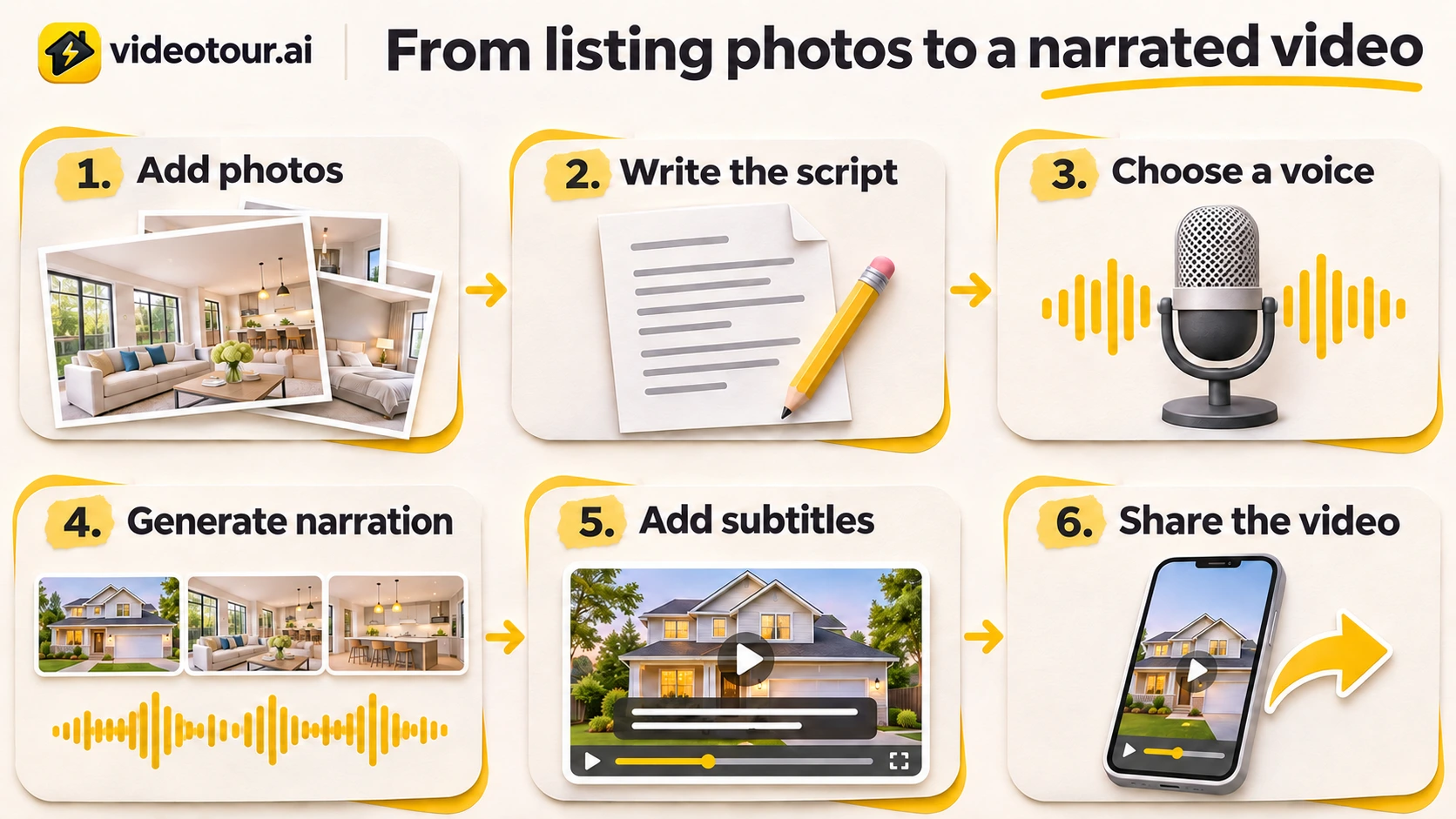
The complete workflow, from listing photos to a narrated video ready to share.
The workflow has six main stages:
You can add narration while creating a new tour or open an existing project and work in its Voiceover tab. The steps below follow the existing-tour editor, where you can review each stage separately.
The complete workflow, from listing photos to a narrated video ready to share.
The workflow has six main stages:
- Add the property: import a listing link or upload your photos and property details.
- Prepare the script: generate a first draft, then shape it around the rooms and features you want to highlight.
- Choose the narrator: select an AI voice, use a clone of your own voice, or upload a finished recording.
- Create the narrated video: generate the audio, check its timing and apply the changes.
- Add subtitles: make the spoken words readable when viewers watch without sound.
- Share the result: download the video or open the social posting popup to choose a connected account and posting time.
You can add narration while creating a new tour or open an existing project and work in its Voiceover tab. The steps below follow the existing-tour editor, where you can review each stage separately.
1. Add your listing photos and property details
Start in Create a video. Import a supported listing URL to bring in the property’s photos and details, or upload your photos directly. Check the property description and address, and choose the appropriate listing goal, such as a sale or rental.
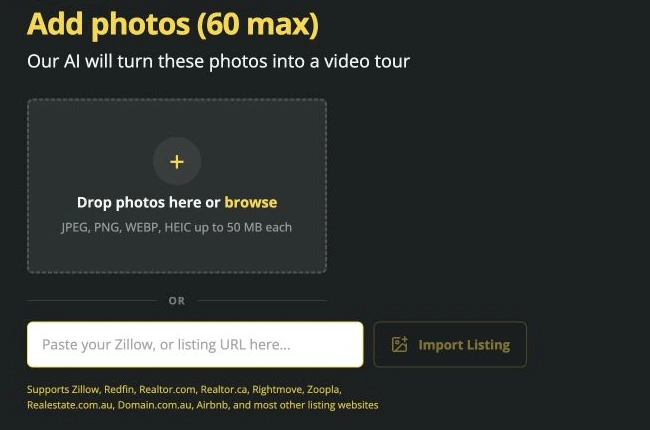
Upload property photos or import them from a supported listing URL.
Arrange the photos in the order you want the viewer to experience the property. A useful sequence might move from the exterior to the main living space, kitchen, bedrooms and outdoor area. The narration can then follow the same progression.
Give the script useful material. Mention concrete features: a kitchen island, a covered terrace, a separate office or doors connecting the living area to the garden. Accurate, specific details give the generated narration a stronger starting point.
For a new tour, choose the language in Video settings and turn on Add a voiceover. If the tour already exists, open it from My videos and select Voiceover.
Upload property photos or import them from a supported listing URL.
Arrange the photos in the order you want the viewer to experience the property. A useful sequence might move from the exterior to the main living space, kitchen, bedrooms and outdoor area. The narration can then follow the same progression.
Give the script useful material. Mention concrete features: a kitchen island, a covered terrace, a separate office or doors connecting the living area to the garden. Accurate, specific details give the generated narration a stronger starting point.
For a new tour, choose the language in Video settings and turn on Add a voiceover. If the tour already exists, open it from My videos and select Voiceover.
2. Generate a script and make it sound like you
In the Voiceover tab, choose Generate a voiceover. Under 1. Write the script, select the language and click Generate a script.
The script window lets you review the property description and address, then choose an energy level and communication style. Generate the draft and read it from beginning to end.
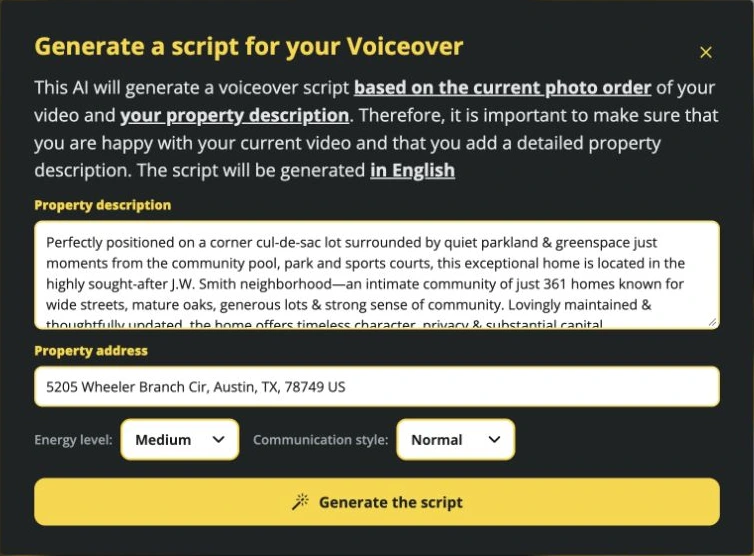
Give the script generator your property details, then choose the energy and communication style.
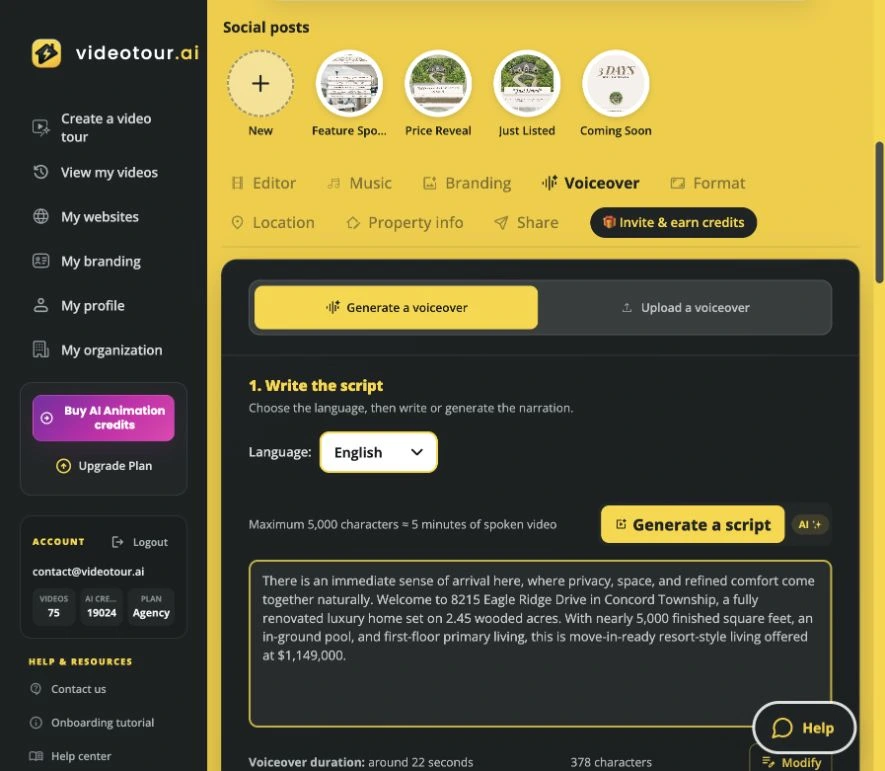
Choose the language, generate a draft, then review the script and its estimated duration.
Use Modify to edit a script that is locked for reading. Keep sentences short, put the strongest feature near the opening and finish with a clear next step, such as arranging a viewing. You can also paste a script you have already written.
Select Save when the wording is ready. Saving stores the text; Generate voiceover creates the spoken audio in the next stage.
Working in another language? Choose it before generating the script and selecting a voice. Changing the language dropdown does not translate text you have already pasted, so review those words separately.
See the complete script and narration walkthrough.
The script window lets you review the property description and address, then choose an energy level and communication style. Generate the draft and read it from beginning to end.
Give the script generator your property details, then choose the energy and communication style.
Choose the language, generate a draft, then review the script and its estimated duration.
Use Modify to edit a script that is locked for reading. Keep sentences short, put the strongest feature near the opening and finish with a clear next step, such as arranging a viewing. You can also paste a script you have already written.
Select Save when the wording is ready. Saving stores the text; Generate voiceover creates the spoken audio in the next stage.
Working in another language? Choose it before generating the script and selecting a voice. Changing the language dropdown does not translate text you have already pasted, so review those words separately.
See the complete script and narration walkthrough.
3. Choose an AI voice or clone your own
Under 2. Choose a voice, play the samples and select the narrator you want. Listen for a clear, comfortable delivery that suits your presentation and the language of the script.
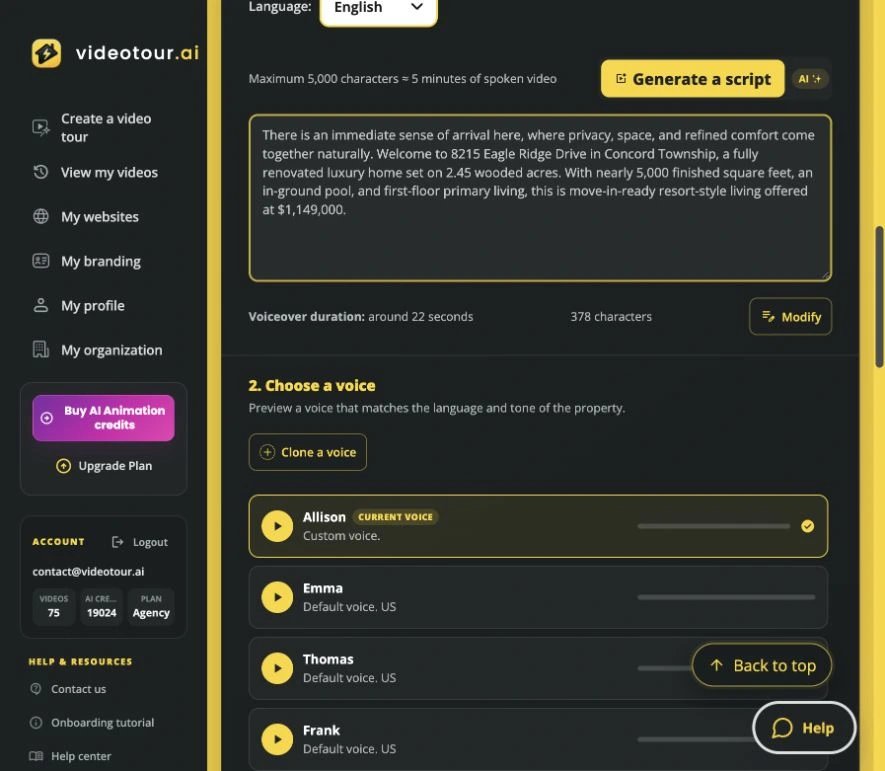
Preview a narrator before generating, or create a reusable version of your own voice.
Select a voice from the library to create narration without recording yourself. Using the same narrator across listings can give your videos a consistent sound.
Choose Clone a voice to open the voice setup in My branding. Record or upload at least 10 seconds of clear speech, with one speaker and no background music. Name the voice and complete the cloning step, then select the finished voice for your narration.
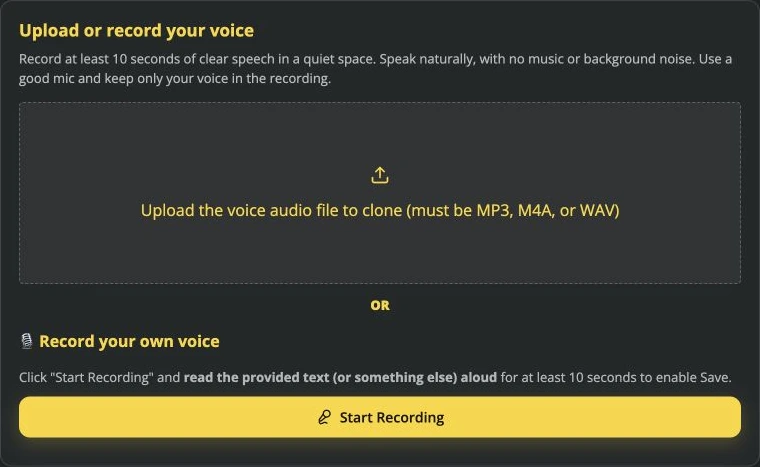
Upload a clean recording or record your voice directly in My branding.
A voice clone can read new scripts for future properties. You supply the new listing details and wording each time, while keeping your own recognizable voice.
If you have already narrated the property yourself, choose Upload a voiceover instead. This accepts a finished MP3, M4A or WAV recording for the current video. Uploading that recording does not create a reusable voice clone.
See how to upload your own narration.
Preview a narrator before generating, or create a reusable version of your own voice.
Use an available AI voice
Select a voice from the library to create narration without recording yourself. Using the same narrator across listings can give your videos a consistent sound.
Create a reusable voice clone
Choose Clone a voice to open the voice setup in My branding. Record or upload at least 10 seconds of clear speech, with one speaker and no background music. Name the voice and complete the cloning step, then select the finished voice for your narration.
Upload a clean recording or record your voice directly in My branding.
A voice clone can read new scripts for future properties. You supply the new listing details and wording each time, while keeping your own recognizable voice.
Upload a finished recording
If you have already narrated the property yourself, choose Upload a voiceover instead. This accepts a finished MP3, M4A or WAV recording for the current video. Uploading that recording does not create a reusable voice clone.
See how to upload your own narration.
4. Generate the narration and match it to the tour
Under 3. Adjust and generate, refine the sound before creating the audio:
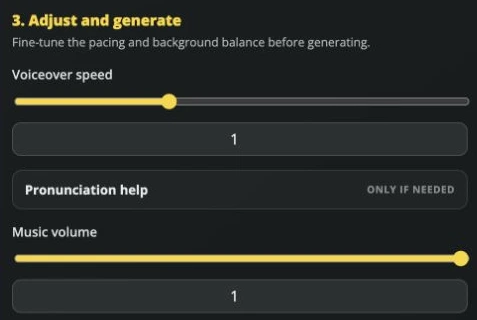
Adjust narration speed and music volume before generating the audio.
Review the displayed credit amount, then click Generate voiceover. Wait for the recording and scene alignment to finish. Listen to the result, paying particular attention to names, measurements and the opening and closing sentences.
For a property tour, the narration is matched to scenes so that the spoken description follows the rooms. If you uploaded your own recording, use Synchronize voiceover after the upload and wait for it to complete.
Once the recording is ready, check that Use a voiceover is enabled in Editor and select Apply the changes. Watch the newly finished video to hear the narration in context.
For an AI reel: narration plays as one continuous recording. Check its length against the reel and use the offered trim controls or a shorter script if it does not fit.
Learn how narration is matched to your tour.
- Voiceover speed: start near the normal setting and make a small adjustment if needed.
- Pronunciation help: add guidance for a street name, neighborhood, abbreviation or other word that needs a particular reading.
- Music volume: keep the soundtrack low enough for the narration to remain clear.
Adjust narration speed and music volume before generating the audio.
Review the displayed credit amount, then click Generate voiceover. Wait for the recording and scene alignment to finish. Listen to the result, paying particular attention to names, measurements and the opening and closing sentences.
For a property tour, the narration is matched to scenes so that the spoken description follows the rooms. If you uploaded your own recording, use Synchronize voiceover after the upload and wait for it to complete.
Once the recording is ready, check that Use a voiceover is enabled in Editor and select Apply the changes. Watch the newly finished video to hear the narration in context.
For an AI reel: narration plays as one continuous recording. Check its length against the reel and use the offered trim controls or a shorter script if it does not fit.
Learn how narration is matched to your tour.
5. Add subtitles and review the finished video
Spoken narration explains the property while viewers watch. Subtitles let them follow those words with the sound off.
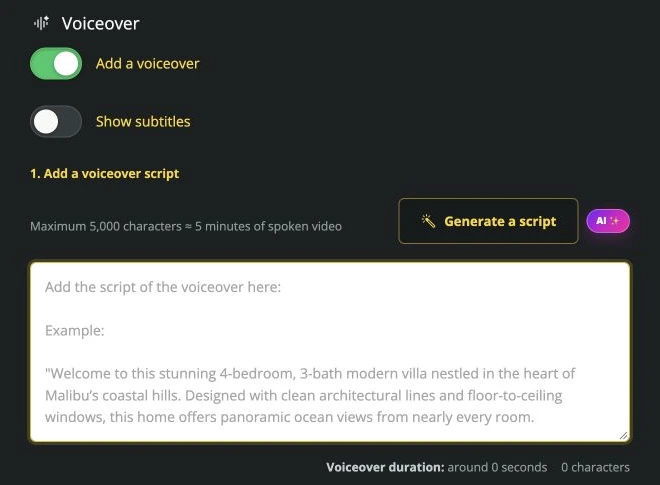
When creating a new tour, Show subtitles appears below Add a voiceover.
In Editor, enable Use a voiceover, then select Show subtitles when that option is offered for your video. These subtitles follow the narration; ordinary room captions and property-information overlays have their own wording.
Use Personalize captions and overlays to review the text appearance. Choose readable sizing and contrast, and leave the important parts of the room visible. Apply the changes, then watch the finished version.
Before sharing, check three things:
A horizontal property tour and a vertical highlight may need different scripts and framing. Keep the shorter version focused on one reason to explore the listing.
See the voiceover subtitle controls.
When creating a new tour, Show subtitles appears below Add a voiceover.
In Editor, enable Use a voiceover, then select Show subtitles when that option is offered for your video. These subtitles follow the narration; ordinary room captions and property-information overlays have their own wording.
Use Personalize captions and overlays to review the text appearance. Choose readable sizing and contrast, and leave the important parts of the room visible. Apply the changes, then watch the finished version.
Before sharing, check three things:
- The room on screen matches the feature being described.
- The voice is clear over the music on a phone speaker.
- The subtitles and closing call to action remain readable in the format you plan to share.
A horizontal property tour and a vertical highlight may need different scripts and framing. Keep the shorter version focused on one reason to explore the listing.
See the voiceover subtitle controls.
6. Post or schedule the narrated video from VideoTour.ai
When the finished video is ready, click Post the video. The Review and post popup brings the video preview, social accounts, caption and posting time into one place.
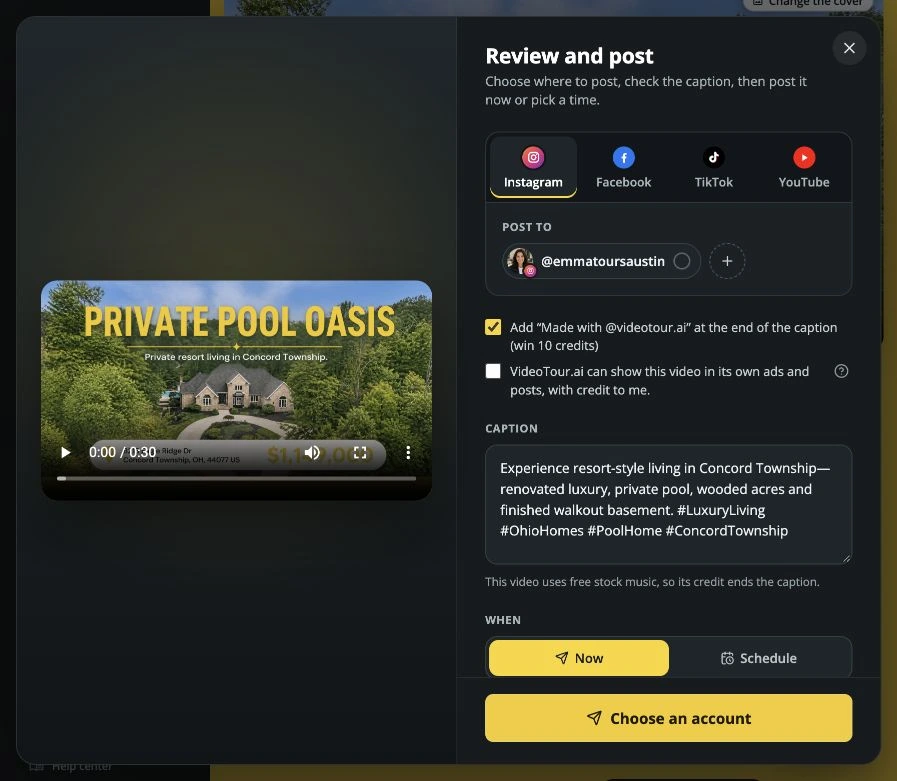
The latest social posting interface in VideoTour.ai.
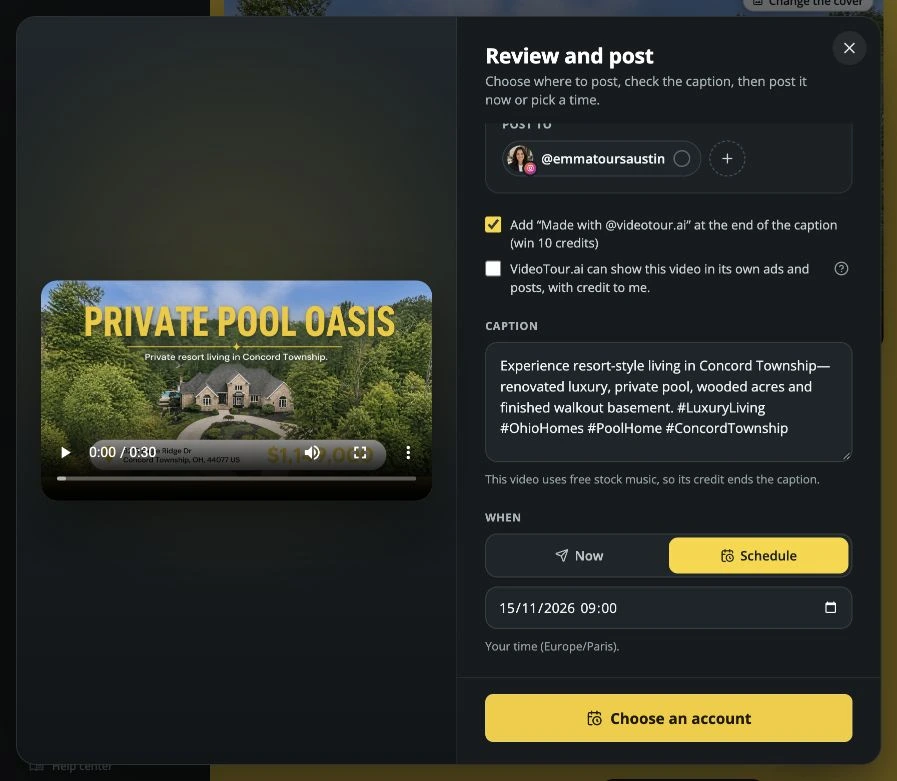
Choose when the video should be sent using the scheduling controls.
After you submit, the Share tab shows the post’s status. You can also use Download the video when you want the finished file for another destination.
The latest social posting interface in VideoTour.ai.
- Choose the account. Select the social-network tab and the connected account you want to use. You can connect an account from the popup if needed. Instagram uses a Business or Creator account, Facebook uses a Page, and YouTube uses your chosen channel. TikTok currently sends the video to drafts for you to finish publishing in TikTok.
- Review the caption. Introduce the listing and give viewers a clear next action. Match it to the spoken ending—for example, invite them to request a viewing.
- Choose Now or Schedule. Scheduling is available on eligible paid plans. Check the local date and time shown before confirming.
Choose when the video should be sent using the scheduling controls.
After you submit, the Share tab shows the post’s status. You can also use Download the video when you want the finished file for another destination.
A short property voiceover you can adapt
Describe how the spaces connect and give viewers a reason to see more. Here is an example for the illustrative home below:
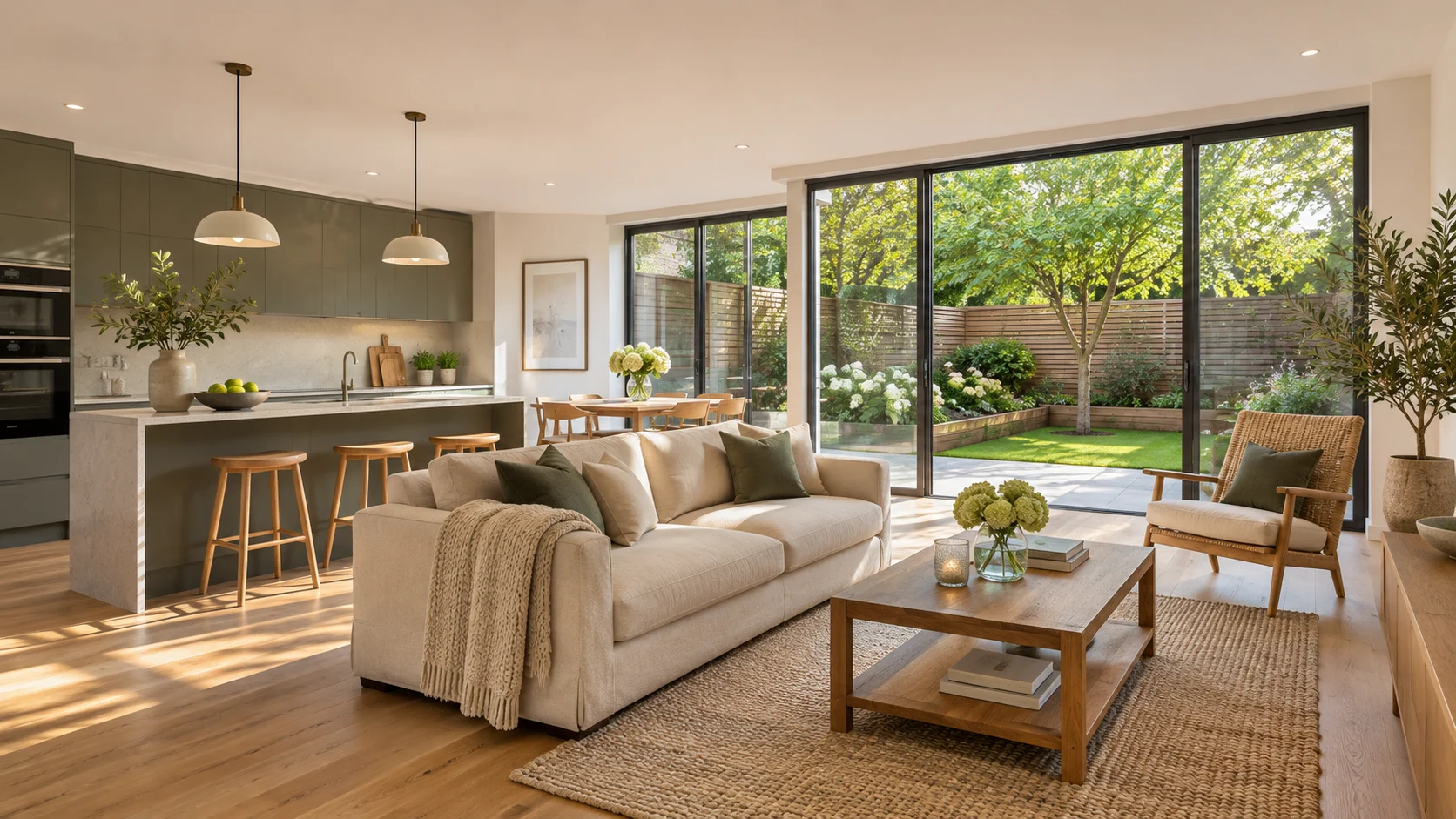
AI-generated illustrative home for the sample narration.
This 57-word script is roughly 23–29 seconds at 120–150 words per minute, before extra pauses. The generated recording gives you the actual length to check against the edit.
To use this structure: open with the main feature, explain two supporting details, then finish with one call to action. Replace the example with your property’s details, save it in the script field and generate the narration in your chosen voice.
AI-generated illustrative home for the sample narration.
Step inside a bright, open-plan living space where the kitchen, dining area and lounge connect naturally. The island gives you room to prepare a meal while staying part of the conversation. Beyond the glass doors, the garden extends the living space outdoors. Want to see how it all fits together? Get in touch to arrange a viewing.
This 57-word script is roughly 23–29 seconds at 120–150 words per minute, before extra pauses. The generated recording gives you the actual length to check against the edit.
To use this structure: open with the main feature, explain two supporting details, then finish with one call to action. Replace the example with your property’s details, save it in the script field and generate the narration in your chosen voice.
How to update a voiceover when the listing changes
If the price, property description or marketing message changes, return to the Voiceover tab and update the wording. Save the script, generate the new narration, wait for alignment and apply the changes to the video.
For a correction to one room in a property tour, use that scene’s Voiceover script box when the narration has been divided among scenes. Follow the voiceover update action shown in the editor, then apply and listen to the corrected scene.
If you uploaded a finished recording, correct the audio file and upload the new version. Editing typed text does not change the speech inside that recording.
Download or publish the updated video once it is ready. An earlier downloaded file or social post keeps the version it originally received.
For a correction to one room in a property tour, use that scene’s Voiceover script box when the narration has been divided among scenes. Follow the voiceover update action shown in the editor, then apply and listen to the corrected scene.
If you uploaded a finished recording, correct the audio file and upload the new version. Editing typed text does not change the speech inside that recording.
Download or publish the updated video once it is ready. An earlier downloaded file or social post keeps the version it originally received.
Frequently asked questions about VideoTour.ai voiceovers
Does VideoTour.ai include automated voiceovers for real estate videos?
Yes. VideoTour.ai can generate a narration script from property details, create speech using a selected voice and match the narration to scenes in a property tour. You can review the text, sound and finished video before sharing.
Do I need to record myself?
You can use an available AI voice without recording yourself. If you want your videos to use your own voice, create a reusable voice clone from a clear sample or upload a finished recording for a particular property.
Can I write my own script?
Yes. Write or paste your narration under 1. Write the script. Use Modify if the field is read-only, save your changes, then generate the audio.
Can I create narration in another language?
Choose the language before generating the script and select a suitable voice. Review any existing text in that language; changing the dropdown alone does not translate a script you already entered.
Why do I still hear the old narration?
Check that the new audio has finished generating and aligning, then apply the video changes. Play the newly finished video and download its updated file. Saving the text alone does not update the spoken recording or an already published video.
Can I share the narrated video directly to social media?
Yes. Open Post the video to choose connected accounts, review the caption and select a posting time. Instagram, Facebook and YouTube have publishing options; TikTok currently uses a draft handoff. You can also download the finished video.
Conclusion
Create a narrated video for your next listing. Add your property photos, prepare the script and choose the voice you want buyers to hear. Start your video in VideoTour.ai.