
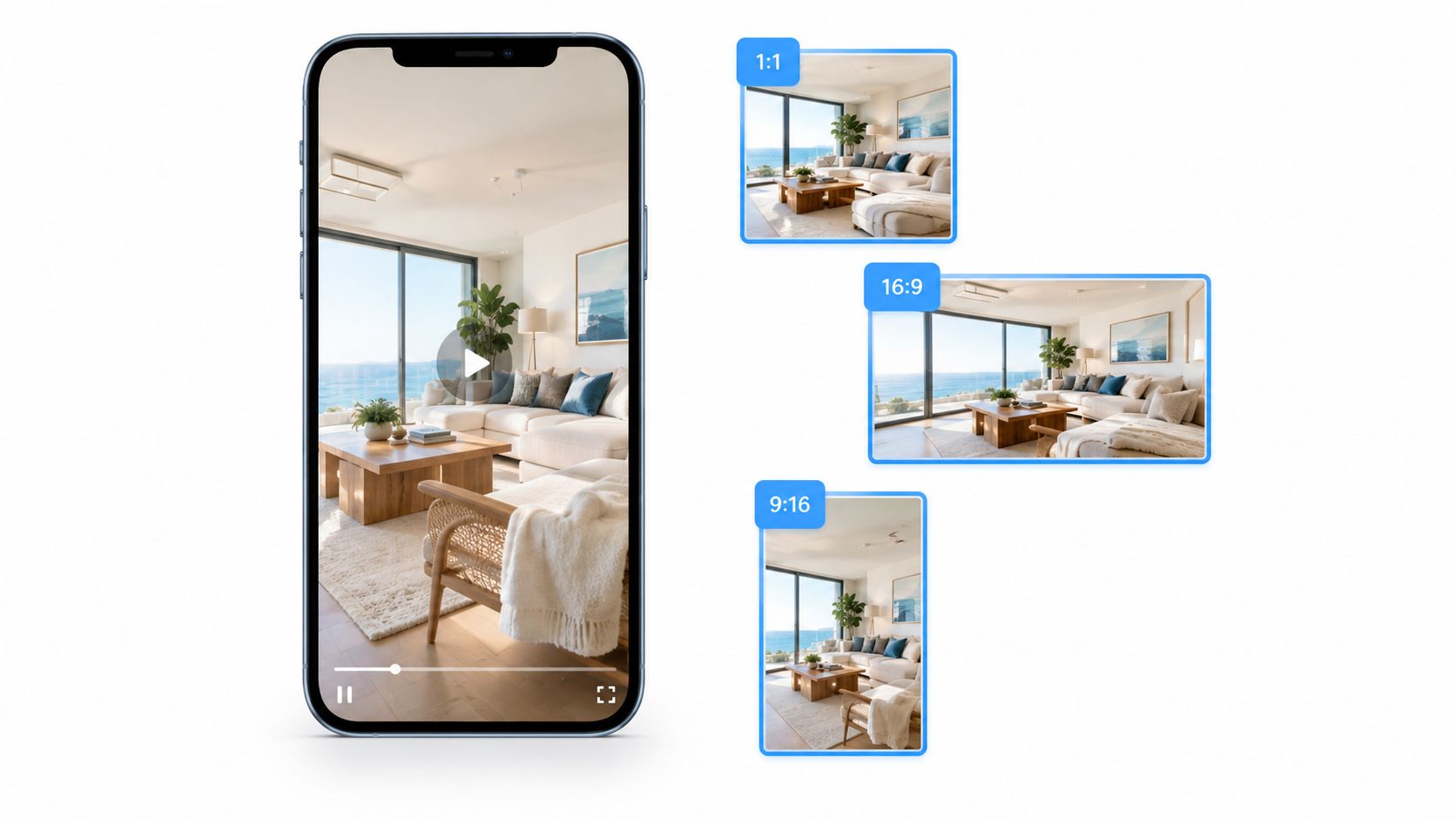
The best video aspect ratio for Facebook is 4:5 at 1080 × 1350 pixels for Feed and Feed ads, and 9:16 at 1080 × 1920 pixels for Reels and Stories. Picking only one of those is where most listing videos go wrong.
Full-screen vertical fills the most phone, but it can also cut out the room you're trying to sell. A wide living room, a facade, and a water view don't survive every crop equally well. That's why the right choice isn't a single universal shape. It's a 4:5 master for Feed plus a separate 9:16 cut for full-screen placements, with each version composed for where it'll really play.
Full-screen vertical fills the most phone, but it can also cut out the room you're trying to sell. A wide living room, a facade, and a water view don't survive every crop equally well. That's why the right choice isn't a single universal shape. It's a 4:5 master for Feed plus a separate 9:16 cut for full-screen placements, with each version composed for where it'll really play.
Summary
Create an AI Video Tours from PhotosTry it For Free
Best Facebook Aspect Ratio for Each Placement
Every Facebook placement has a native shape. Match your export preset to it before you edit a single frame, and you won't spend an afternoon fixing crops.
Feed on mobile gets 4:5 because it takes the most vertical room in an upright Feed. For a property tour, listing highlights, or a caption-led video, that extra height is usable space for the room and the text. Want a sharper master? Export the same 4:5 frame at a higher pixel count. Facebook reads the ratio; the resolution is yours to raise.
Don't make 1:1 at 1080 × 1080 your first choice. Keep it as a backup when one file must run everywhere, including desktop Feed, and you don't have time for separate cuts. It displays consistently, but it gives up vertical coverage that 4:5 would have claimed for free.
The 1.91:1 horizontal format at 1200 × 628 row surprises agents. It suits conventional, desktop-oriented Feed posts. Run it as your main mobile listing video and the property plays small next to every vertical post around it.
Marketplace is the honest gap in this table. There's no verified pixel figure to lock in here, so don't guess. Use 4:5 or 1:1 as your working shape and confirm the current upload specs in Meta's help center before you publish.
Set the preset by placement first, then compose inside it. For most listing accounts, that works out to two exports from a single edit: a 4:5 master for Feed and a 9:16 cut for Reels and Stories.
Recommended Ratio and Pixel Size by Facebook Placement
| Placement | Ratio | Pixel size | Best for |
|---|---|---|---|
| Feed and Feed ads, mobile | 4:5 | 1080 × 1350 | Default for listing posts and ads |
| Feed, cross-placement backup | 1:1 | 1080 × 1080 | One file that runs across desktop and mobile |
| Feed, conventional landscape | 1.91:1 | 1200 × 628 | Desktop-oriented Feed posts |
| Reels and Stories | 9:16 | 1080 × 1920 | Full-screen vertical placements |
| In-stream or landscape viewing | 16:9 | 1920 × 1080 | Landscape walkthroughs for TV and desktop |
| Marketplace | 4:5 or 1:1 | Confirm in Meta's help center | Confirm current specs before publishing |
Don't make 1:1 at 1080 × 1080 your first choice. Keep it as a backup when one file must run everywhere, including desktop Feed, and you don't have time for separate cuts. It displays consistently, but it gives up vertical coverage that 4:5 would have claimed for free.
The 1.91:1 horizontal format at 1200 × 628 row surprises agents. It suits conventional, desktop-oriented Feed posts. Run it as your main mobile listing video and the property plays small next to every vertical post around it.
Why Supported Doesn't Mean Recommended
Reels and Stories both take 9:16 because they're built as full-screen vertical surfaces. Wide 16:9 at 1920 × 1080 still belongs to in-stream and TV-style viewing, where the viewer expects a wide frame and is more likely watching on a larger screen.Marketplace is the honest gap in this table. There's no verified pixel figure to lock in here, so don't guess. Use 4:5 or 1:1 as your working shape and confirm the current upload specs in Meta's help center before you publish.
Feed accepts several ratios. That doesn't make them equal. The table names the best ratio per placement, not the only one allowed.Feed's list of accepted ratios runs wider than this table, and Meta revises it, so confirm the current range in Meta's own specifications before you build presets around an edge case. Supported only means the file will run. It says nothing about visual coverage, readable captions, or stopping a scroll.
Set the preset by placement first, then compose inside it. For most listing accounts, that works out to two exports from a single edit: a 4:5 master for Feed and a 9:16 cut for Reels and Stories.
Why Screen Space Decides the Winning Frame
A phone screen is a fixed rectangle. The aspect ratio decides how much of that rectangle your listing fills, and how much of the property a buyer sees without lifting a finger.
16:9 needs a sideways phone to show its full frame. Held upright, it lands as a thin strip with black bars above and below. Your best room shrinks. Your captions shrink with it.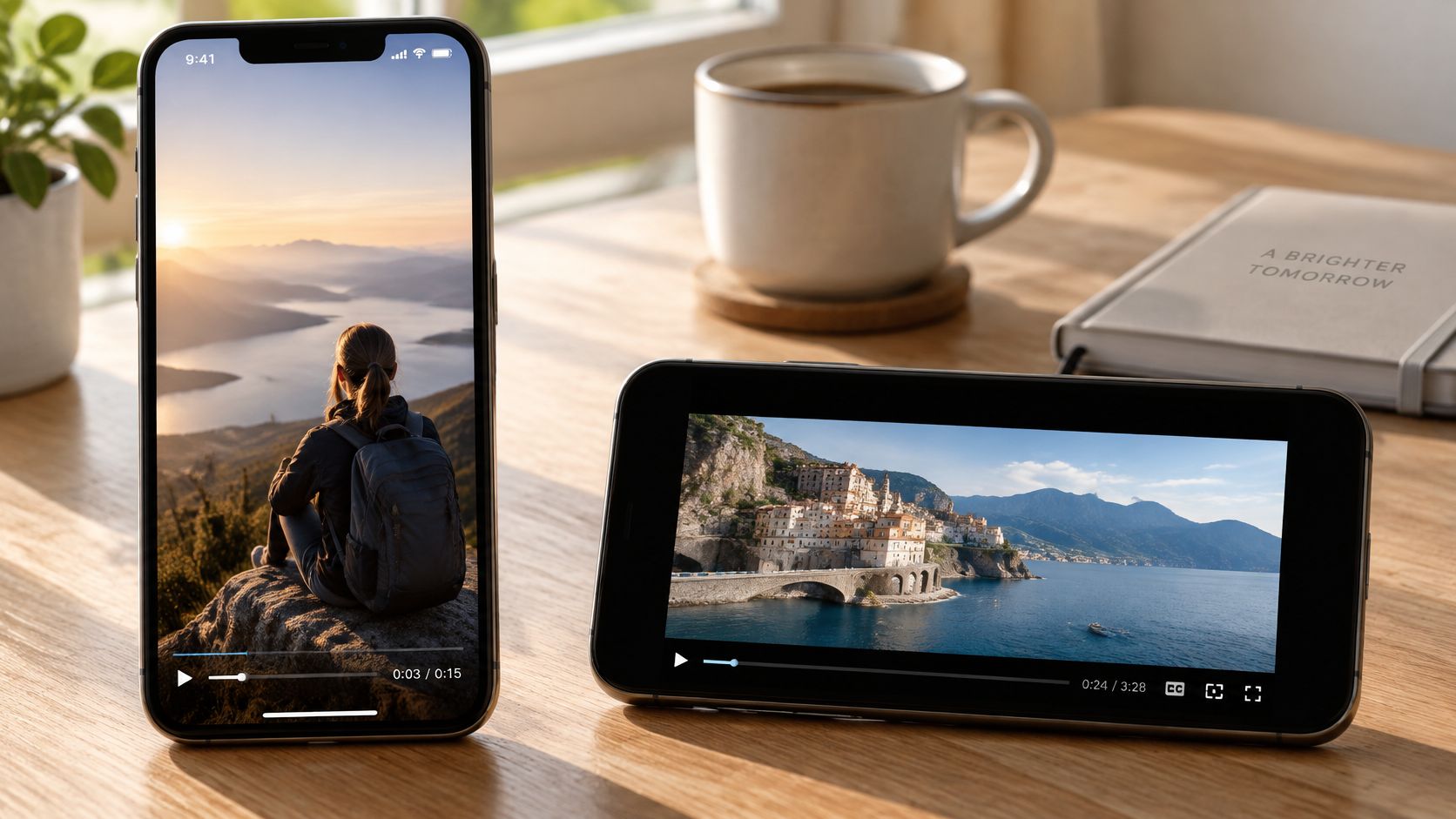 4:5 is a taller frame. It claims more of the upright screen while staying inside a Feed-native format. 9:16 fills the screen edge to edge, which is why Reels and Stories use it natively. 1:1 sits between them, taller than landscape and shorter than 4:5.
The geometry does the rest. At 1080 pixels wide, a 4:5 export stands 1350 pixels tall in the Feed. A 1:1 export stops at 1080. That taller footprint is space a square file cannot claim, and it arrives without the full-screen crop Stories and Reels impose.
Export at least 1080 pixels on the short side. 1080 × 1350 is the practical production target. If your source photos support it, keep a higher-resolution master and downscale for delivery.
That is why the ratio question is really a content question. A tight bathroom or a stair detail survives an aggressive crop. A sweeping exterior needs the compromise of 4:5, or a separate wider cut.
Run a simple test today. Hold your phone upright, play the clip in Feed, and check whether the price and the room stay visible without turning the device. If either fails, the ratio is working against the listing.
16:9 needs a sideways phone to show its full frame. Held upright, it lands as a thin strip with black bars above and below. Your best room shrinks. Your captions shrink with it.
4:5 is a taller frame. It claims more of the upright screen while staying inside a Feed-native format. 9:16 fills the screen edge to edge, which is why Reels and Stories use it natively. 1:1 sits between them, taller than landscape and shorter than 4:5.What the Screen Space Evidence Shows
One study, reported in ASI Central's PromoGram, found that square video generated more views, shares, comments, and likes than vertical or horizontal formats in the mobile social feed. Read that result carefully. It tested 1:1 against vertical and horizontal, not 4:5. What it supports is the direction: upright frames outperformed wide ones on phones held upright.The geometry does the rest. At 1080 pixels wide, a 4:5 export stands 1350 pixels tall in the Feed. A 1:1 export stops at 1080. That taller footprint is space a square file cannot claim, and it arrives without the full-screen crop Stories and Reels impose.
Export at least 1080 pixels on the short side. 1080 × 1350 is the practical production target. If your source photos support it, keep a higher-resolution master and downscale for delivery.
The Trade-Off You Can't Ignore
Height costs width. Every pixel of extra vertical coverage trims the sides of the frame, and listing footage is unusually wide: kitchen runs, facades, open-plan living rooms. Fill the whole phone and you can still show the buyer less of the home.That is why the ratio question is really a content question. A tight bathroom or a stair detail survives an aggressive crop. A sweeping exterior needs the compromise of 4:5, or a separate wider cut.
Run a simple test today. Hold your phone upright, play the clip in Feed, and check whether the price and the room stay visible without turning the device. If either fails, the ratio is working against the listing.
Pros and Cons of 1:1, 4:5, 16:9 and 9:16
Each ratio wins one job and loses another. There's no shape that's best at Feed presence, full-screen immersion, wide-room coverage, and cross-placement convenience at the same time.
Read this as a job assignment, not a beauty contest. You're matching each format to the one task it does well and accepting the cost that comes with it.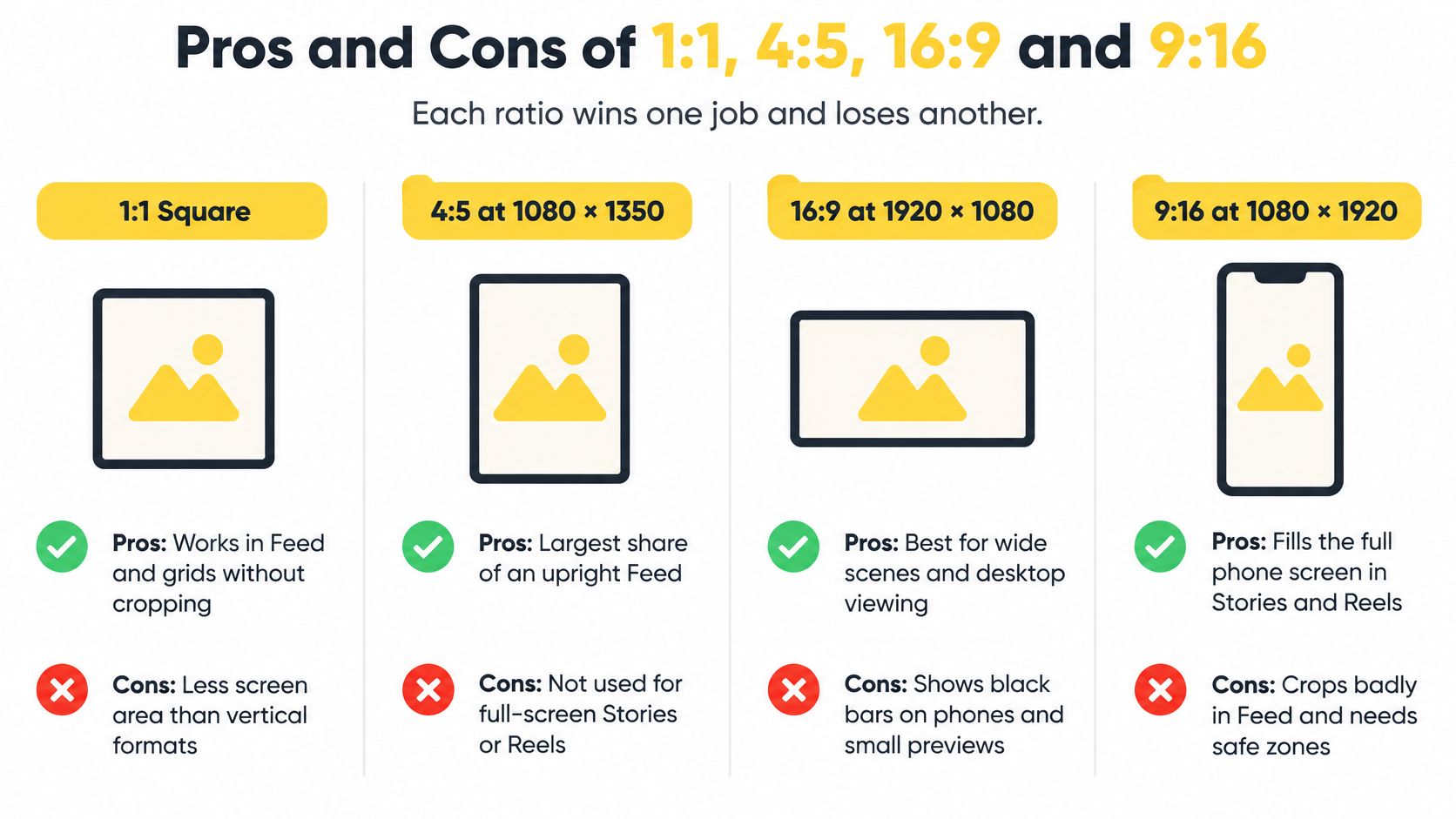
Read this as a job assignment, not a beauty contest. You're matching each format to the one task it does well and accepting the cost that comes with it.
4:5 at 1080 × 1350
- Largest upright Feed share: It claims the biggest share of an upright Feed screen within a Feed-native format, so listings stop more thumbs.
- Room for captions: The extra height gives price lines and captions space without crushing the image.
- Strong Feed ad fit: It's the natural default for Feed ad creative built from listing photos.
- Not full-screen elsewhere: It won't fill Reels or Stories, so those placements need a separate 9:16 cut.
1:1 at 1080 × 1080
- Consistent across devices: It displays predictably across desktop and mobile Feed placements.
- One-file convenience: A single square export covers many placements when time is tight.
- Reliable fallback: It's the safest backup when you can't produce placement-specific versions.
- Least vertical coverage: It gives up screen area to both 4:5 and 9:16 in an upright feed.
- Wide rooms suffer: Letterboxing or cropping wide interiors can make generous spaces look cramped.
16:9 at 1920 × 1080
- Whole wide scenes: Lots, facades, and open-plan interiors fit on screen without losing their width.
- Native for large screens: It's the right shape for desktop, in-stream, and TV-style viewing.
- Small on phones: Held upright, the image shrinks to a strip unless the viewer rotates the device.
- Weak Feed stopping power: A small preview with black bars competes badly against taller creative.
9:16 at 1080 × 1920
- Full-screen immersion: It fills the phone completely in Reels and Stories with no bars.
- Strong for people and detail: Agent-to-camera pieces and close-up features frame naturally in a tall crop.
- Aggressive width loss: The crop removes architectural context, room width, balconies, and exterior details.
- Reframing work required: Every conversion needs new caption placement and focal-point checks, not a blind resize.
Checklist use: Before you export, name the one risk for your chosen ratio and check the edit specifically for it. That single pass catches most ratio mistakes.
Choosing a Ratio for Each Property Video Type
Choose the ratio by the evidence the clip must show, not by the shape that fills the screen most. A buyer doesn't enquire because your video was tall. They enquire because they saw a room, a view, or a feature they wanted.
That's the shift most guidance misses. PostEverywhere's breakdown of Facebook aspect ratios points to the same placement problem for marketers, where Feed favors 4:5 at 1080 × 1350 while Reels and Stories are designed for 9:16 at 1080 × 1920, so one universal export rarely serves a campaign that spans all of them. The underserved question isn't which ratio Facebook allows. It's which ratio your property tour should use in each placement without losing what sells the home.
Take a three-bedroom home with a water view. Force the walkthrough into 9:16 and the crop can cut the view out of the living room shot, which is the strongest image in the listing. Keep that walkthrough in 4:5 for Feed. Then cut a five-second agent introduction in 9:16, where a face and a quick hook lose nothing to the tall frame. If you're pairing that introduction with music for a Reel, this guide to creating a Facebook Reel with music covers the production side of that companion cut.
For interior walkthroughs, 4:5 gives you more usable vertical space than 1:1 without cropping as aggressively as 9:16. That's why it's the right middle ground for room-to-room tours. For detail-led clips, agent introductions, and mobile-first Reels, 9:16 is more appropriate because the subject itself is narrow or centred.
Build the companion version as a new composition, not a resized copy. Captions, motion paths, logos, and focal points need repositioning after reframing, because the part of each photo that stays visible changes with the crop. A resize keeps the old layout. A recomposition protects the message.
For Marketplace, treat 4:5 as the working choice until current specs are confirmed. It matches the Feed behaviour most listings are browsed through, so your Feed master usually translates with the least surprise.
That's the shift most guidance misses. PostEverywhere's breakdown of Facebook aspect ratios points to the same placement problem for marketers, where Feed favors 4:5 at 1080 × 1350 while Reels and Stories are designed for 9:16 at 1080 × 1920, so one universal export rarely serves a campaign that spans all of them. The underserved question isn't which ratio Facebook allows. It's which ratio your property tour should use in each placement without losing what sells the home.
Ratio to Use by Property Video Type
| Video type | Ratio to use | Why it works | Companion version |
|---|---|---|---|
| Interior walkthrough, room to room | 4:5 | Keeps more room width than 9:16 and fills Feed | 9:16 cut of the best three or four rooms |
| Exterior and curb appeal | 16:9 or 4:5 | Wide facades and lots need horizontal width | 4:5 crop with the facade centred |
| Agent introduction to camera | 9:16 | The face fills a full-screen vertical frame | 4:5 version for the Feed post |
| Single feature close-up | 9:16 or 4:5 | Tall or close detail loses little in a crop | 1:1 for cross-placement use |
| Short price or open-house teaser | 9:16 | Full-screen Stories and Reels hook | 4:5 version for Feed ads |
| Long landscape walkthrough for desktop or TV | 16:9 | Native to in-stream and desktop viewing | 4:5 cut for mobile Feed |
Why Maximizing Coverage Isn't the Goal
Maximizing vertical screen coverage doesn't automatically maximize communication quality. As Crowbert's Facebook video format and size guide is used to frame in the underlying analysis, forcing a wide room or exterior into 9:16 may reduce visual information through cropping. The better question is which ratio preserves the listing's selling evidence in each placement.For interior walkthroughs, 4:5 gives you more usable vertical space than 1:1 without cropping as aggressively as 9:16. That's why it's the right middle ground for room-to-room tours. For detail-led clips, agent introductions, and mobile-first Reels, 9:16 is more appropriate because the subject itself is narrow or centred.
Build the companion version as a new composition, not a resized copy. Captions, motion paths, logos, and focal points need repositioning after reframing, because the part of each photo that stays visible changes with the crop. A resize keeps the old layout. A recomposition protects the message.
For Marketplace, treat 4:5 as the working choice until current specs are confirmed. It matches the Feed behaviour most listings are browsed through, so your Feed master usually translates with the least surprise.
Keeping Prices and Logos Out of Edge Zones
The price, the agency logo, and the phone number are the three things most often hidden in vertical listing videos. They don't disappear because the export failed. They disappear because you placed them where the platform puts its own interface.
The edges of a vertical frame belong to the platform. In Stories and Reels, the top carries the account name and controls. The bottom carries captions, calls to action, and reactions. In Feed, automatic cropping can trim the frame edges and push corner elements out of view.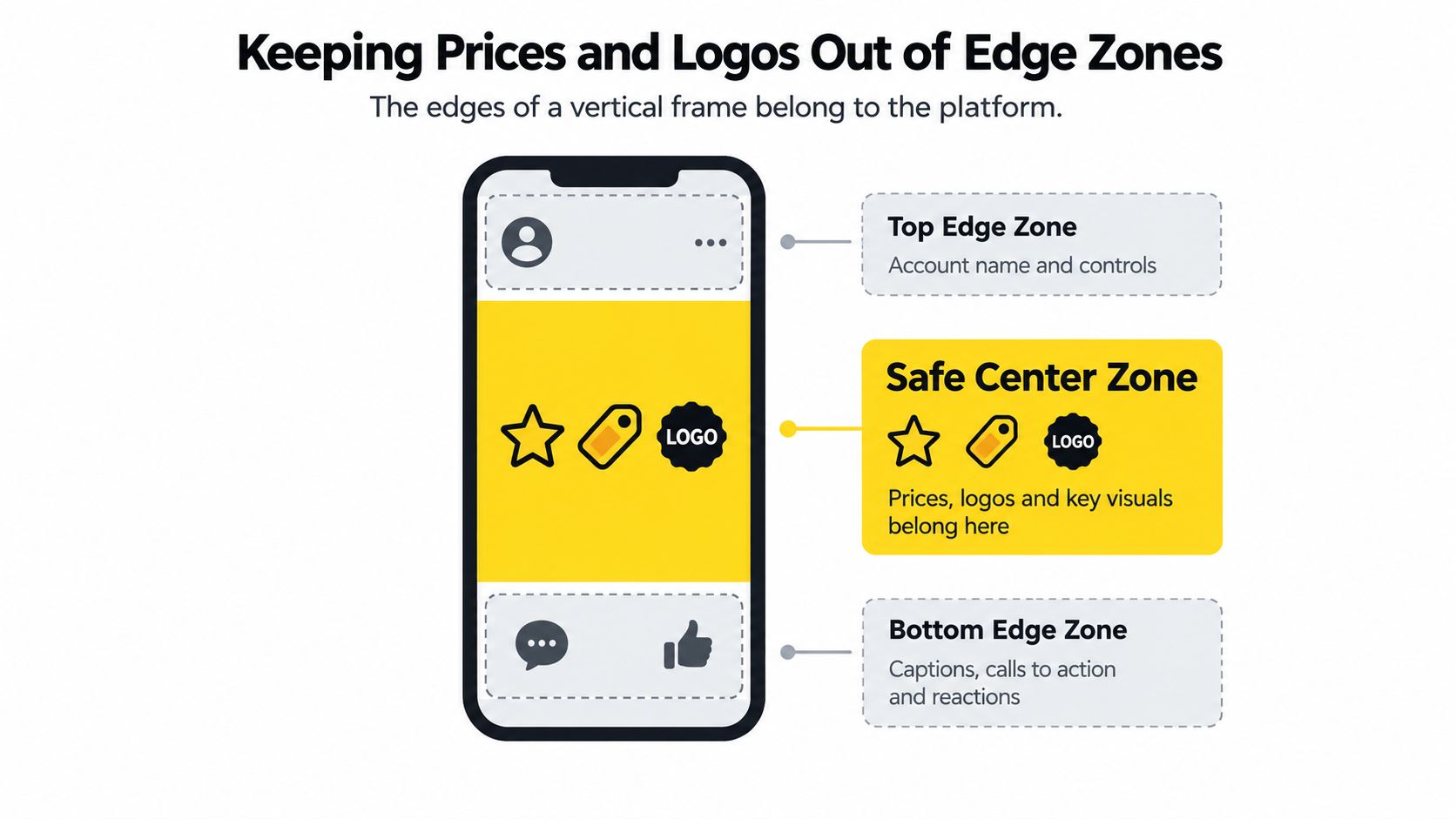 Work to one rule. Keep the price, address line, agency logo, phone number, and website inside an inner frame, and keep captions in the central band of the image. Treat the outer edges as decoration only, never as storage for information a buyer needs.
This is a layout problem as well as a pixel problem. A 9:16 file reused in Feed can shift caption positions and push a price into a cropped margin, even though the pixel dimensions are technically supported. The export size can be right while the composition is wrong.
The edges of a vertical frame belong to the platform. In Stories and Reels, the top carries the account name and controls. The bottom carries captions, calls to action, and reactions. In Feed, automatic cropping can trim the frame edges and push corner elements out of view.
Work to one rule. Keep the price, address line, agency logo, phone number, and website inside an inner frame, and keep captions in the central band of the image. Treat the outer edges as decoration only, never as storage for information a buyer needs.Your Safe-Area Checklist
- Price in the first two seconds: Show it early and inside the central area, where cropping can't remove it.
- Logo in the middle band: Don't park it in a corner, where controls and reactions sit.
- Captions clear of faces: Keep text from overlapping faces or the key feature in each shot.
- Clean bottom edge: Leave the lower edge clear when a call to action is shown on screen.
- Contact details centred: Put phone numbers and web addresses where they'll survive every placement.
This is a layout problem as well as a pixel problem. A 9:16 file reused in Feed can shift caption positions and push a price into a cropped margin, even though the pixel dimensions are technically supported. The export size can be right while the composition is wrong.
Preview each export on a phone and check all four edges before you post. If you have to squint or move the phone to read the price, the buyer won't bother.
Export Both Ratios and Run the Two-Week Test
Two renders beat one resized file because each ratio needs its own composition. The workflow below produces a 4:5 Feed master and a 9:16 vertical cut from the same listing photos, with the safe-area checks built in rather than bolted on at the end.
Keep the order strict. Compose the Feed version first, lock the text placement, then rebuild the vertical version around what stays visible after the crop.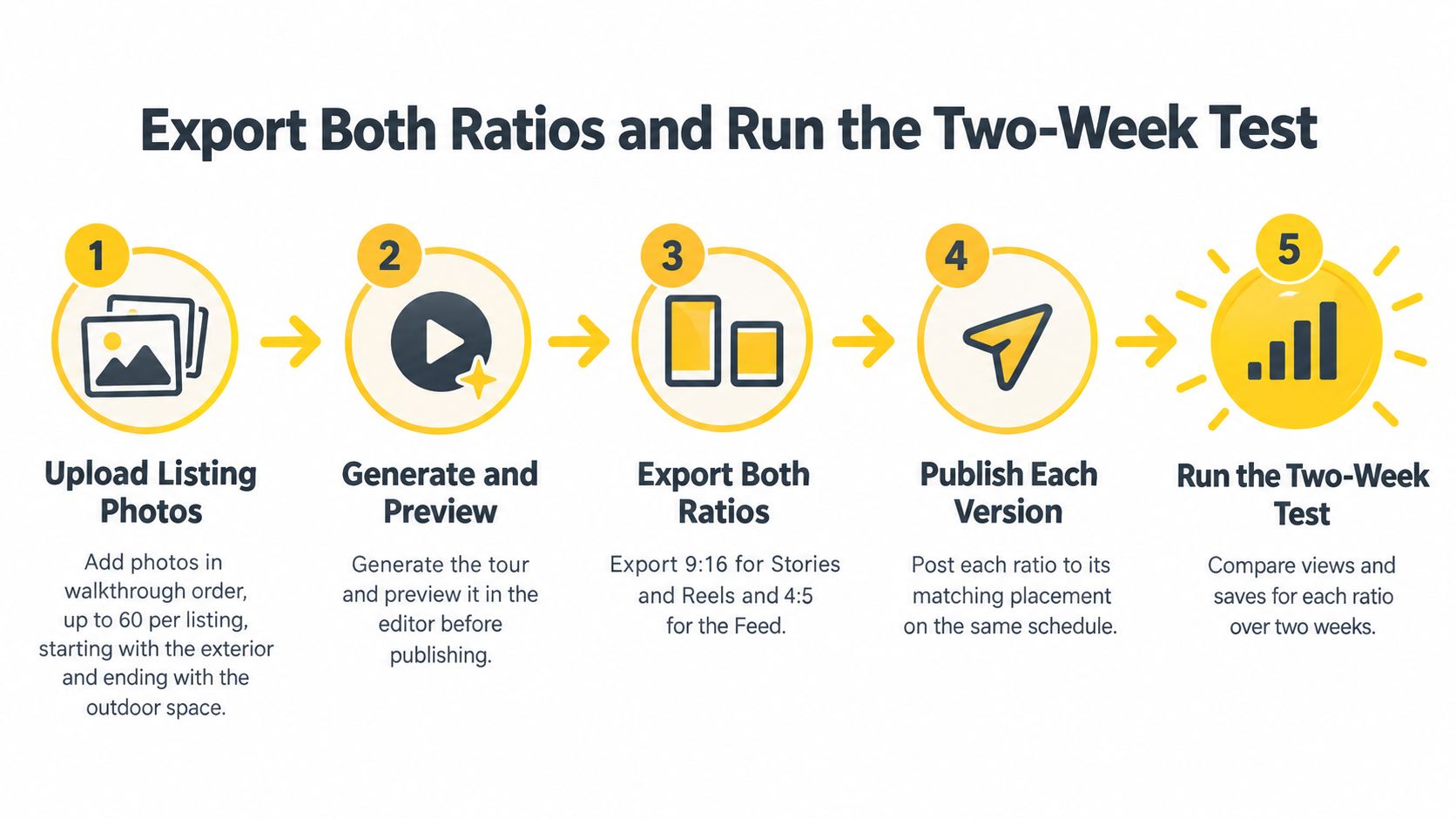
One practical option for this workflow is VideoTour.ai, which renders photo-based tours in multiple aspect ratios and lets you adjust image order, timing, layout, and aspect ratio in its editor. Whatever tool you use, the requirement is the same, and this overview of real estate video ads shows how those exports fit into a paid campaign once they're published.
Agents, brokerages, hosts, and property managers can reuse this routine for every listing without turning it into a second production job. The photos, the order, and the branding stay the same. Only the composition changes, and that keeps production close to a single edit while each placement gets the frame it rewards.
Keep the order strict. Compose the Feed version first, lock the text placement, then rebuild the vertical version around what stays visible after the crop.
The Two-Export Production Steps
- Upload in walkthrough order: Add the listing photos in the sequence a buyer would move through the home, starting with the exterior and ending with the outdoor space.
- Generate and preview: Generate the tour and preview it in the editor before any download.
- Set the Feed master: In the aspect ratio setting, choose 4:5 and render it.
- Check the safe zones: Review the render against the checklist above and move the price, logo, and captions inward with the text and layout controls.
- Rework image order and timing: Adjust the sequence for the vertical cut, because cropping changes which part of each photo stays visible.
- Render the vertical version: Switch to 9:16, render the Reels and Stories version, then reposition captions and motion so focal points stay in frame.
- Download and label: Download both files in HD and label them feed-4x5 and story-9x16.
One practical option for this workflow is VideoTour.ai, which renders photo-based tours in multiple aspect ratios and lets you adjust image order, timing, layout, and aspect ratio in its editor. Whatever tool you use, the requirement is the same, and this overview of real estate video ads shows how those exports fit into a paid campaign once they're published.
What to Confirm Before You Post
Run this check on both files before anything goes live. It takes a few minutes, and it catches the problems that only show up on a real screen.- Labelled ratio per placement: Every placement in your campaign has its own named file.
- Both exports rendered: You have a finished 4:5 and a finished 9:16, not one file and a plan.
- Text inside the safe area: Price, logo, and captions sit clear of all four edges.
- Phone preview done: You've watched each version upright on an actual phone.
- Originals saved: The source photos are stored for re-renders when the price or details change.
Running the Two-Week Test
Post the 4:5 to Feed and the 9:16 to Stories for one listing over two weeks. Keep the schedule consistent, then compare watch-through and enquiries between the two versions. You're not testing which ratio is universally better. You're learning which ratio carries this type of listing, in these placements, for your audience.Agents, brokerages, hosts, and property managers can reuse this routine for every listing without turning it into a second production job. The photos, the order, and the branding stay the same. Only the composition changes, and that keeps production close to a single edit while each placement gets the frame it rewards.
The two-export rule: If a campaign runs in Feed and in a full-screen placement, it gets two composed versions. One resized file is a shortcut that costs you either screen space or selling evidence.Upload your listing photos to VideoTour.ai and render your first tour in both 4:5 for Feed and 9:16 for Reels and Stories, with captions, branding, and safe-area placement handled in the editor before you download. Your first video is free, so run the two-week test on a live listing and let the watch-through and enquiries settle which cut earns its place in your routine.