
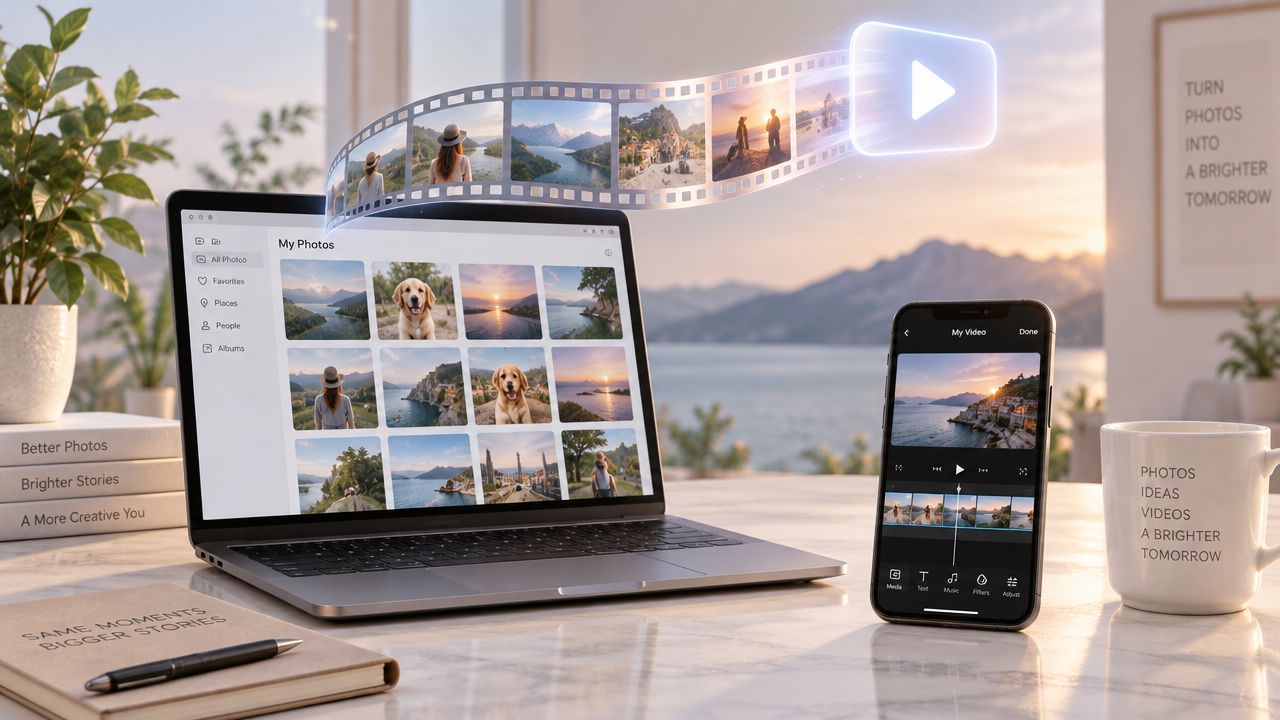
You've got the photo set, the listing copy, and a deadline that's already too close. The problem isn't turning pictures into a video, it's choosing a video from photos app that fits the job you need done, whether that's a fast property tour, a trend-led Reel, a branded slideshow for a team, or a presentation clip that won't fight your workflow. That's why the comparison below focuses on setup speed, photo motion and transitions, audio and narration, branding control, aspect ratios, export quality, platform fit, and the limitations that matter when the file has to ship today, not next week. For readers in property marketing, VideoTour.ai is the most specialized option here, while the rest are broader tools for social, presentation, and general business content. If you want a broader add-on toolkit too, this guide pairs well with add images to videos tools.
Summary
Create an AI Video Tours from PhotosTry it For Free
1. VideoTour.ai
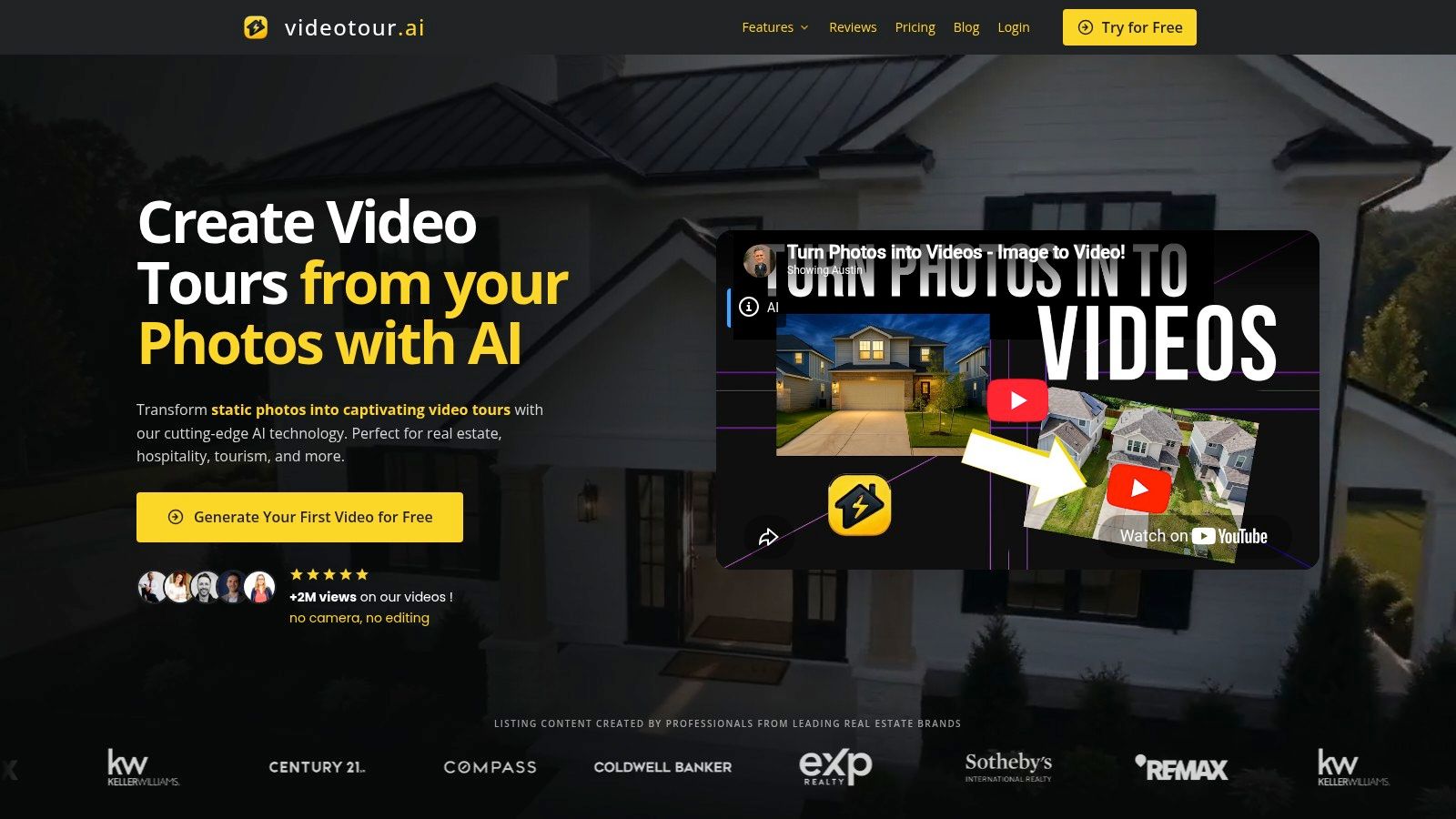 A listing agent with a complete photo set can produce a property tour without opening a timeline editor. VideoTour.ai converts up to 60 listing photos into a video in minutes, then adds motion, captions, music, voiceovers, voice cloning, and branding. Its workflow is designed for real estate and hospitality publishing, so the output is closer to a structured property presentation than a general slideshow.
The main production benefit is repeatability. Teams can retain fonts, colors, logos, thumbnails, and styles across projects, then adapt the same photo set to horizontal, vertical, or square formats. That supports portal listings, Reels, and social posts without rebuilding each version. Unlimited in-browser revisions also let users change image order, timing, and presentation before downloading the file.
The tool suits solo agents and commercial teams that need a short path from photos to a publishable asset. Paid plans provide HD output at 720p or 1080p, unlimited downloads, hosted landing pages, and multi-user access on higher tiers. Its limitations matter for teams with demanding finishing requirements: advanced animations and logo intros use AI credits, and there is no native 4K export.
Pricing is listed as an Independent plan at $29/month, Agency at $59/month, and Enterprise at $99/month. An annual option is advertised at about 30% off. The site also reports use by 10,000+ businesses, 2M+ video views, and a 4.8/5 average rating. Treat these as company-reported signals rather than independent comparisons.
Practical rule: choose this workflow when property facts, brand consistency, and quick format changes matter more than fine-grained timeline editing or 4K mastering.The workflow for turning listing photos into video tours shows how the process stays photo-first. That makes it a better fit for agents publishing recurring tours than for editors building highly customized narrative videos.
Pros
- Massive time savings: creates a publishable tour from a photo set without separate videography or editing.
- Platform-ready output: MLS-safe presets and horizontal, vertical, and square formats support multiple channels.
- Repeatable branding: logos, fonts, colors, and thumbnails can remain consistent across listings and users.
- Team workflow: shared access and browser revisions support agency production.
- Clear scaling path: plans are organized for independent users, agencies, and larger teams.
- Premium motion costs extra: advanced animations and logo intros use AI credits.
- No native 4K export: teams requiring ultra-high-resolution masters may need another editor.
2. CapCut
For a social team turning a folder of listing or campaign photos into a post before the next publishing window, CapCut prioritizes speed over strict brand control. Its photo-to-video templates handle timing, transitions, and music with limited setup, making it a practical video from photos app for TikTok, Reels, and Shorts.
The tradeoff appears during review. Trend-based templates can shape the pacing, typography, and transitions before a team has applied its own visual rules. Editors can build from scratch and adjust those elements, but template-led production may require extra checks for logo placement, color use, caption timing, and repeated campaign style.
That makes CapCut a stronger choice for distribution speed than for fixed presentation systems. A social producer working on frequent vertical clips can accept the template review step and export quickly. A brokerage producing consistent listing presentations may need to replace more of the default motion and styling, reducing the initial time advantage. Teams that want to control pacing in detail should first learn how to add motion to a photo, then decide whether CapCut's presets provide enough control.
Platform fit is clear: vertical output suits TikTok, Reels, and Shorts, while web and mobile access support production away from a desktop. Built-in captions and effects help finish social clips, though teams should confirm that paid templates or effects do not interrupt the intended workflow.
Features
Where CapCut fits best
CapCut is most useful when the finished clip must match the rhythm of a social feed. Templates reduce manual alignment, while auto beat-sync and motion effects give still images a quicker sense of movement. A short property teaser, event recap, or product sequence can reach a publishable draft faster than it would in a timeline-first editor.The tradeoff appears during review. Trend-based templates can shape the pacing, typography, and transitions before a team has applied its own visual rules. Editors can build from scratch and adjust those elements, but template-led production may require extra checks for logo placement, color use, caption timing, and repeated campaign style.
That makes CapCut a stronger choice for distribution speed than for fixed presentation systems. A social producer working on frequent vertical clips can accept the template review step and export quickly. A brokerage producing consistent listing presentations may need to replace more of the default motion and styling, reducing the initial time advantage. Teams that want to control pacing in detail should first learn how to add motion to a photo, then decide whether CapCut's presets provide enough control.
Platform fit is clear: vertical output suits TikTok, Reels, and Shorts, while web and mobile access support production away from a desktop. Built-in captions and effects help finish social clips, though teams should confirm that paid templates or effects do not interrupt the intended workflow.
Features
- Large template library: photo-to-video and image-to-video options for social content.
- Auto motion and beat-sync: adds pacing without manual keyframing.
- Cross-platform access: usable on web and mobile.
- Built-in captions and effects: supports quick social exports.
- Very fast for social formats.
- Large template ecosystem and active community.
- Trend-heavy aesthetics can reduce brand control.
- Some templates and effects require paid add-ons.
3. Canva
Canva fits teams that need branded video from photos without adopting a full editor. Its photo video maker and timeline editor work well for slideshows, listing promos, and social posts where logos, colors, and typography matter more than complex motion. For a shared workflow, it gets a project from upload to export with little setup.
The platform also handles multi-channel output efficiently. Quick resizing and aspect-ratio switching make it easier to adapt one set of photos for Instagram, TikTok, and YouTube without rebuilding the sequence. For teams that are not video editors, that saves time and lowers the chance of a draft getting stuck in review.
Canva gives up control in exchange for speed. It works well for branded slideshows, but detailed motion timing and highly stylized property tours are harder to shape here. Teams that rely on premium stock or advanced features can also run into paywalls, which matters if the workflow depends on specific assets.
For practical use, Canva suits listings, social posts, and presentation-style assets more than cinematic edits. It is strongest where the goal is to publish clean, on-brand visuals quickly and keep revisions simple.
Features
Branding control for repeat output
Canva's Brand Kit is the main operational advantage. Colors, fonts, and logos stay attached to the project, which reduces variation from one listing to the next. That helps brokerages, property managers, and small agencies keep a consistent look even when several people touch the same file.The platform also handles multi-channel output efficiently. Quick resizing and aspect-ratio switching make it easier to adapt one set of photos for Instagram, TikTok, and YouTube without rebuilding the sequence. For teams that are not video editors, that saves time and lowers the chance of a draft getting stuck in review.
Canva gives up control in exchange for speed. It works well for branded slideshows, but detailed motion timing and highly stylized property tours are harder to shape here. Teams that rely on premium stock or advanced features can also run into paywalls, which matters if the workflow depends on specific assets.
For practical use, Canva suits listings, social posts, and presentation-style assets more than cinematic edits. It is strongest where the goal is to publish clean, on-brand visuals quickly and keep revisions simple.
Features
- Drag-and-drop photo-to-video workflow
- Templates for Instagram, TikTok, and YouTube
- Brand Kit with colors, fonts, and logos
- Timeline editor for photo sequences
- AI helpers for captions and edits
- Very low learning curve
- Consistent branding across outputs
- Heavy team usage may require paid tiers.
- Some assets and features sit behind a paywall.
4. Adobe Express
Adobe Express fits teams that already work inside Adobe and want a cleaner finish without moving into a full editor. Its photo-to-video tools cover captions, music, animations, and brand controls, while Firefly-powered assists can speed up small creative tasks. For photo sets that need to move from draft to publishable with limited back-and-forth, that mix is practical.
The trade-off is editing depth. Adobe Express is lighter than Premiere Pro or After Effects, so it works better for short branded pieces than for complex productions with many timing decisions. Teams that need detailed motion control, layered transitions, or precise sequence shaping will run into limits. For property slideshows with logos, captions, and music, though, it gives enough control to keep pacing and branding aligned without slowing the team down.
It also helps when the output needs to stay predictable across reviews. A familiar Adobe interface can reduce revision churn because fewer people have to learn a new workflow before they can comment on a draft. That matters for real estate marketing, where consistency across listings, social posts, and team-made assets is easier to maintain when the toolset is already established.
Features
Better for brand consistency than fine-grained editing
The main advantage is workflow continuity. If a marketing team already uses Adobe Creative Cloud, Adobe Express reduces handoff friction between design and video work. Its templates also skew more polished than the social-first, meme-heavy feel of some web editors, which suits property brands that need a calmer visual style and tighter brand control.The trade-off is editing depth. Adobe Express is lighter than Premiere Pro or After Effects, so it works better for short branded pieces than for complex productions with many timing decisions. Teams that need detailed motion control, layered transitions, or precise sequence shaping will run into limits. For property slideshows with logos, captions, and music, though, it gives enough control to keep pacing and branding aligned without slowing the team down.
It also helps when the output needs to stay predictable across reviews. A familiar Adobe interface can reduce revision churn because fewer people have to learn a new workflow before they can comment on a draft. That matters for real estate marketing, where consistency across listings, social posts, and team-made assets is easier to maintain when the toolset is already established.
Features
- Photo-to-video timelines with animations
- Captions, logos, and soundtrack support
- Adobe Firefly-powered AI assists
- Template library and brand controls
- Creative Cloud integrations
- Works well inside an Adobe workflow
- Polished template style for branded content
- Less control than advanced video editors.
- Stronger value if your team already uses Adobe tools.
5. VEED
A photo set can reach publishable form in VEED without much setup, especially if the job calls for narration, subtitles, or a browser workflow that non-editors can handle. The slides-to-video path is direct, and the captioning tools make more sense for social promos, internal presentations, and explainer clips built from still images than for highly polished motion work. For teams that spend time on text and pacing, that matters.
The limits appear as the project grows. Browser editors can slow down on longer timelines, and the free plan restricts features and exports. That makes VEED a better fit for contained jobs, not for building a large library of reusable listing assets.
The advantage is subtitle control. If the deliverable is a short social explainer, a talking-point video, or another piece where text clarity matters more than transition work, VEED saves time. If the brief calls for a premium property tour with tighter motion control and more precise sequencing, a more specialized editor is the safer choice.
Features
Caption-first editing for short projects
VEED's strengths show up in the early production decisions. You can drop in photos, voiceover, music, and brand elements without managing a heavy timeline, so quick turnarounds stay practical. Resizing also helps when one project needs to fit multiple social formats.The limits appear as the project grows. Browser editors can slow down on longer timelines, and the free plan restricts features and exports. That makes VEED a better fit for contained jobs, not for building a large library of reusable listing assets.
The advantage is subtitle control. If the deliverable is a short social explainer, a talking-point video, or another piece where text clarity matters more than transition work, VEED saves time. If the brief calls for a premium property tour with tighter motion control and more precise sequencing, a more specialized editor is the safer choice.
Features
- Slides-to-video workflow with narration
- Auto-captions and text-to-speech
- AI editing tools and templates
- Easy resizing for social channels
- Fast and simple for non-editors
- Solid subtitle and caption tooling
- Free-plan limits affect exports and features.
- Web performance can dip on long timelines.
6. Kapwing
Kapwing fits teams that need a browser-based path from photos to a publishable clip without building a full motion workflow. It handles image uploads, timing, photo animation, voiceover, and exports sized for common social channels. For listing updates, short promos, and internal explainers, that keeps the work close to the final deliverable.
Its limits show up as the project grows. Heavy AI use can count toward monthly allowances, and plan caps on asset size or length can narrow what the editor can handle. That makes it better for contained jobs, where the photo set is known in advance and the output stays short enough for browser editing.
Kapwing works less like a full creative suite and more like a fast production tool for teams that already know their format. It is a reasonable fit for marketers, property teams, and anyone preparing social clips where subtitles, resizing, and quick turnaround matter more than fine-grained motion design.
Features
Fast edits, with clear limits
Kapwing's strength is speed at the point where decisions matter most. A photo set can move from upload to draft without separate motion software, and the same interface keeps subtitles, overlays, and pacing in one place. For teams that care about readability and distribution more than elaborate transitions, that reduces friction. If you need a practical example of how to animate and enhance photos, Kapwing shows the basic workflow clearly.Its limits show up as the project grows. Heavy AI use can count toward monthly allowances, and plan caps on asset size or length can narrow what the editor can handle. That makes it better for contained jobs, where the photo set is known in advance and the output stays short enough for browser editing.
Kapwing works less like a full creative suite and more like a fast production tool for teams that already know their format. It is a reasonable fit for marketers, property teams, and anyone preparing social clips where subtitles, resizing, and quick turnaround matter more than fine-grained motion design.
Features
- Image-to-video converter with AI photo animation
- Timeline for overlays, subtitles, and voiceover
- Presets for TikTok, Reels, and YouTube
- Simple web-based workflow
- Easy to learn
- Useful subtitle and resizing workflow
- Free tier available for trials
- Plan caps can limit larger projects.
- Heavy AI usage may count toward monthly allowances.
7. FlexClip
FlexClip sits between basic slideshow apps and fuller marketing editors. The practical question is how fast a photo set becomes publishable, and how much control remains over pacing, branding, and export format. FlexClip answers that with templates, timeline editing, and AI helpers for subtitles, voiceover, and translation. For teams producing promos, explainers, or property clips, that mix keeps the workflow contained without forcing them into a heavier editor.
Its AI tools are most useful when the same asset has to travel across channels or markets. Subtitle generation and translation help when a marketing team repurposes one set of images for different audiences, while voiceover support gives the clip a more complete finish without extra software. For recurring property promos, that can save time on repeat builds.
The limits are also clear. Some AI features use credits, and the free plan includes restrictions and watermarks. FlexClip works best for regular, defined production tasks where the team wants a predictable browser workflow and does not need open-ended motion design.
Features
Where FlexClip fits in production
A template-first start gets the first draft together quickly. From there, users can move elements on the timeline, add stock media, and adjust the pacing instead of accepting a fixed slideshow flow. That matters for jobs where the photo order is known, but the final cut still needs some room for branding and readability.Its AI tools are most useful when the same asset has to travel across channels or markets. Subtitle generation and translation help when a marketing team repurposes one set of images for different audiences, while voiceover support gives the clip a more complete finish without extra software. For recurring property promos, that can save time on repeat builds.
The limits are also clear. Some AI features use credits, and the free plan includes restrictions and watermarks. FlexClip works best for regular, defined production tasks where the team wants a predictable browser workflow and does not need open-ended motion design.
Features
- Slideshow templates with timeline control
- Stock library plus AI subtitle, voiceover, and translation tools
- Multiple aspect ratio exports
- Template coverage for promos and explainers
- Gentle learning curve
- Broad template coverage for marketing videos
- Free plan limits and watermarks apply.
- Some advanced AI features use credits.
8. Animoto
Animoto suits a business team that needs a publishable slideshow quickly, especially for listings and social posts. Its workflow runs through templates: add photos, apply brand colors and logos, place captions, choose music, then export. The reduced decision load helps agents or coordinators produce consistent videos without learning a full timeline editor.
For a 12-photo listing set, however, Animoto's template beats can limit pacing decisions. You may adjust overall timing, but you cannot fine-tune each pan duration with the same freedom available in VideoTour.ai or FlexClip. That trade-off is acceptable when the property sequence already works visually and the priority is a clean draft rather than shot-by-shot control.
Branding remains practical rather than expansive. Users can set logos, colors, text, and timing, while social-format presets make repurposing easier across publishing channels. The platform is less suitable for presentations or campaigns that need layered layouts, complex effects, or carefully designed motion.
Animoto is therefore a workflow choice, not a general-purpose editor. It fits recurring listing promotions where the photos are ready, the brand rules are established, and a coordinator needs reliable output with minimal training. Teams producing varied social formats or detailed branded edits may outgrow its smaller effects and feature library.
Features
For a 12-photo listing set, however, Animoto's template beats can limit pacing decisions. You may adjust overall timing, but you cannot fine-tune each pan duration with the same freedom available in VideoTour.ai or FlexClip. That trade-off is acceptable when the property sequence already works visually and the priority is a clean draft rather than shot-by-shot control.
Branding remains practical rather than expansive. Users can set logos, colors, text, and timing, while social-format presets make repurposing easier across publishing channels. The platform is less suitable for presentations or campaigns that need layered layouts, complex effects, or carefully designed motion.
Animoto is therefore a workflow choice, not a general-purpose editor. It fits recurring listing promotions where the photos are ready, the brand rules are established, and a coordinator needs reliable output with minimal training. Teams producing varied social formats or detailed branded edits may outgrow its smaller effects and feature library.
Features
- Purpose-built photo-to-video templates
- Simple controls for text, logo, colors, and timing
- Social-format presets
- Marketing-focused workflows
- Very straightforward
- Good for quick listing promos and social posts
- Less flexible than fuller editors.
- Smaller effects and features library than newer social-first apps.
9. Renderforest
Renderforest suits photo sets that need a defined visual theme before publication. Its slideshow categories cover weddings, corporate openers, and real estate showcases. Logo intros and outros can frame listing images with a recognizable brand, making the platform more useful for a polished property presentation than a plain photo sequence.
The workflow starts with a template rather than a blank timeline. Teams can place images, text, and music through drag-and-drop editing, then add a logo sting or closing card. That reduces setup time for recurring listings, especially when a coordinator needs a publishable draft without building every transition manually.
The tradeoff appears in pacing and motion control. A chosen template establishes much of the sequence, so editors have less freedom to set individual image timing or design a specific movement pattern. Renderforest therefore fits a consistent social post, listing opener, or event montage better than a presentation requiring layered layouts and precise edits.
Check export and commercial-use rules before committing a production workflow. Free export conditions and commercial terms can differ by plan, which affects whether a draft is suitable for client-facing or business publishing.
Choose Renderforest when speed, visual consistency, and branded openings matter more than timeline-level control. It is a practical team option for repeatable listing videos and marketing assets, while editors producing varied formats may need a less template-dependent app.
Features
The workflow starts with a template rather than a blank timeline. Teams can place images, text, and music through drag-and-drop editing, then add a logo sting or closing card. That reduces setup time for recurring listings, especially when a coordinator needs a publishable draft without building every transition manually.
The tradeoff appears in pacing and motion control. A chosen template establishes much of the sequence, so editors have less freedom to set individual image timing or design a specific movement pattern. Renderforest therefore fits a consistent social post, listing opener, or event montage better than a presentation requiring layered layouts and precise edits.
Check export and commercial-use rules before committing a production workflow. Free export conditions and commercial terms can differ by plan, which affects whether a draft is suitable for client-facing or business publishing.
Choose Renderforest when speed, visual consistency, and branded openings matter more than timeline-level control. It is a practical team option for repeatable listing videos and marketing assets, while editors producing varied formats may need a less template-dependent app.
Features
- Themed slideshow templates
- Drag-and-drop image, text, and music editing
- Logo intros and outros
- Basic brand elements
- Optional AI credits for scripts and voiceovers on select plans
- Wide range of ready-made looks
- Handy for combining photo videos with logo stings
- Template-first workflow limits detailed pacing control.
- Plan rules and commercial terms require checking.
10. Microsoft Clipchamp
For Windows-based teams, Clipchamp reduces the distance between a folder of photos and a usable video. Its slideshow tools support TikTok, Instagram, and YouTube presets, while brand-safe fonts and colors help keep recurring content consistent. That combination suits brokerages, internal communications teams, and presenters already working in Microsoft 365.
A typical first pass needs only photos, GIFs, voiceover, and music. Auto Compose and other AI-assisted tools can assemble the draft, leaving an editor to correct pacing, replace assets, and add the required message. The result is practical for quick social posts and presentations, although precise timing and distinctive motion design still require manual refinement.
Platform fit determines whether the time savings hold up. Web and Windows support make Clipchamp convenient for Windows-heavy organizations, with handoffs that align naturally with Teams, OneDrive, and Microsoft 365. The iOS app was retired on June 9, 2026, so teams centered on Macs or iPhones face a less convenient production path. Premium features and 4K export also depend on Microsoft 365 or higher-tier plans, which affects client work and delivery requirements.
Clipchamp is a workflow choice rather than a specialized motion editor. It works best when familiarity, shared access, and quick publishing matter more than detailed timeline control.
Features
A typical first pass needs only photos, GIFs, voiceover, and music. Auto Compose and other AI-assisted tools can assemble the draft, leaving an editor to correct pacing, replace assets, and add the required message. The result is practical for quick social posts and presentations, although precise timing and distinctive motion design still require manual refinement.
Platform fit determines whether the time savings hold up. Web and Windows support make Clipchamp convenient for Windows-heavy organizations, with handoffs that align naturally with Teams, OneDrive, and Microsoft 365. The iOS app was retired on June 9, 2026, so teams centered on Macs or iPhones face a less convenient production path. Premium features and 4K export also depend on Microsoft 365 or higher-tier plans, which affects client work and delivery requirements.
Clipchamp is a workflow choice rather than a specialized motion editor. It works best when familiarity, shared access, and quick publishing matter more than detailed timeline control.
Features
- Slideshow maker with social-size presets
- Quick photo, GIF, voiceover, and music support
- Auto Compose and AI-assisted tools
- Microsoft 365 integration
- Brand-safe fonts and colors
- Familiar Microsoft environment
- Simple for non-editors
- Good fit for Windows-based teams
- Best features and 4K export sit behind premium tiers.
- Primary support is web and Windows.
Top 10 Photo-to-Video Apps Comparison
| Tool | Core features | UX & Speed (quality) | Price & Value | Target audience | Unique selling points |
|---|---|---|---|---|---|
| VideoTour.ai 🏆 | Auto photo→video tours, MLS‑safe, pan/zoom/tilt, captions, music, voice & branding | Minutes turnaround, unlimited in‑browser revisions, ★★★★☆ 4.8 | Free first video; Plans $29/$59/$99, volume‑friendly 💰 | 👥 Agents, brokerages, hospitality marketers, teams | ✨ MLS presets, unlimited re‑renders, AI credits (rollover), multi‑ratio HD hosting |
| CapCut | Massive template library, auto beat‑sync, Ken Burns motion, web & mobile | Ultra-fast, trend-driven templates, ★★★★ | Free + paid assets/add‑ons 💰 | 👥 Social creators, fast-paced marketers | ✨ TikTok/Reels-native templates & trends |
| Canva | Drag‑drop photo→video, Brand Kit, timeline editor, quick resizing | Very easy for teams, consistent outputs, ★★★★ | Free + Pro subscription for advanced features 💰 | 👥 Teams, agents needing branded assets | ✨ Brand Kit + one‑click resize for socials |
| Adobe Express | Photo timelines, Firefly AI assists, polished templates, brand controls | Studio‑polished templates, reliable, ★★★★ | Free tier; best value with Creative Cloud bundle 💰 | 👥 Creative teams, agencies, studios | ✨ Adobe ecosystem & Firefly AI integrations |
| VEED | Slides→video pipeline, auto‑captions, TTS, AI editing tools | Simple UI, strong captioning, ★★★★ | Free plan limits; paid tiers for exports 💰 | 👥 Non‑editors, social marketers | ✨ Robust subtitles & narration tools |
| Kapwing | Image→video converter, subtitle workflow, presets for socials | Fast and intuitive, ★★★★ | Free tier; paid plans for larger projects 💰 | 👥 Small teams, content creators | ✨ Easy resizing + strong subtitle tools |
| FlexClip | Slideshow templates, stock library, AI subtitles/TTS/translation | Gentle learning curve, ★★★ | Free w/ watermark; paid plans for exports 💰 | 👥 Small businesses, marketers | ✨ Translation & voiceover automation |
| Animoto | Purpose-built photo→video templates, branding & timing controls | Very straightforward, minimal timeline fuss, ★★★ | Subscription plans for business use 💰 | 👥 Real estate marketers, small businesses | ✨ Simple marketing-focused slideshow templates |
| Renderforest | Themed slideshow templates, logo intros/outros, drag‑drop editing | Template-first workflow, ★★★ | Free/export restrictions; paid plans vary 💰 | 👥 Agencies needing themed videos | ✨ Ready-made themed looks + stingers |
| Microsoft Clipchamp | Slideshow maker, Auto Compose, MS365 integration, social presets | Familiar for Windows users, easy → ★★★★ | Included in some Microsoft 365 tiers; premium features on paid plans 💰 | 👥 Microsoft 365 teams, Windows-based brokerages | ✨ Deep MS integration & one-click outputs |
Match the App to the Publishing Job
The best video from photos app depends on the publishing job, not on which tool looks most cinematic in the demo. If you need fast, repeatable property tours with MLS-safe presets, automated motion, branding, and multiple output formats, VideoTour.ai is the most focused option in this list. If your content goal is trend-led short-form social work, CapCut is stronger, because its templates and social-native pacing are built for that distribution style.
For teams that need simple, accessible branding, Canva is the easiest place to keep logos, colors, and fonts consistent across many assets. If your organization already uses Adobe products, Adobe Express is a natural extension of that stack, and it tends to produce a more studio-oriented look. When the bottleneck is subtitles, narration, and browser-based editing, VEED and Kapwing both make sense, with VEED leaning more toward simple narration workflows and Kapwing leaning toward fast web edits with resizing and subtitle tools.
FlexClip and Animoto are the cleanest choices for straightforward slideshow production. FlexClip gives you a little more room to move with timelines and AI helpers, while Animoto stays intentionally simple for quick listing promos. Renderforest works best when the video needs themed templates and logo stings, and Microsoft Clipchamp is the practical choice for Windows-based teams already operating inside Microsoft 365.
The most useful decision framework is to match the tool to the constraints you have. Start with the photo order, then choose the destination aspect ratio, then lock in your visual identity before you touch pacing or music. After that, review the timing, captions, and audio rights, then play the final export on the device where it will be published. That last check catches the small problems that only show up on a phone screen or inside a portal player.
If you're building listing content and want the fastest path from photos to a publishable tour, try a workflow designed for property marketing instead of a generic slideshow editor. VideoTour.ai turns photo sets into ready-to-share video tours with branding, captions, motion, and MLS-safe output, so you can move from folder to final export without rebuilding the same project twice.
Once you have chosen a tool for your listing, follow the real-estate photo-to-video workflow to select images, order scenes and review the finished file.
For teams that need simple, accessible branding, Canva is the easiest place to keep logos, colors, and fonts consistent across many assets. If your organization already uses Adobe products, Adobe Express is a natural extension of that stack, and it tends to produce a more studio-oriented look. When the bottleneck is subtitles, narration, and browser-based editing, VEED and Kapwing both make sense, with VEED leaning more toward simple narration workflows and Kapwing leaning toward fast web edits with resizing and subtitle tools.
FlexClip and Animoto are the cleanest choices for straightforward slideshow production. FlexClip gives you a little more room to move with timelines and AI helpers, while Animoto stays intentionally simple for quick listing promos. Renderforest works best when the video needs themed templates and logo stings, and Microsoft Clipchamp is the practical choice for Windows-based teams already operating inside Microsoft 365.
The most useful decision framework is to match the tool to the constraints you have. Start with the photo order, then choose the destination aspect ratio, then lock in your visual identity before you touch pacing or music. After that, review the timing, captions, and audio rights, then play the final export on the device where it will be published. That last check catches the small problems that only show up on a phone screen or inside a portal player.
If you're building listing content and want the fastest path from photos to a publishable tour, try a workflow designed for property marketing instead of a generic slideshow editor. VideoTour.ai turns photo sets into ready-to-share video tours with branding, captions, motion, and MLS-safe output, so you can move from folder to final export without rebuilding the same project twice.
Once you have chosen a tool for your listing, follow the real-estate photo-to-video workflow to select images, order scenes and review the finished file.