
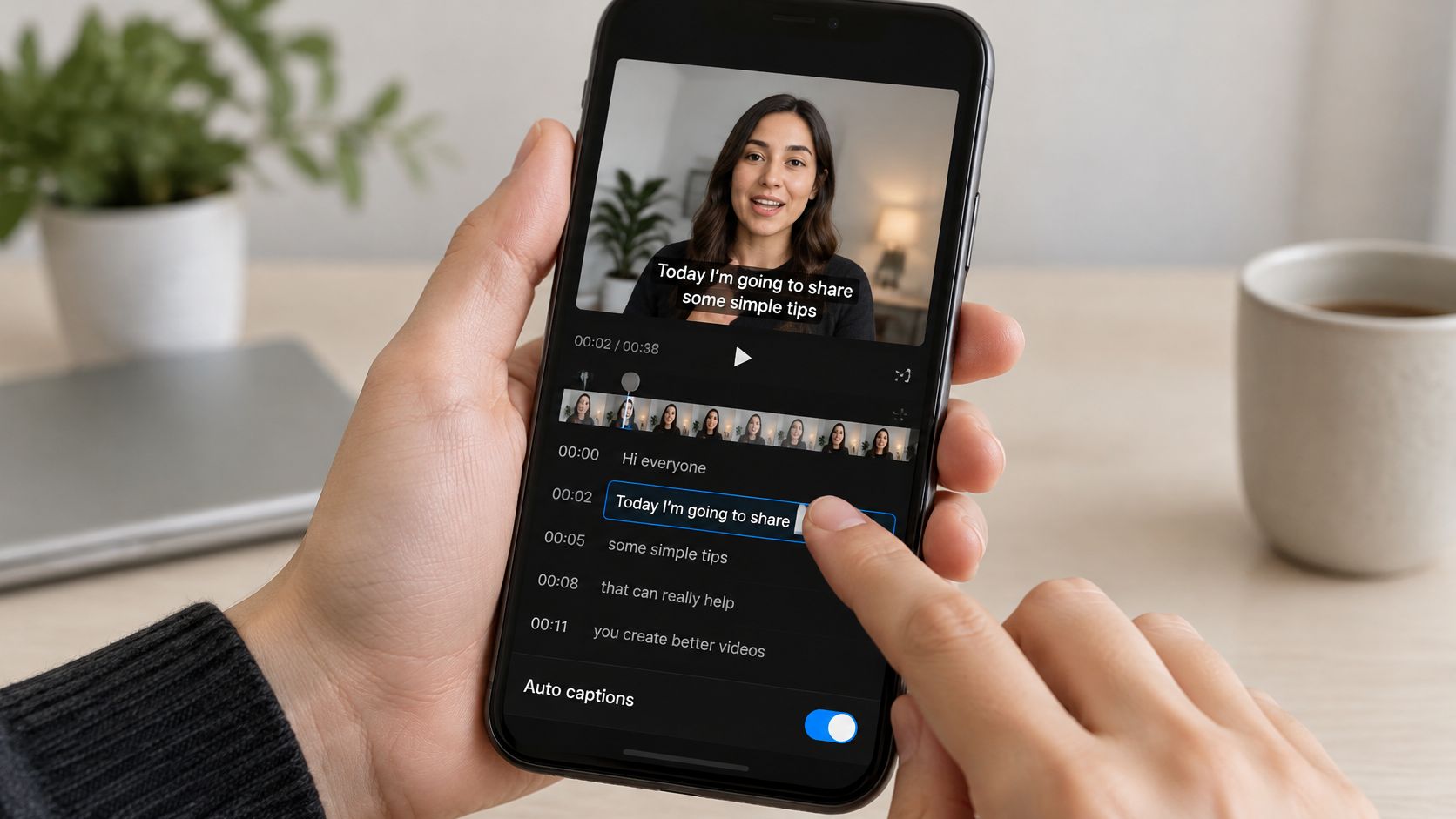
You've finished a property walkthrough, the voiceover sounds clear, and you're ready to post. Then TikTok turns the street name into something else, drops a word from the rental terms, and displays the price incorrectly. The captions look polished enough that you could easily miss all of it.
TikTok automatic captions are a first draft, not a publishing approval. The practical workflow is to generate the text quickly, correct it against the audio, and spend the most review time on mistakes that could mislead someone. A wrong address deserves more attention than a misplaced comma.
TikTok automatic captions are a first draft, not a publishing approval. The practical workflow is to generate the text quickly, correct it against the audio, and spend the most review time on mistakes that could mislead someone. A wrong address deserves more attention than a misplaced comma.
Summary
Create an AI Video Tours from PhotosTry it For Free
How to Turn On TikTok Automatic Captions
- Record or upload your video. Open TikTok and start with the clip you want to publish. Finish any major cuts before generating captions so you aren't reviewing speech you'll remove.
- Open the editing screen. Find the post-editing tools after recording or selecting your upload. Look for the captions option; its placement can differ between app versions.
- Select automatic captions. Let TikTok transcribe the spoken audio, then play the video with sound on while reading the generated text.
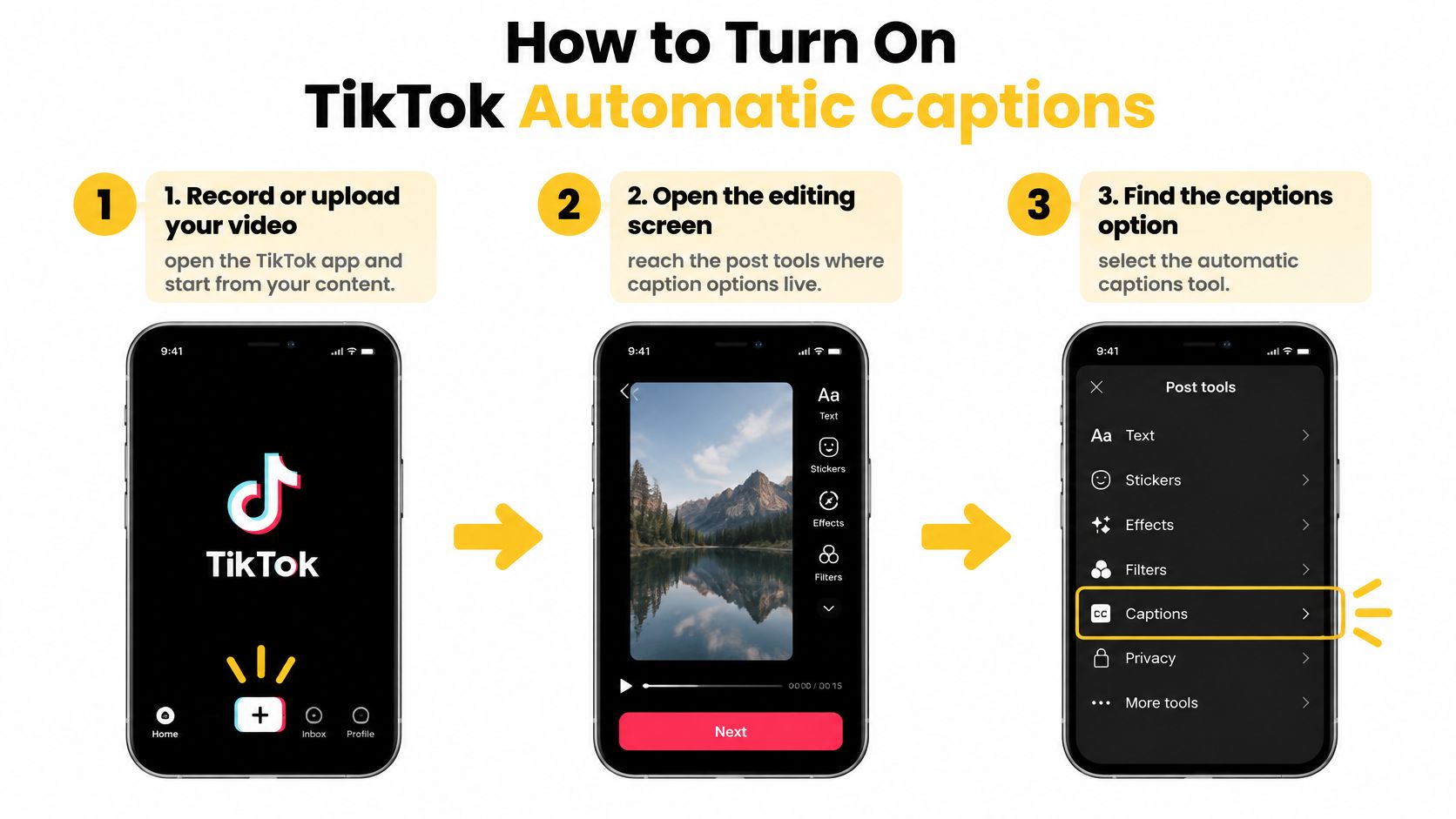 You're looking for spoken subtitles, not the description field where you write the post copy and hashtags. Automatic captions use the video's audio to produce text, so they won't explain a silent room tour unless you add narration or write on-screen descriptions separately.
What you control before posting
Open the generated caption text and review the available editing controls before proceeding. Correct the transcript while you can still compare it directly with the clip, rather than assuming you can repair every detail after publication.TikTok's automatic-caption announcement introduced the feature on April 6, 2021, primarily for deaf and hard-of-hearing users, with American English and Japanese supported at launch. It also established the creator workflow of generating, reviewing, and editing subtitles before publication, while allowing viewers to disable them during playback.
That viewer control matters. Your speech should remain understandable when captions are enabled, without requiring someone to infer missing words from the visuals.
Production rule: Turning captions on starts the review process. It doesn't finish it.Keep the clip in draft until you've checked the words, timing, and mobile presentation. Don't approve the track just because the opening sentence is correct.
Why Captions May Be Missing or Limited
A missing captions button doesn't necessarily mean you've done anything wrong. Check the app and the specific upload before spending time changing your entire editing workflow.
TikTok's captioning tools haven't always been available universally. The announcement of its July 2022 accessibility and translation expansion described availability on select videos, with an initial set of nine languages. That historical rollout explains why older tutorials can describe different controls, but it isn't a guarantee of what your account supports today.
TikTok's captioning tools haven't always been available universally. The announcement of its July 2022 accessibility and translation expansion described availability on select videos, with an initial set of nine languages. That historical rollout explains why older tutorials can describe different controls, but it isn't a guarantee of what your account supports today.
Troubleshoot the upload, not just the account
- Update TikTok. Install the current app version, reopen it, and check the editing tools again.
- Check the spoken language. Confirm that the language selected for transcription matches the actual speech, where that setting is available.
- Test the particular clip. Listen for intelligible speech rather than music, distant conversation, or a voice buried beneath background sound.
- Check creator and viewer controls separately. A viewer-accessible caption option isn't the same thing as an editable creator caption track.
A missing feature is a reason to change methods, not a reason to leave spoken information inaccessible.If native captioning won't work, write and time the subtitles in your editor or import an external transcript into an editor that supports it. Don't assume TikTok accepts the same subtitle-file workflow as another platform. Preview the finished captioned video before uploading it.
How to Edit Captions and Flag High-Risk Errors
Start with the voice track. Keep the narration clear, lower music beneath speech, and avoid speakers talking over each other. In a scripted property video, write names and numerals unambiguously and pronounce them deliberately during recording.
Don't distort someone's accent to accommodate transcription software. Instead, remove avoidable recording problems and give unfamiliar names, regional vocabulary, and technical terms a deliberate manual check.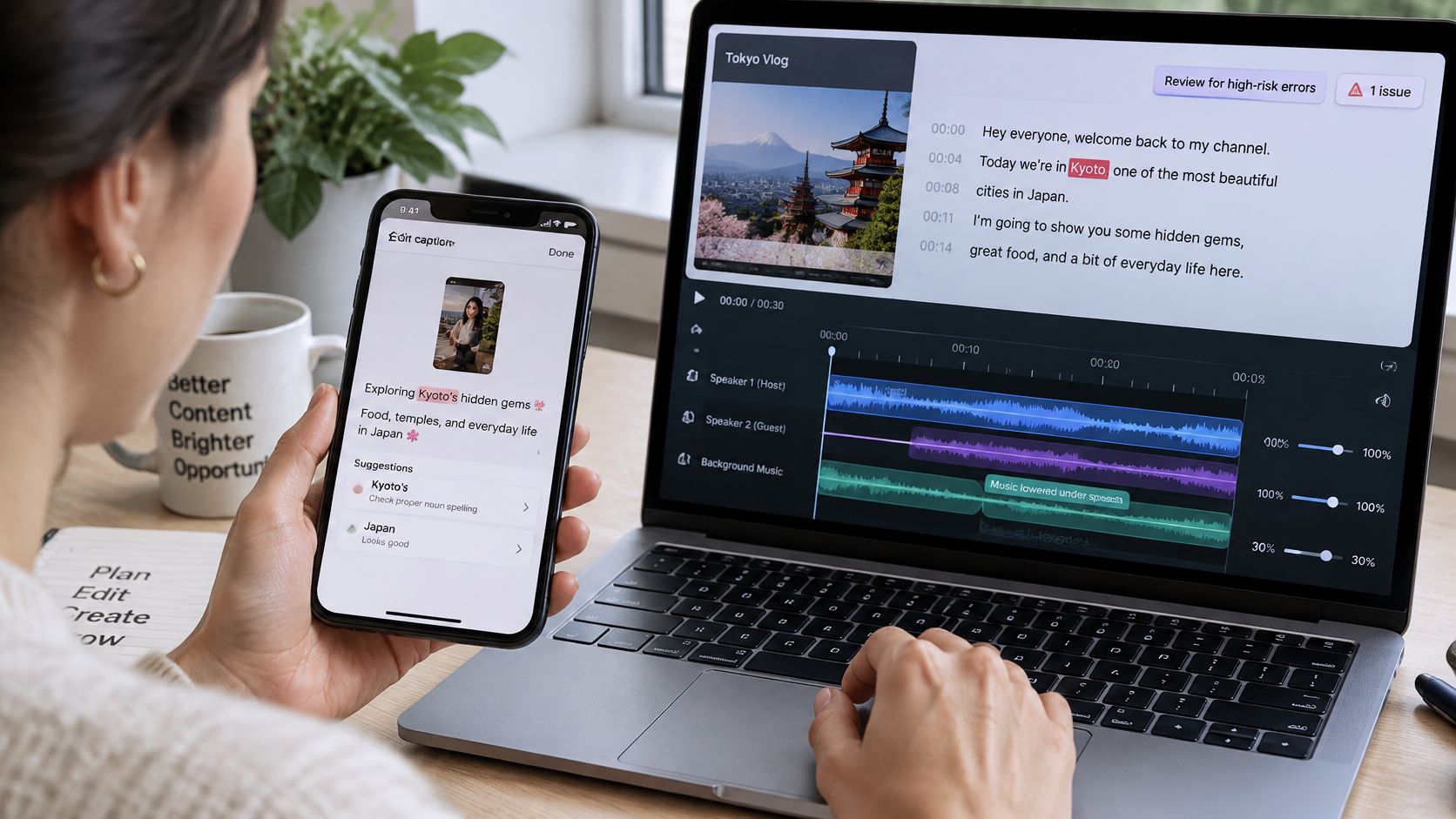
A single average also doesn't tell you whether an error changes the offer. A misspelled filler word and an incorrect rent amount aren't equivalent editorial problems.
Use this table to allocate attention, not to excuse low-risk mistakes. Fix punctuation too, but don't spend your review time perfecting commas while leaving the address unchecked.
The ACM review of caption language and viewer tolerance discusses how viewers may tolerate casual or error-prone captions more on TikTok than on YouTube. Viewer tolerance isn't a quality standard for listing information. Informal styling can suit a social video; inaccurate property details cannot.
Say a vacation-rental narration describes parking as unavailable, but the caption omits the negative. The sentence may remain grammatical, so a spelling-only scan won't catch the problem. Compare meaning, not just letter sequences.
If you're working through an automatic caption generator, keep that source document beside the editor. Generating another draft isn't a substitute for checking the disputed term.
Finish by inspecting contrast over moving footage and reading the rendered version on a phone. AI can make mistakes, so every video needs human review before publication, including videos whose scripts were approved before generation.
Don't distort someone's accent to accommodate transcription software. Instead, remove avoidable recording problems and give unfamiliar names, regional vocabulary, and technical terms a deliberate manual check.
Run a complete transcript edit
- Compare every line with the audio. Play at normal speed first. Replay uncertain passages more slowly, using the waveform in your editor to locate the relevant speech.
- Correct substitutions. Look for plausible words that aren't what the speaker said. A neighborhood name can become an ordinary phrase without making the sentence look obviously broken.
- Restore omissions and remove insertions. Missing negation is especially serious. A caption that drops not can reverse a statement about included parking, permitted uses, or accessibility.
- Fix punctuation and capitalization. Preserve the speaker's meaning rather than rewriting the narration into a different claim.
- Adjust phrase breaks and timing. Break dense text at natural pauses. Keep each phrase visible long enough to read without leaving it attached to unrelated footage.
A single average also doesn't tell you whether an error changes the offer. A misspelled filler word and an incorrect rent amount aren't equivalent editorial problems.
Caption content checks by risk
| Caption content | Harm if wrong | Required check |
|---|---|---|
| Street address or neighborhood name | Viewer goes to the wrong place | Compare with the listing record |
| Price, rent or fees | Misleading offer | Verify against the source listing |
| Room count, square footage or measurements | False property details | Check against the floor plan or source data |
| Legal disclaimer or regulated wording | Compliance problem | Confirm the approved text word for word |
| Brand, agent or company name | Reputational damage | Check spelling against the brand sheet |
| Safety or accessibility claim | Trust or safety issue | Confirm the claim is accurate before export |
| Punctuation and capitalization | Minor readability issue | Quick scan during replay |
The ACM review of caption language and viewer tolerance discusses how viewers may tolerate casual or error-prone captions more on TikTok than on YouTube. Viewer tolerance isn't a quality standard for listing information. Informal styling can suit a social video; inaccurate property details cannot.
Say a vacation-rental narration describes parking as unavailable, but the caption omits the negative. The sentence may remain grammatical, so a spelling-only scan won't catch the problem. Compare meaning, not just letter sequences.
Set a firm release gate
Reject the caption track if an address, price, room count, disclaimer, brand name, or safety claim is wrong. Verify the correction against the authoritative document, not your memory or the machine's previous draft.If you're working through an automatic caption generator, keep that source document beside the editor. Generating another draft isn't a substitute for checking the disputed term.
Finish by inspecting contrast over moving footage and reading the rendered version on a phone. AI can make mistakes, so every video needs human review before publication, including videos whose scripts were approved before generation.
Multilingual Captions and When to Translate
Automatic caption language support
| Language | At 2021 launch | In 2022 rollout |
|---|---|---|
| English | Yes (American English) | Yes |
| Japanese | Yes | Not in the 2022 list |
| Portuguese | No | Yes |
| German | No | Yes |
| Indonesian | No | Yes |
| Italian | No | Yes |
| Korean | No | Yes |
| Mandarin | No | Yes |
| Spanish | No | Yes |
| Turkish | No | Yes |
The more important production issue is compounded error. As the TokConnect guide to TikTok subtitles explains, translated captions may originate from a machine transcript, so a recognition mistake can pass into translation and become a second mistake.
Approve the source text before translation
Generate the original-language transcript, verify its factual terms, and only then translate it. Keep an approved glossary beside the translation for property names, addresses, brands, amenities, and room categories.Names and addresses usually need preservation, not creative localization. Currency must remain explicit, and any conversion requires separate verification rather than an assumption by the translation tool. Regulated wording should go through an appropriately qualified reviewer instead of being accepted as a literal machine translation.
For a hotel video, a room-category name may be a branded label rather than a generic description. Translate the explanation where useful, but preserve the official category so viewers can find the same room when booking.
Translate the approved meaning, then check whether a viewer can act on it correctly.Choose a separate language export when translated text becomes too dense for comfortable mobile reading or when the target audience needs different terminology. Don't shrink the font until an overlong translation fits.
For less widely supported languages and regional varieties, arrange review by someone who understands both the language and the property context. Grammatical fluency alone won't confirm that a rental condition or accessibility description means the right thing.
Native Captions Compared with Other Methods
Caption methods compared
| Method | Best for | Main trade-off |
|---|---|---|
| Native TikTok automatic captions | Fast captions on everyday posts with clear speech | Limited control over exact wording and styling |
| Typed captions written by hand | Exact wording for legal, listing or compliance copy | Takes time for every video |
| External transcript imported into an editor | Precise timing and custom styling | Extra export and upload step |
| Platform video tool with caption controls | Batch property or branded videos built from photo sets | Every caption still needs a review before publishing |
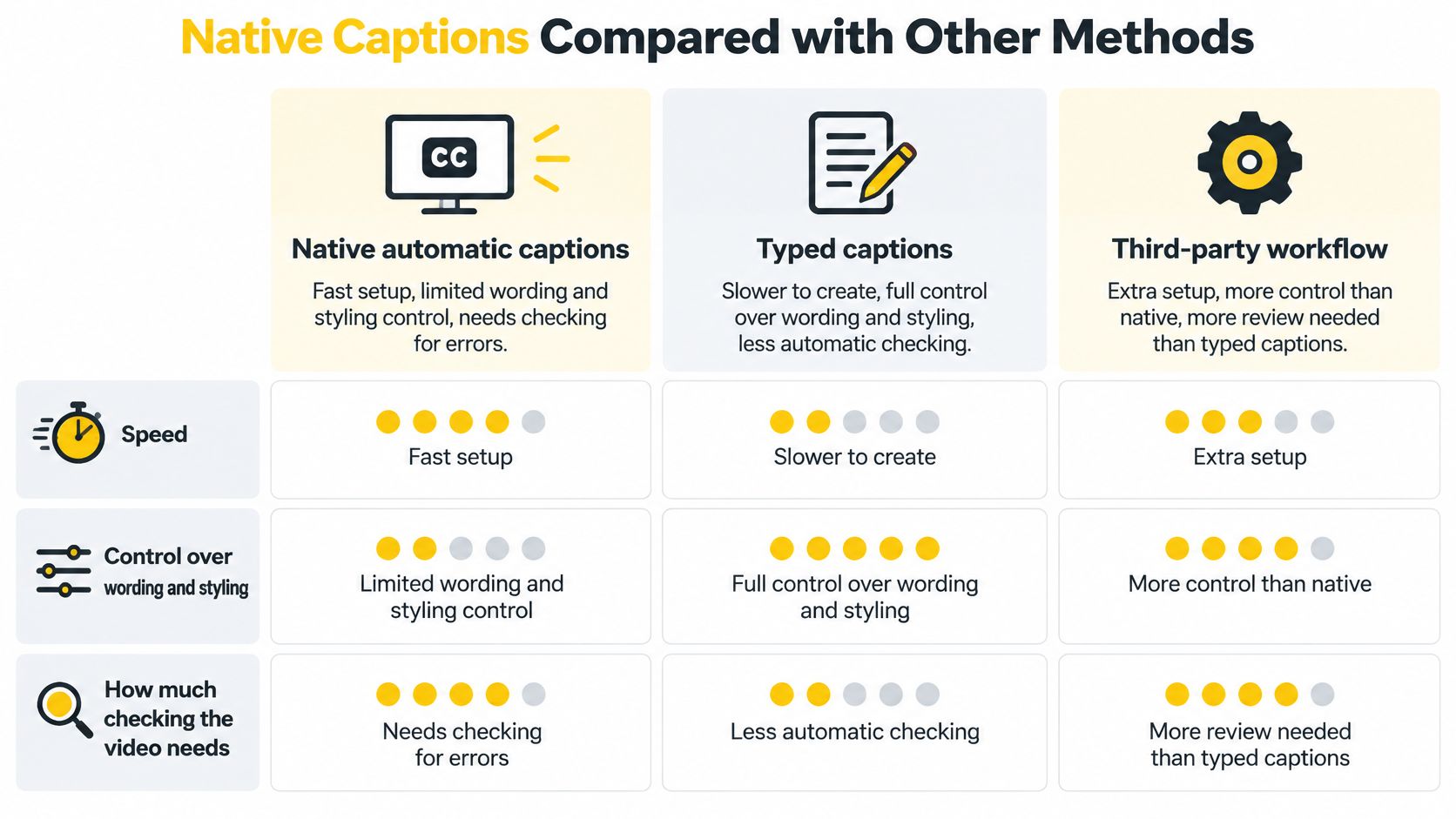
Match the method to the job
For a spontaneous agent update with clean speech, native captions are a practical starting point. You avoid moving between tools, and you can correct the draft during post preparation. The trade-off is working within the app's available presentation controls.For approved legal or compliance wording, typed captions give you direct control over the text. Paste from the approved document where appropriate, then check timing and completeness. Manual entry can still introduce omissions and typos.
An external transcript makes sense when you need deliberate phrase timing, a consistent visual style, or captions positioned around important property details. The cost is another production step, and any later correction may require another export.
A photo-to-video platform workflow suits repeatable property, hospitality, and commercial-space marketing. Keep a designated approval stage so batch production doesn't become batch publication of unchecked text.
Decide how the text will be delivered
Separate caption tracks and text embedded in the video behave differently. Embedded captions travel with the exported picture, but viewers can't switch them off independently; separate tracks depend on the player's controls.Avoid placing native subtitles directly over embedded text. If you're repurposing the same creative elsewhere, use a destination-specific check, including the workflow in this guide to automatic captions on Instagram, rather than assuming every platform renders captions identically.
Confirm Your Captions Before You Publish
Use a repeatable final review, not a casual glance at the thumbnail. Keep the listing record, approved script, and any required disclaimer available while you watch.
Treat visual descriptions and speech subtitles as different editorial jobs. A label identifying a kitchen doesn't capture everything a narrator says about it, and neither should obscure the other.
Pick a video you've already posted and run this routine on it. Identify the first error or readability problem, then use that finding as a specific check before your next post.
VideoTour.ai turns property photos into ready-to-share videos with motion, captions, music, and branding. Visit VideoTour.ai to create a tour, customize its caption text and appearance, and review the finished video before sharing it on TikTok.
- Listen and read together. Replay the full video with sound on. Confirm that each caption matches what the speaker says.
- Verify consequential wording. Check names, addresses, prices, measurements, and legal language against their source documents.
- Watch the presentation. Look for awkward phrase breaks, captions that disappear mid-thought, and text that becomes unreadable over bright or moving footage.
- Test the phone view. Preview the version viewers will receive, with switchable captions enabled and disabled. Check that interface controls don't obscure important text.
- Approve the finished version. If you make a correction, replay the affected passage and its transition before posting.
Keep visual captions distinct from speech subtitles
In VideoTour.ai, our AI writes captions that match the video's visuals. You can edit captions for each photo individually, including text, position, font, size, and stroke, and turn them on or off for specific clips. Use the voiceover subtitle controls when checking how spoken narration appears alongside that visual text.Treat visual descriptions and speech subtitles as different editorial jobs. A label identifying a kitchen doesn't capture everything a narrator says about it, and neither should obscure the other.
Pick a video you've already posted and run this routine on it. Identify the first error or readability problem, then use that finding as a specific check before your next post.
VideoTour.ai turns property photos into ready-to-share videos with motion, captions, music, and branding. Visit VideoTour.ai to create a tour, customize its caption text and appearance, and review the finished video before sharing it on TikTok.