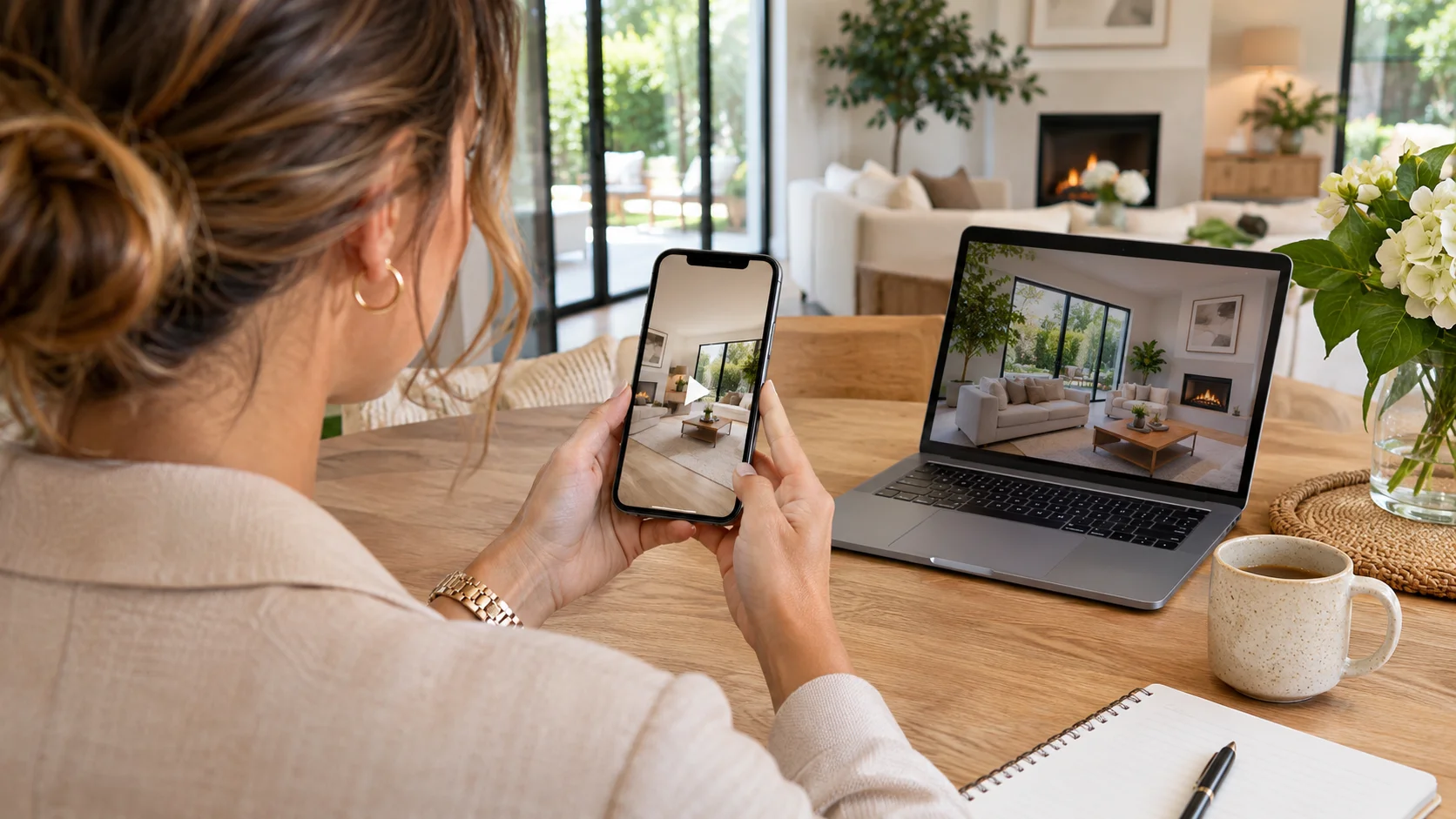
VideoTour.ai takes your property photos from a listing folder to a finished video and a prepared social post in one workspace. Create a property tour or AI reel, review it in the editor, then use Post the video to choose your connected accounts, write the caption and publish or schedule.
You can publish to Instagram, Facebook and YouTube through connected accounts. For TikTok, send the video to drafts and finish the post in the TikTok app. Here is how the workflow works, from your first photos to checking the result.
You can publish to Instagram, Facebook and YouTube through connected accounts. For TikTok, send the video to drafts and finish the post in the TikTok app. Here is how the workflow works, from your first photos to checking the result.
Summary
Create an AI Video Tours from PhotosTry it For Free
How social sharing works in VideoTour.ai
The workflow has five steps:
The connected publishing workflow sends the finished video from VideoTour.ai to the destination. You can prepare the post without first downloading the file and uploading it again in another app.
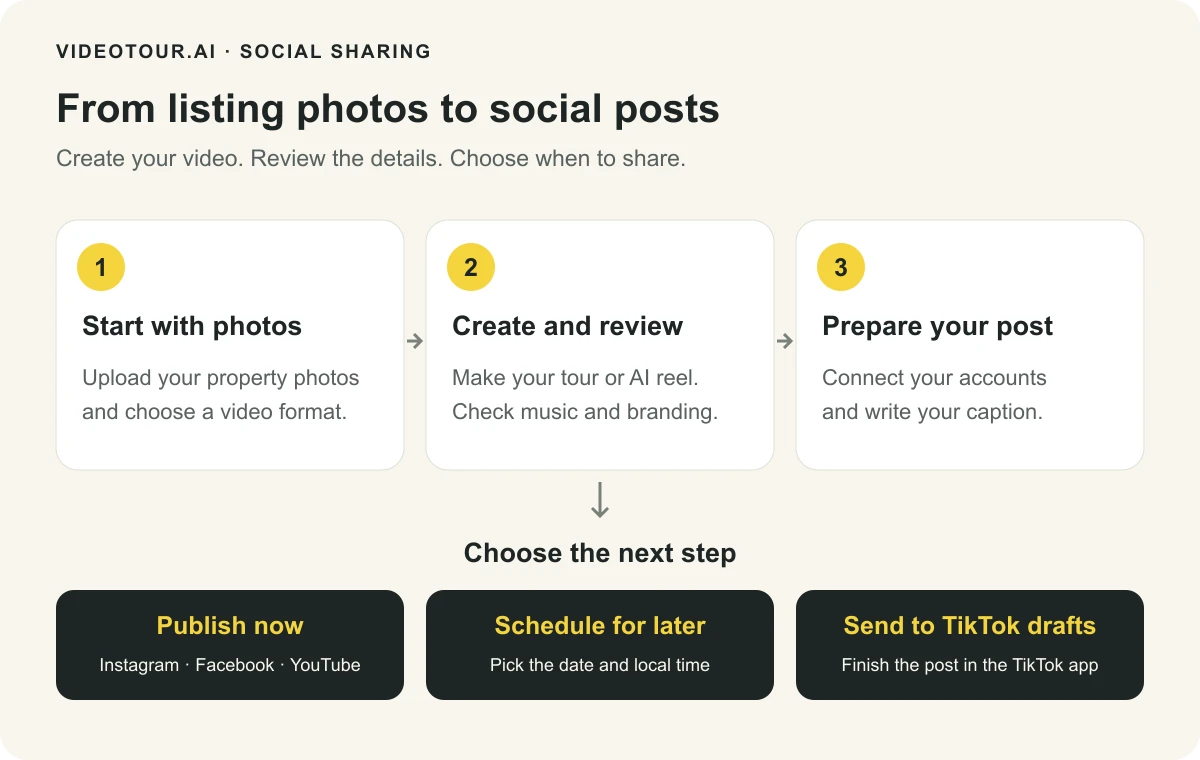
From your listing photos to a prepared social post in VideoTour.ai.
- Create: upload your listing photos and make a property tour or AI reel.
- Review: check the finished video, music, captions and branding.
- Connect: add the social accounts you want to use.
- Prepare: select the destinations and edit the post text.
- Share: publish now, choose a future time, or send a TikTok draft.
The connected publishing workflow sends the finished video from VideoTour.ai to the destination. You can prepare the post without first downloading the file and uploading it again in another app.
From your listing photos to a prepared social post in VideoTour.ai.
| Destination | What happens |
|---|---|
| Publish to a connected Business or Creator account | |
| Publish to a Facebook Page you manage | |
| YouTube | Upload to the selected channel with a title, description and available visibility setting |
| TikTok | Send to drafts, then finish publication in the TikTok app |
1. Create a property video from your listing photos
Open Create a video and add the photos for the property you want to promote. Choose images that tell a useful story: the exterior, the main living spaces, the strongest features and a closing view.
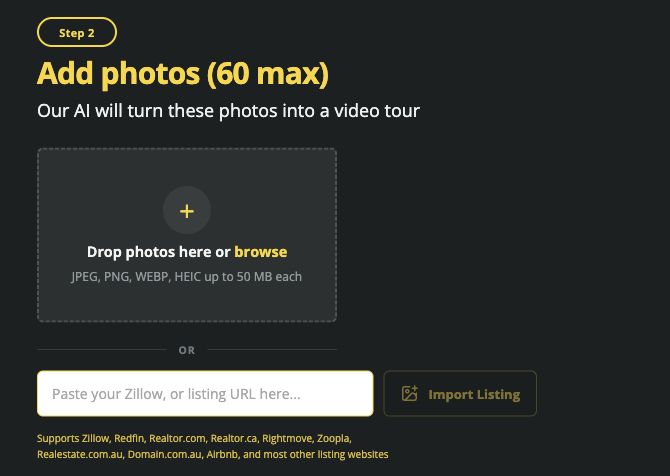
Add your property photos, or start from a listing URL.
For a short social edit, choose an AI reel and the campaign you are preparing, such as a property showcase, a just-listed announcement or an open house. Add the available AI effects that suit the listing, then review the generated result. The AI real estate reel maker explains these campaign options.
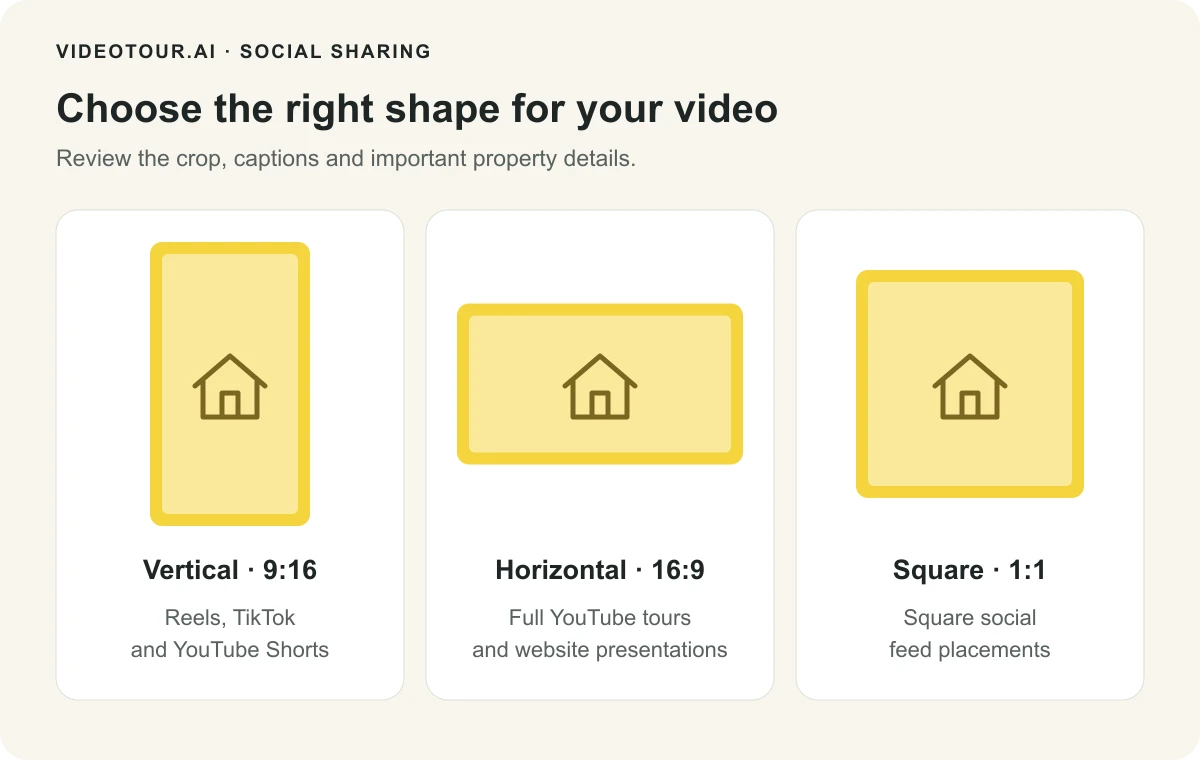
Choose the viewing format before checking the final framing.
Use the editor to review the sequence, rewrite on-screen captions, choose music and adjust your branding. Check that your agent details and the property information are easy to read. After making changes, use Apply changes and wait for the finished version before posting.
If you change the shape, review the framing again. See how to choose a vertical, wide or square video.
Add your property photos, or start from a listing URL.
For a short social edit, choose an AI reel and the campaign you are preparing, such as a property showcase, a just-listed announcement or an open house. Add the available AI effects that suit the listing, then review the generated result. The AI real estate reel maker explains these campaign options.
Choose the shape before sharing
- Vertical, 9:16: a practical starting point for Instagram Reels, TikTok and YouTube Shorts.
- Horizontal, 16:9: useful for a full YouTube property tour or a presentation on your website.
- Square, 1:1: an option for a square social placement.
Choose the viewing format before checking the final framing.
Use the editor to review the sequence, rewrite on-screen captions, choose music and adjust your branding. Check that your agent details and the property information are easy to read. After making changes, use Apply changes and wait for the finished version before posting.
If you change the shape, review the framing again. See how to choose a vertical, wide or square video.
2. Connect your social accounts
Open the finished video and choose Post the video, beside the download button. In Review and post, choose a network tab. If you have not connected an account yet, use its connect button and follow that platform's sign-in steps.
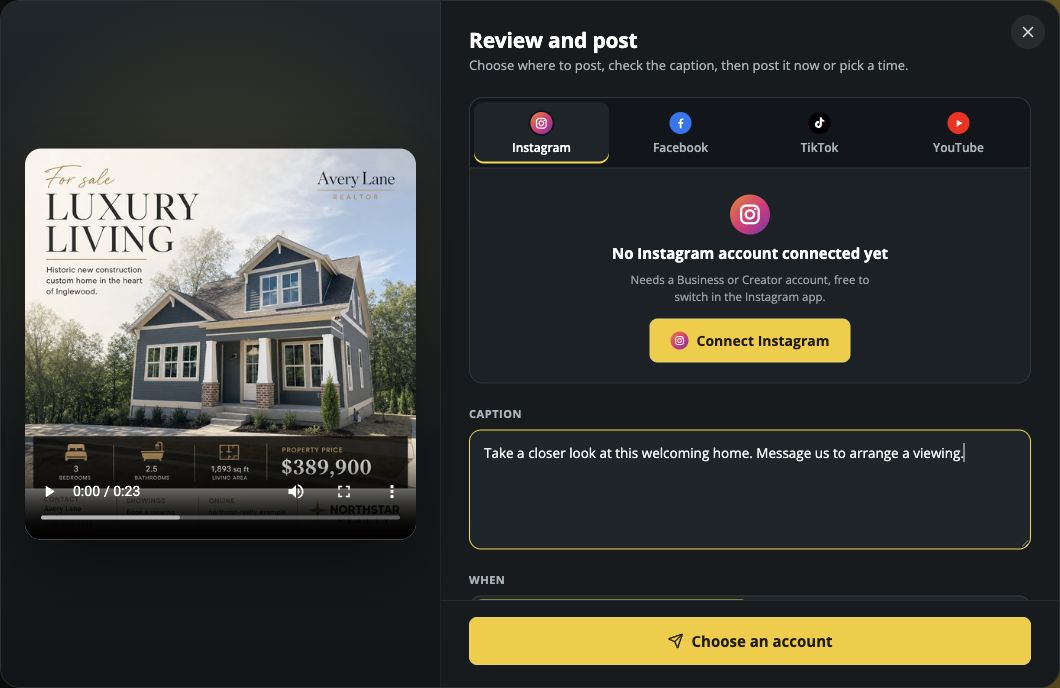
Choose the network tab and connect the account you want to use.
After connecting, you return to the posting dialog. Select the displayed account and check its name before continuing. You can use the + control to add another account when your plan has room.
Your connections remain available for future videos. You can also manage them in My profile → Connected accounts, including reconnecting an account when prompted.
- Instagram: choose Connect Instagram and sign in with your Business or Creator account.
- Facebook: choose Connect a Facebook Page and select the Page you manage.
- YouTube: choose Connect YouTube and select the channel you want to use.
- TikTok: choose Connect TikTok and sign in to the profile that should receive the video.
Choose the network tab and connect the account you want to use.
After connecting, you return to the posting dialog. Select the displayed account and check its name before continuing. You can use the + control to add another account when your plan has room.
Your connections remain available for future videos. You can also manage them in My profile → Connected accounts, including reconnecting an account when prompted.
3. Review the video and write your caption
The posting screen places the video preview beside the account and caption controls. Watch the result, select your destination and prepare the text that viewers will see with the video.
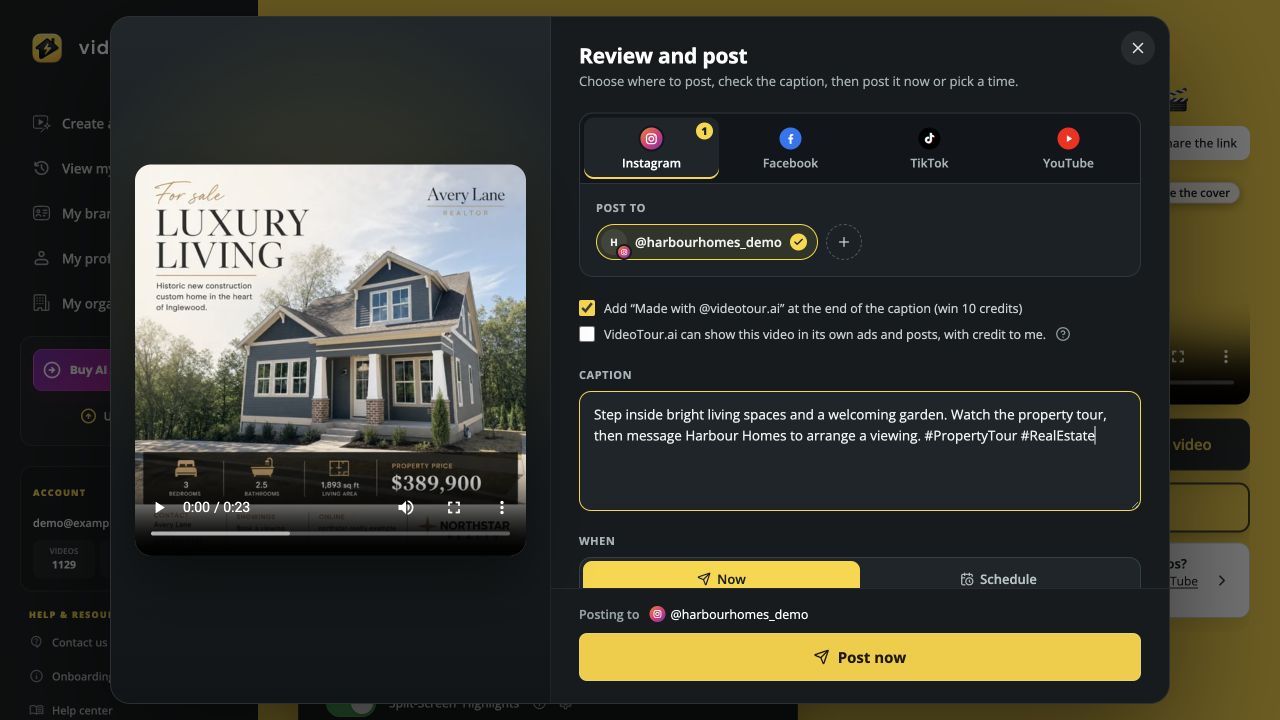
VideoTour.ai's posting screen, shown with a sample listing and demo account.
Open the relevant network tabs and select the accounts you want to use. Check the destination summary above the final button, especially if your agency manages several profiles or Pages.
Lead with the property's strongest feature, add the details that matter, and finish with one next step. For example:
Add the actual location, open-house time or listing information where useful. Hashtags and @mentions can go in the caption field. If you want a different message for each network, prepare separate posts with the wording you want for each audience.
Before sending, review the optional choices shown in the dialog, then choose when the post should go out.
VideoTour.ai's posting screen, shown with a sample listing and demo account.
Choose the accounts for this post
Open the relevant network tabs and select the accounts you want to use. Check the destination summary above the final button, especially if your agency manages several profiles or Pages.
Give the caption one clear purpose
Lead with the property's strongest feature, add the details that matter, and finish with one next step. For example:
Bright living spaces and a garden made for slow weekends. Watch the property tour, then message us to arrange a viewing.
Add the actual location, open-house time or listing information where useful. Hashtags and @mentions can go in the caption field. If you want a different message for each network, prepare separate posts with the wording you want for each audience.
Before sending, review the optional choices shown in the dialog, then choose when the post should go out.
4. Publish to Instagram and Facebook
For Instagram, select your connected professional account in the Instagram tab. For Facebook, select the Page in the Facebook tab. You can select accounts from both networks when the same video and caption suit both audiences.
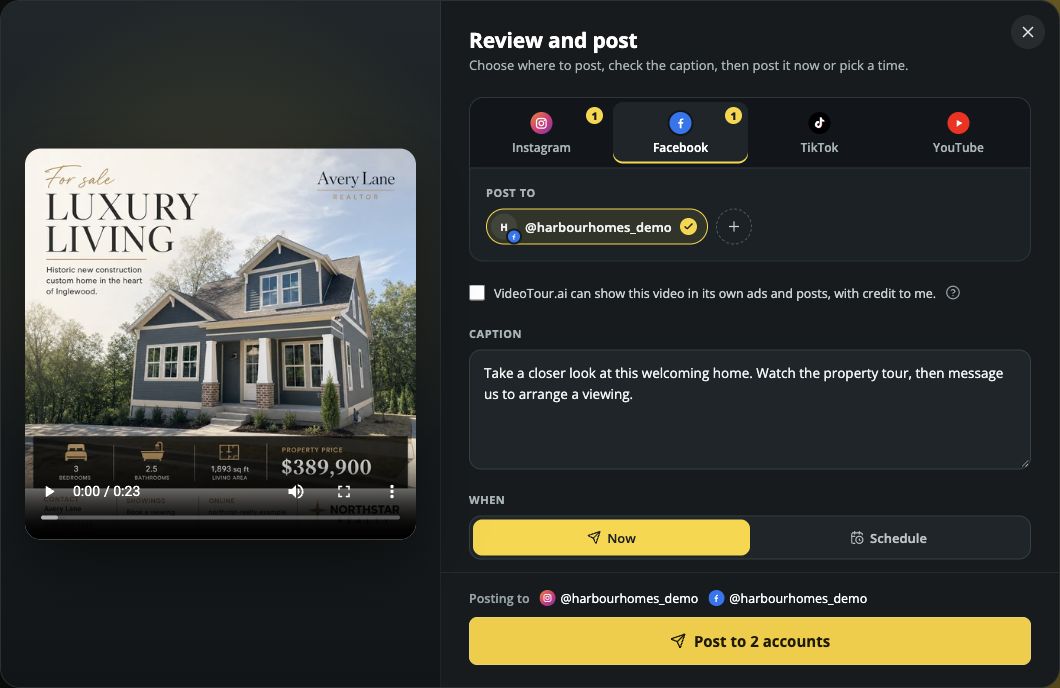
The destination summary shows both selected accounts before you send.
Choose Now, check the selected destinations, then use Post now or the button naming the number of selected accounts. VideoTour.ai sends the finished video in the background and opens the posting section in the Share tab.
Use a vertical property highlight when you want a phone-focused opening. Let the first scene show something worth seeing, and keep the call to action simple: request a viewing, ask for the full listing, or get the open-house details.
If your Instagram account is personal, switch it to a professional account in Instagram before connecting. Facebook posting uses a Page you manage.
The destination summary shows both selected accounts before you send.
Choose Now, check the selected destinations, then use Post now or the button naming the number of selected accounts. VideoTour.ai sends the finished video in the background and opens the posting section in the Share tab.
Use a vertical property highlight when you want a phone-focused opening. Let the first scene show something worth seeing, and keep the call to action simple: request a viewing, ask for the full listing, or get the open-house details.
If your Instagram account is personal, switch it to a professional account in Instagram before connecting. Facebook posting uses a Page you manage.
5. Upload your property video to YouTube
Choose the YouTube tab and select your channel. Give the video a clear title, such as the property location and its main selling point. The text in Caption becomes the YouTube description.
Review the available Who can watch setting and the options shown for your video. If only Private is offered, complete the upload and change its visibility in YouTube Studio when you are ready to publish.
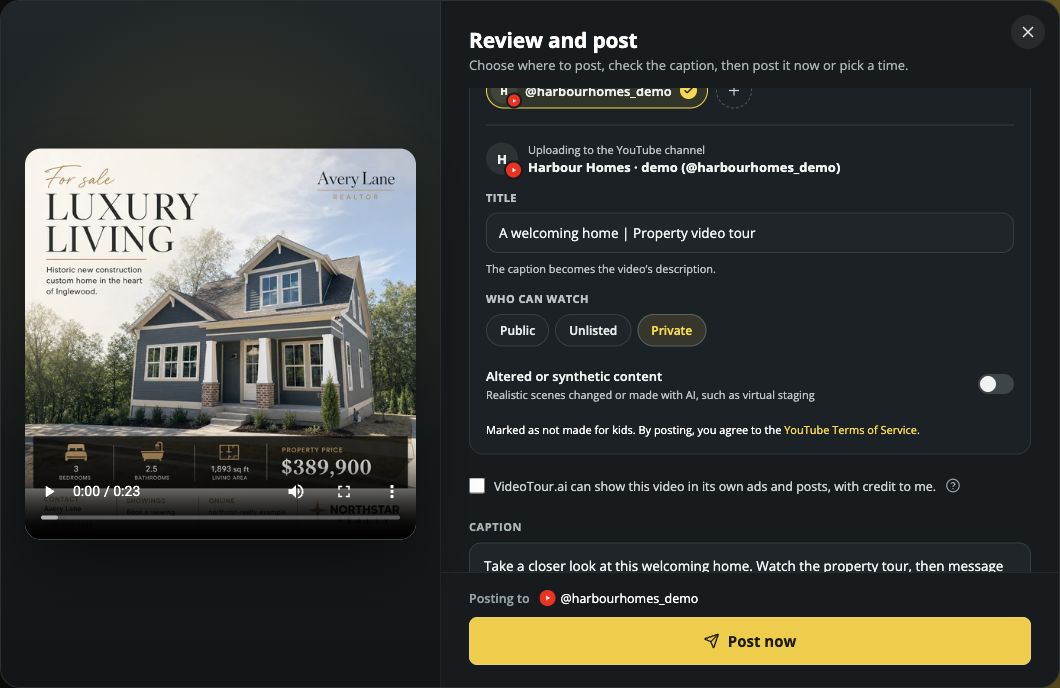
Review the channel, title and available visibility setting.
A full tour and a Short can serve different purposes. Use a horizontal tour to show the layout, or a vertical highlight to introduce the property quickly. Our YouTube video ratio guide explains the formats.
If the posting screen asks you to change the music for YouTube, choose another track in the editor and apply the change before submitting the new finished version.
Review the available Who can watch setting and the options shown for your video. If only Private is offered, complete the upload and change its visibility in YouTube Studio when you are ready to publish.
Review the channel, title and available visibility setting.
A full tour and a Short can serve different purposes. Use a horizontal tour to show the layout, or a vertical highlight to introduce the property quickly. Our YouTube video ratio guide explains the formats.
If the posting screen asks you to change the music for YouTube, choose another track in the editor and apply the change before submitting the new finished version.
6. Send a video to TikTok drafts
Choose TikTok, select your connected account and use Send to drafts. VideoTour.ai sends the video to TikTok so you can finish it there.
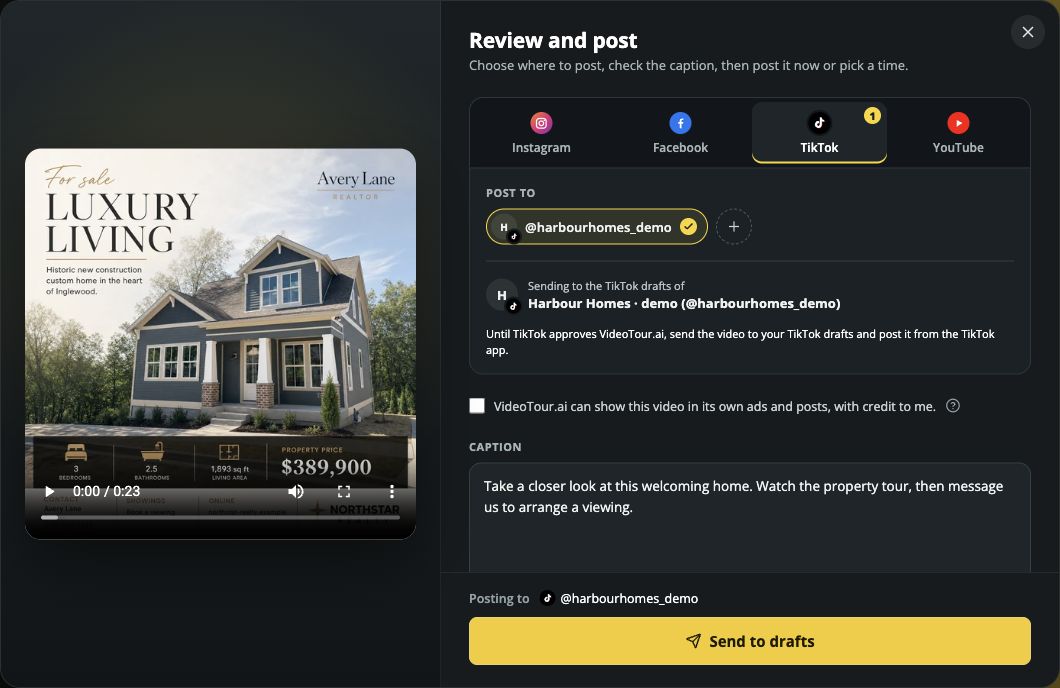
Send the video to your TikTok drafts, then finish it in TikTok.
In VideoTour.ai, the completed handoff appears as In TikTok drafts. That tells you the video has arrived for the final step in TikTok. If you schedule a TikTok draft, the scheduled time controls when it is sent to TikTok.
Send the video to your TikTok drafts, then finish it in TikTok.
- Open the TikTok app for the connected account.
- Find the incoming video in your TikTok inbox and open it.
- Complete the caption, finishing touches and audience settings in TikTok.
- Publish when the post is ready.
In VideoTour.ai, the completed handoff appears as In TikTok drafts. That tells you the video has arrived for the final step in TikTok. If you schedule a TikTok draft, the scheduled time controls when it is sent to TikTok.
7. Schedule posts and follow their progress
Scheduling lets you prepare the video and caption before the listing's launch time.
In Review and post, select the accounts, choose Schedule and enter the date and time. Check the time zone displayed below the field, then use Schedule post or the button naming the selected accounts.
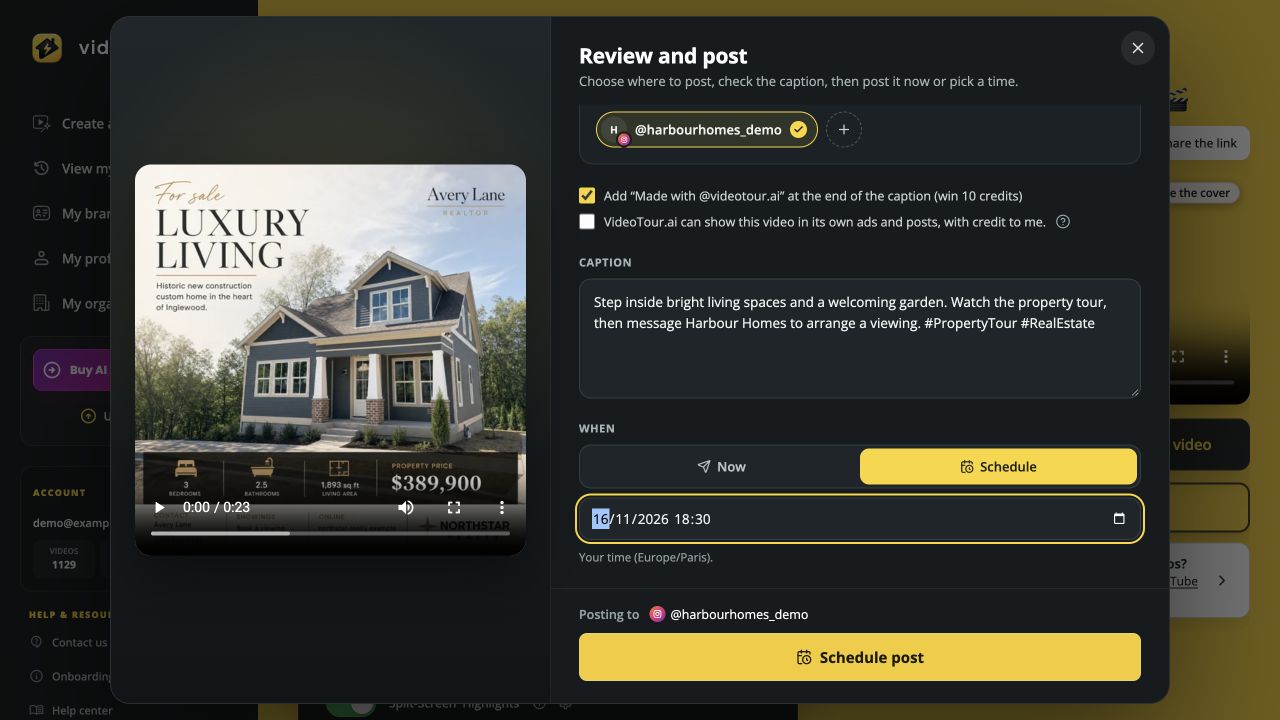
Set the publishing time beside the video preview and caption.
See the VideoTour.ai plans to choose the allowance that fits your workflow.
Open Share → Post to social media. Under Posts of this video, each destination has its own status:
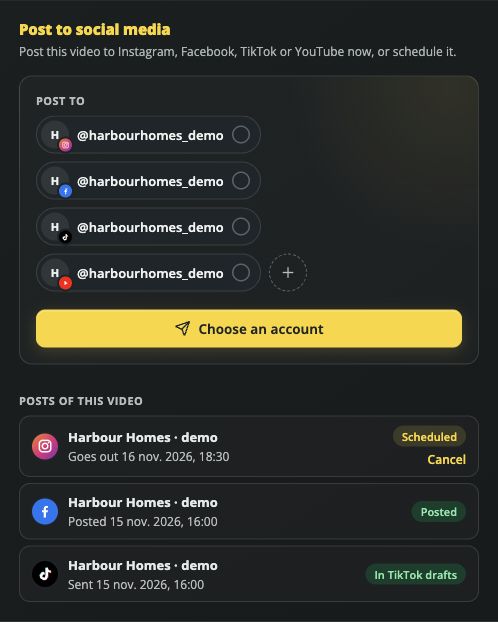
Example post history: each destination shows its own status.
If a listing launch changes, use Cancel on the waiting scheduled post. Finish any video or caption updates, then prepare a replacement with the new timing.
In Review and post, select the accounts, choose Schedule and enter the date and time. Check the time zone displayed below the field, then use Schedule post or the button naming the selected accounts.
Set the publishing time beside the video preview and caption.
Which plans include scheduling?
| Plan | Accounts per network | Publishing time |
|---|---|---|
| Free | 1 | Post now |
| Independent | 1 | Post now or schedule |
| Agency | 5 | Post now or schedule |
| Enterprise | 20 | Post now or schedule |
See the VideoTour.ai plans to choose the allowance that fits your workflow.
Where to check what happened
Open Share → Post to social media. Under Posts of this video, each destination has its own status:
- Scheduled: waiting for the selected time.
- Posting…: the video is being sent.
- Posted: the platform has confirmed the post. Use View post when a link is available.
- In TikTok drafts: open TikTok to finish publication.
- Failed: read the displayed message and follow the next step, such as reconnecting the account.
Example post history: each destination shows its own status.
If a listing launch changes, use Cancel on the waiting scheduled post. Finish any video or caption updates, then prepare a replacement with the new timing.
Use one listing to plan a useful social campaign
Start with the photos you already have and give each post a specific job. A first-look reel can introduce the property; a later room spotlight can focus on one feature; an open-house video can invite people to visit.
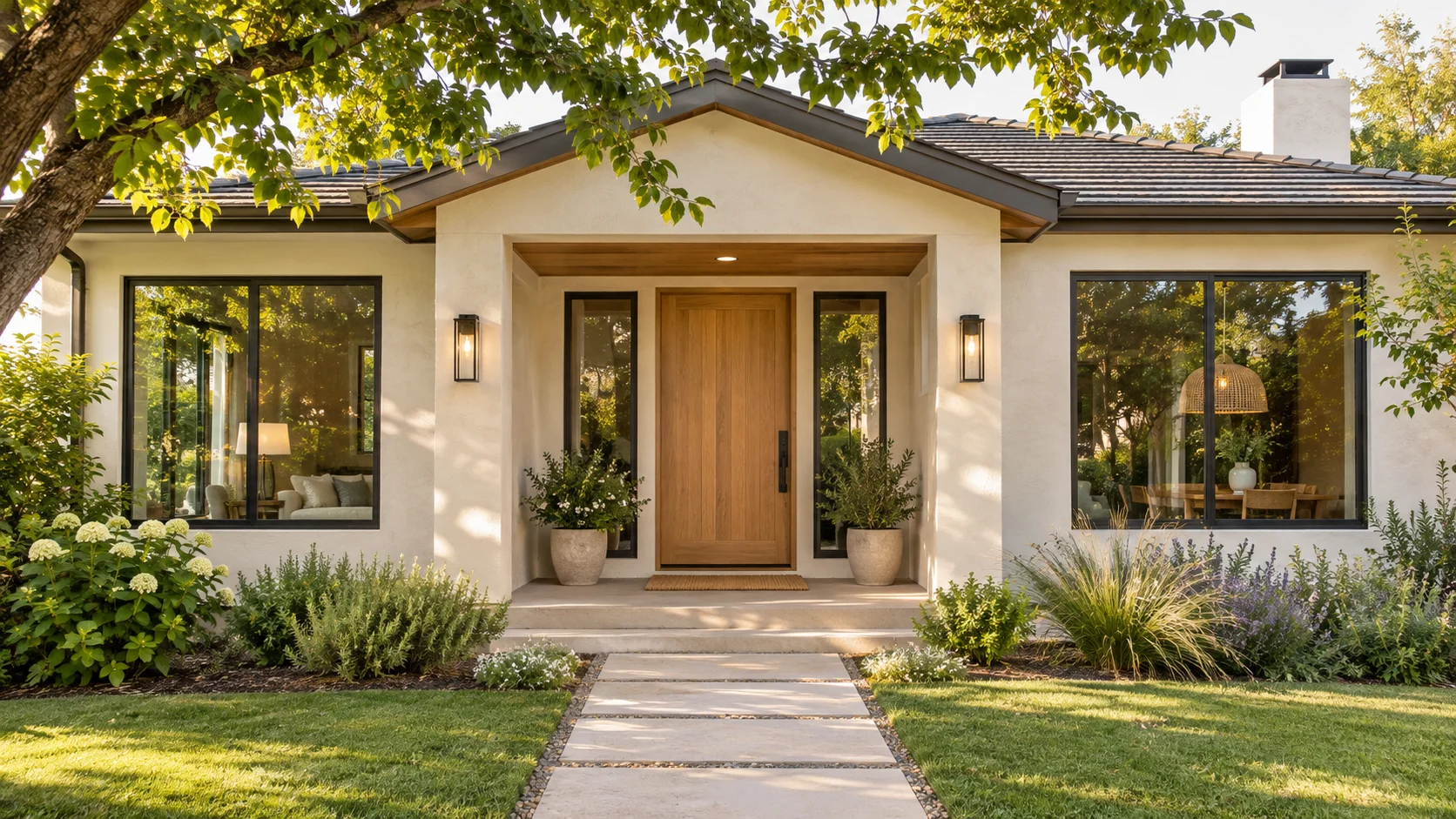
AI-generated example property, created for this guide.
For a home like this example, the entrance and garden could lead the first video. A second post could focus on the living spaces, using the actual interior photos and current listing details. Keep the text matched to the video rather than repeating the entire property description every time.
A simple routine is to prepare the finished video, write the caption, choose the right account and set the publishing time. After it goes out, track viewing requests and listing enquiries alongside video views. This helps you see which messages lead people to take the next step.
Have a listing ready? Create your property video in VideoTour.ai, then open Post the video to prepare your first social post.
AI-generated example property, created for this guide.
For a home like this example, the entrance and garden could lead the first video. A second post could focus on the living spaces, using the actual interior photos and current listing details. Keep the text matched to the video rather than repeating the entire property description every time.
A simple routine is to prepare the finished video, write the caption, choose the right account and set the publishing time. After it goes out, track viewing requests and listing enquiries alongside video views. This helps you see which messages lead people to take the next step.
Have a listing ready? Create your property video in VideoTour.ai, then open Post the video to prepare your first social post.
VideoTour.ai social sharing FAQ
Do I need to download the video before posting?
No. The connected posting workflow sends the finished video from VideoTour.ai to your selected destinations. The download option is also available when you want to keep a copy or upload it yourself.
Can I post the same video to several accounts?
Yes. Select the accounts you want across the network tabs and review the destination summary before sending. Your plan determines how many accounts you can connect per network. For different captions or timings, prepare separate posts.
Can I change the caption before sharing?
Yes. Edit the Caption field in Review and post. For YouTube, that text becomes the description; the title has its own field.
Can I schedule videos on the Free plan?
Free accounts can post now. Scheduling is included on Independent, Agency and Enterprise plans.
Where do I manage my connected accounts?
Open My profile → Connected accounts. You can also start a connection from the network tabs in the posting dialog.
Why does my TikTok video say “In TikTok drafts”?
VideoTour.ai has sent the video to TikTok. Open the TikTok app, find the incoming video and complete the post there.
Where do I see whether a post succeeded?
Open the video's Share tab and find Post to social media. Posts of this video shows the status for each destination, with a View post link when available.
Conclusion
Turn your next listing into a video people can discover on social media. Start in VideoTour.ai, review the finished result, connect your accounts and choose when to share it.